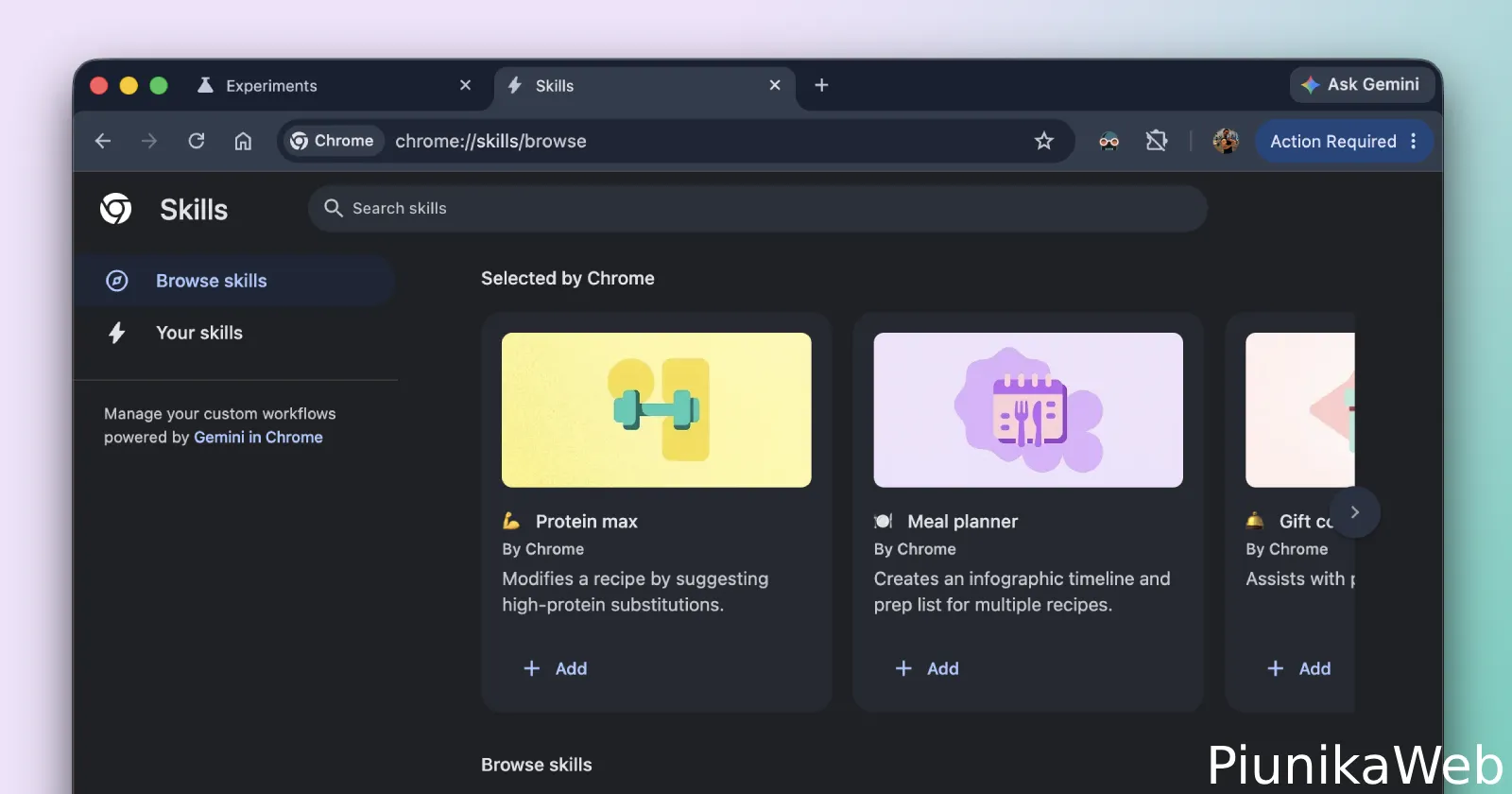
Chrome Canary now has a dedicated toggle to turn Gemini Skills on or off, separate from the main Chrome AI controls. The Gemini Skills switch is still in testing and only shows up for some users running the latest Chrome Canary build with AI features enabled.
Google’s been under pressure recently after Chrome quietly started downloading a roughly 4 GB Gemini Nano AI model on some Windows and macOS machines. Many users only noticed when disk space suddenly dropped or resource monitors lit up. The new Gemini Skills off switch looks like a direct response to that backlash and to the wider concern that Chrome’s AI features are getting a little too heavy and a little too automatic.
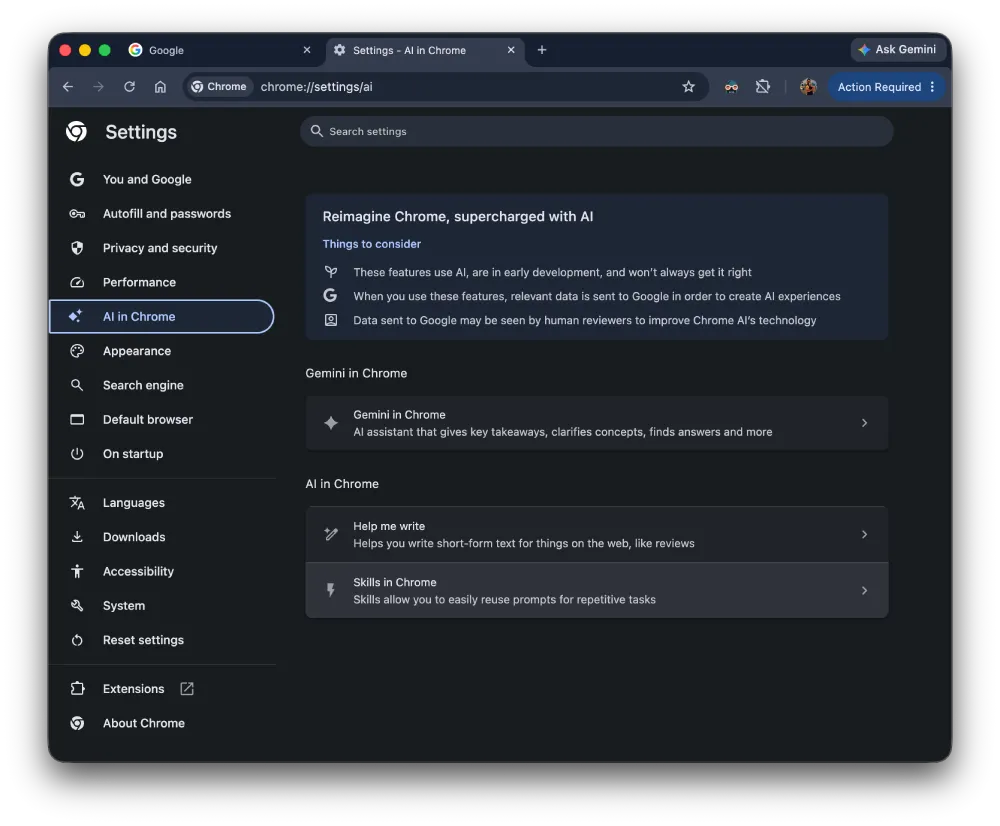
In our testing on Chrome Canary v150.0.7871.2, there’s now a new “Skills in Chrome” section under the “AI in Chrome” settings page. It sits alongside options like “Help me write” and the broader “Gemini in Chrome” entry, which controls the main browser AI assistant.
When you click into Skills in Chrome, you see a simple toggle labeled “Enable Skills in Chrome” and a shortcut to the Skills gallery. This is where Gemini Skills live, the part of the experience that lets you reuse prompts for repetitive tasks directly in Chrome.
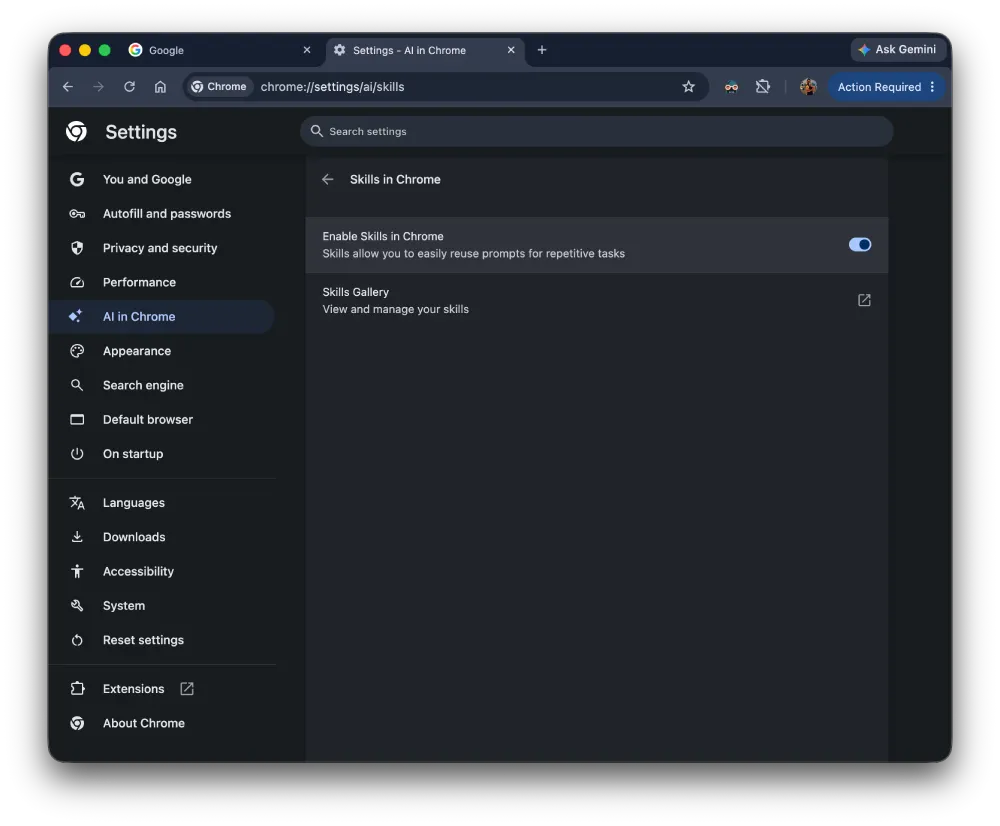
Turn that toggle off and Chrome immediately disables Gemini Skills. The Skills gallery stops working and instead shows a message that “Skills aren’t available” because the feature is disabled in settings. Your Gemini side panel can still open, and other Gemini in Chrome features remain available, but the skills layer that hooks into workflows is cut off.
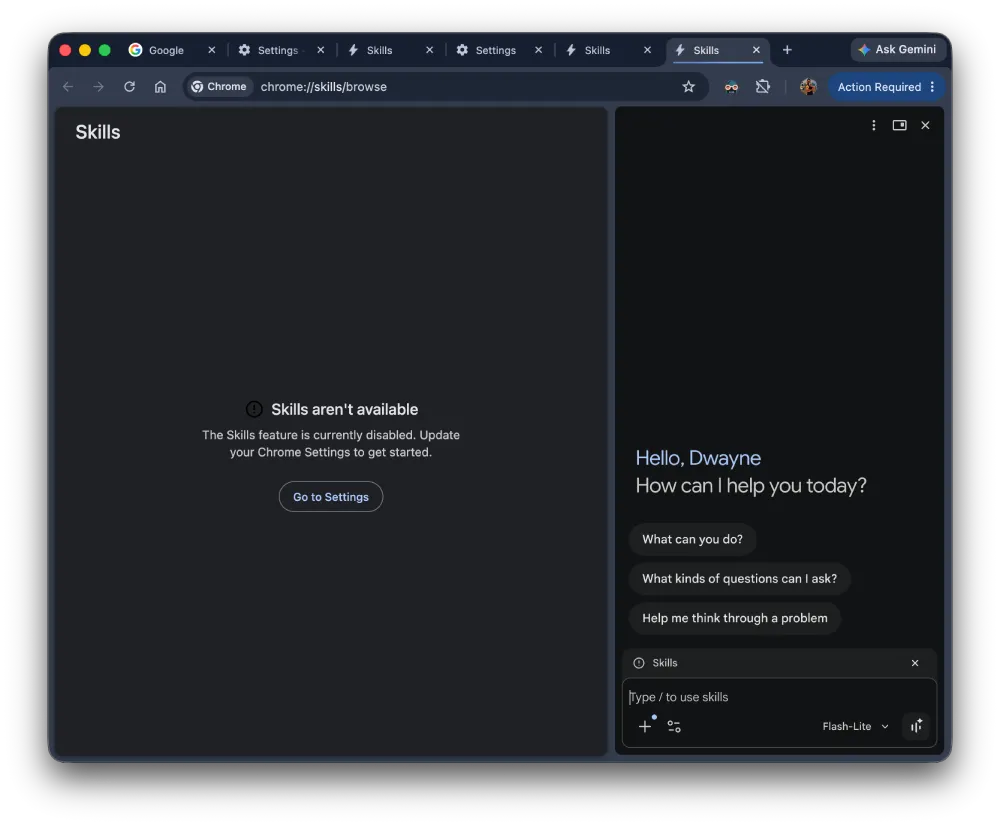
The important bit for power users is that this Gemini Skills off switch is separate from the existing on‑device AI toggle that controls the big local model download. At the moment, Chrome needs that on‑device AI model to power many Gemini features, which is why people were annoyed when a 4 GB file showed up on their devices. By carving out Skills as its own switch, Google is at least starting to give Chrome users more granular control over what parts of Gemini they actually want running.
There are a few catches though. The new Gemini Skills setting only appears in Chrome Canary at the moment, not in the stable or beta channels, and it still behaves like an experiment.
For anyone worried about Chrome AI features in general, this is at least a step in the right direction. You can experiment with Gemini in Chrome, see what Gemini Skills actually do, then just toggle it off if it doesn’t fit your workflow, while also keeping browser AI tools available.
That said, this isn’t the only test ongoing. Chrome devs are also still trying to figure out what glass effect to use in the upcoming UI refresh for Windows. They’re also experimenting with individual side panel alignment settings. And the strangest of all: a feature dubbed “Indigo” that will let users replace images on pages with AI-generated ones.


Dwayne Cubbins
3101 Posts
I cover fast-moving stories across apps, online platforms, and everyday tech — phones, wearables, consoles, and whatever else people are fighting with this week. Bugs, rollouts, scams, policy enforcement, and the occasional internet-culture rabbit hole are all fair game. My goal is simple — make confusing tech news readable. When I'm not working, I'm working out or chilling with my dog. Got a tip? You can find me on X @dcubbins.
Next article View Article