



You can now use Extensions on Brave Nightly (Android). The feature has been in the works for months, and it’s finally here… sort of. You’ll need to enable a flag and head over to a specific link to access them.
If you want to try it out, you’ll need to grab the APK file from GitHub. The version that supports Extensions is v1.102.25 (and up). However, the Brave Nightly that’s on the Google Play Store is currently on v1.102.23, and Extensions are not available on that.
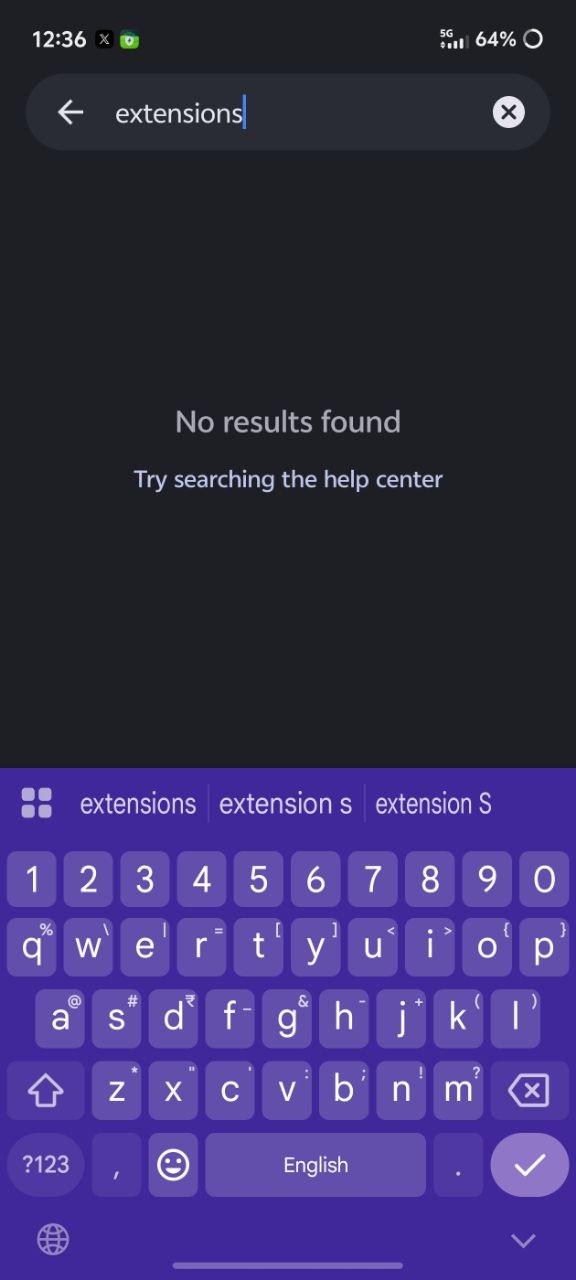
I tried searching under Settings and also tried enabling flags, but they refused to show up.
At the time of writing, v1.102.28 is the latest version available. You’ll need to grab the “Bravearm64Universal.apk” and install it on your phone. It’s worth noting that downloads from external sources must be enabled, since you’re downloading the app from outside the Play Store.
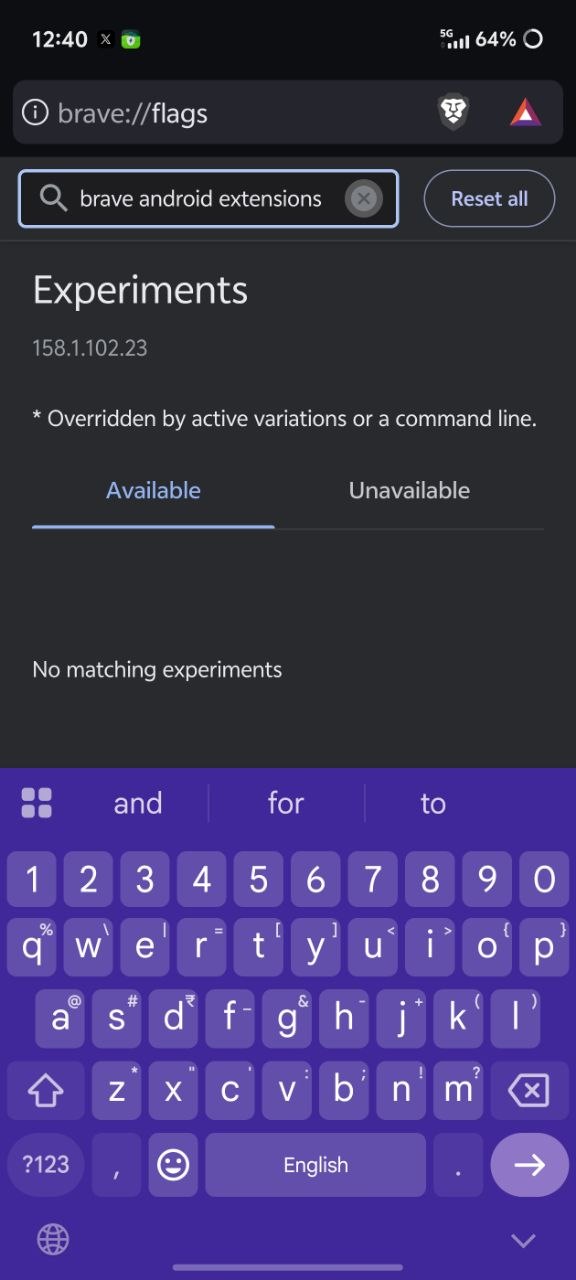
Following this, I went over to brave://flags and searched for “Brave extension support.” Sure enough, I found the option to enable Extensions on Android. It was set to disabled by default, and I had to restart the browser.
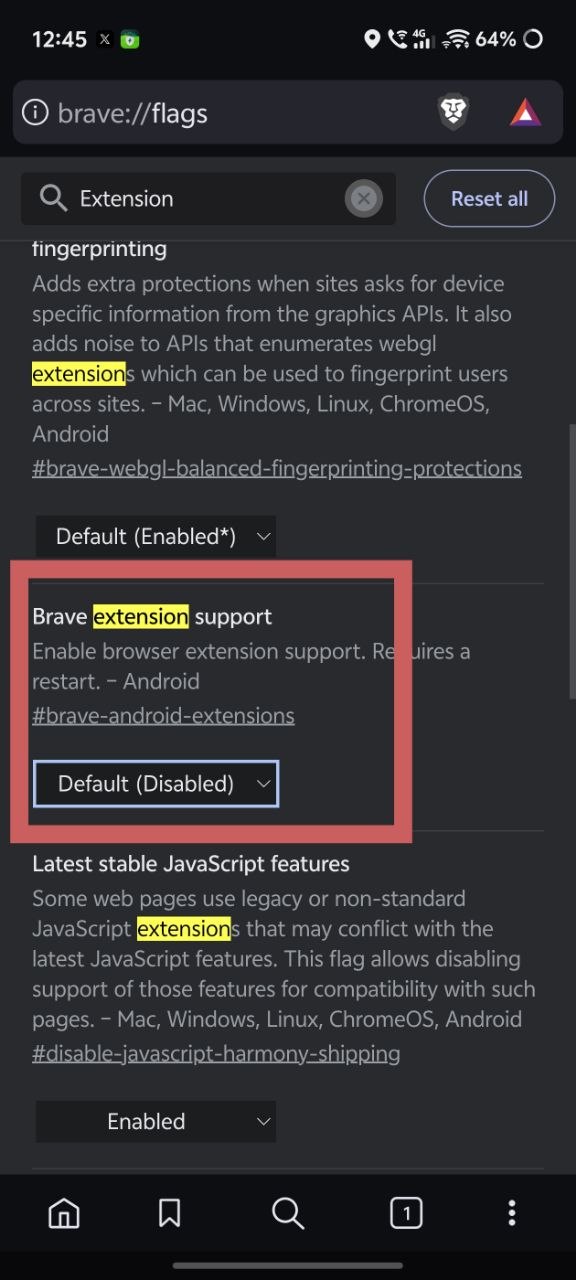
That’s not all. You still can’t directly find the option in Settings; you have to head over to brave://extensions. As expected, it’ll ask you to move to the Chrome Web Store to look for Extensions.
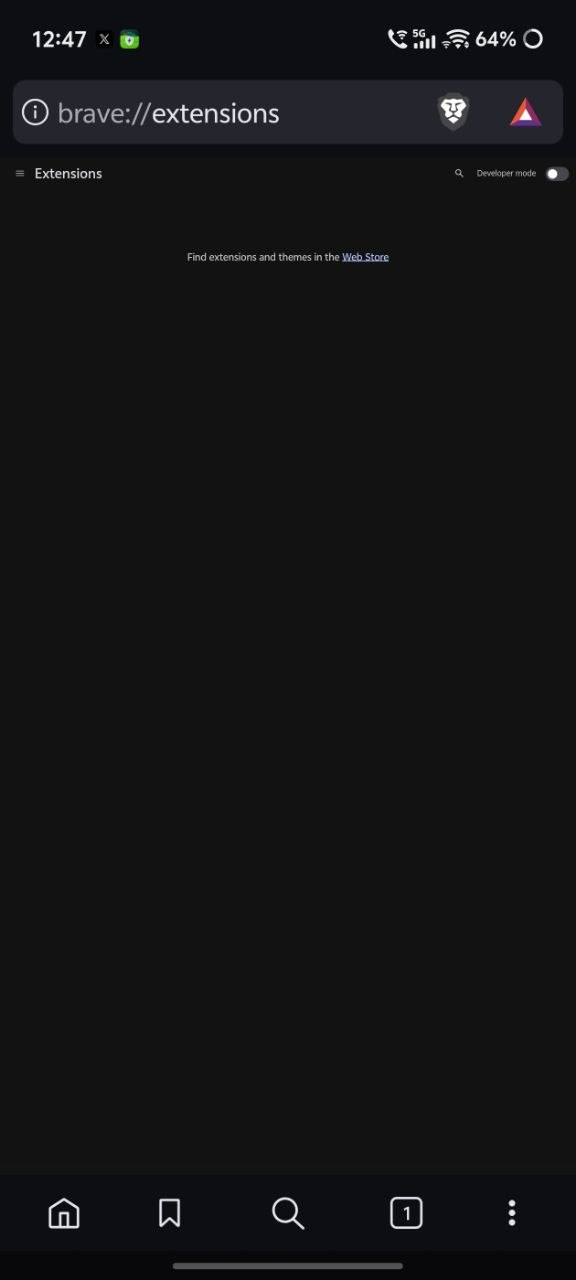
After this step is when I realized that the implementation was far from complete. That’s completely normal for a Nightly release, and it does need a lot more optimization before it’s ready for stable. For starters, the Chrome Web Store isn’t even directly available. It asks you to open the page on a desktop, since it’s not ready yet.
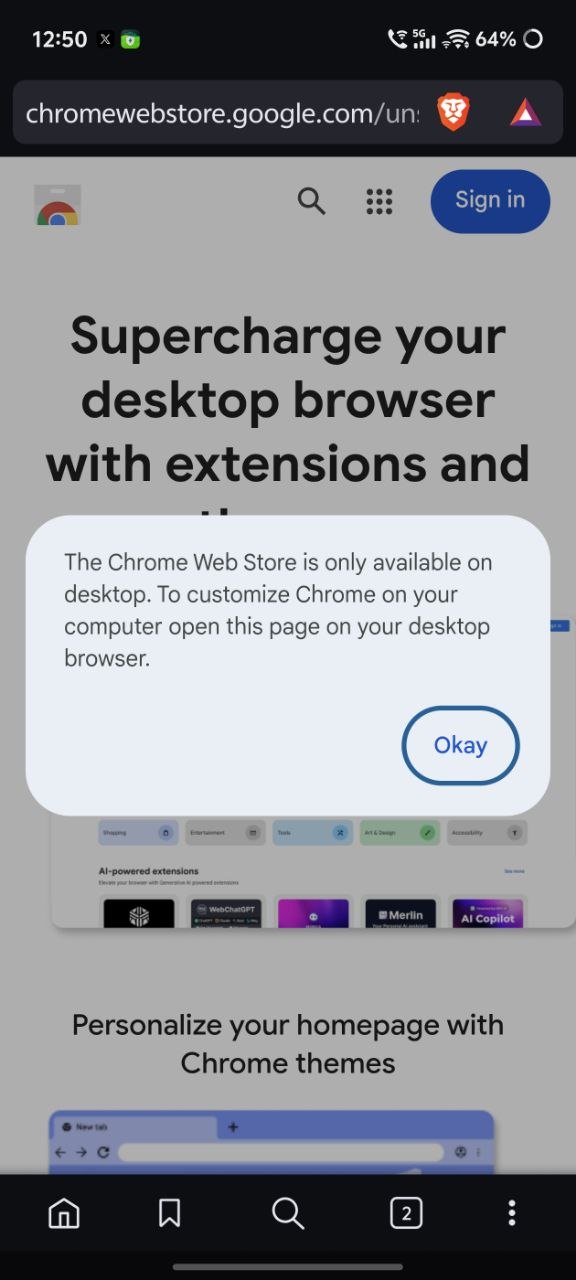
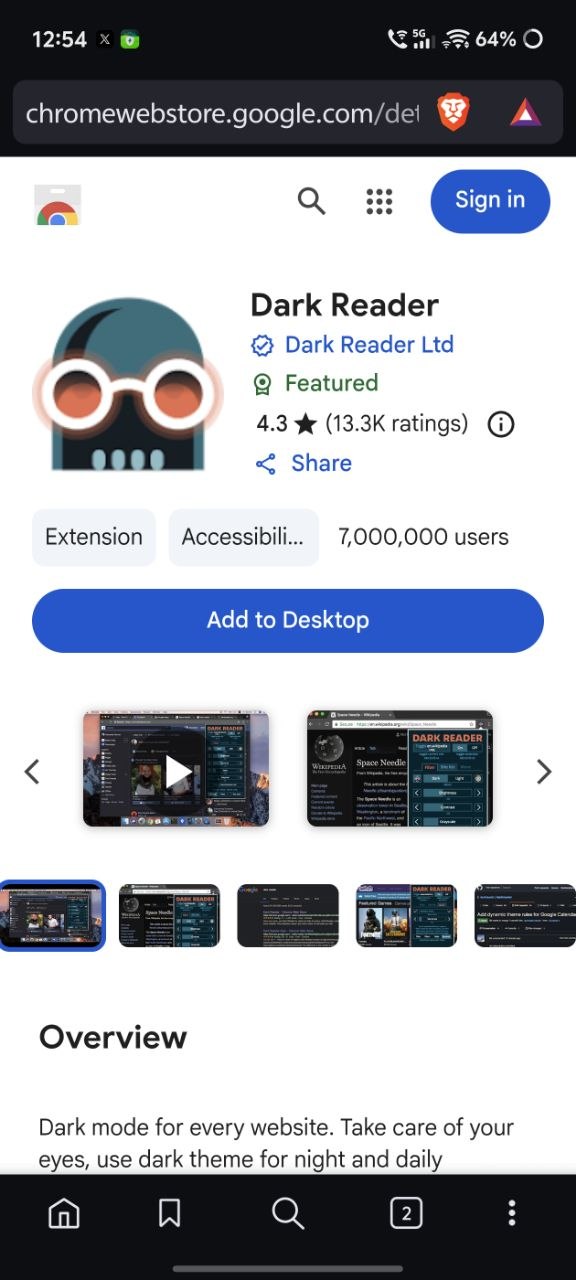
If you ignore that pop-up and try to add an extension, it says “Add to Desktop” instead, which requires a sign-in and doesn’t add it to your phone.
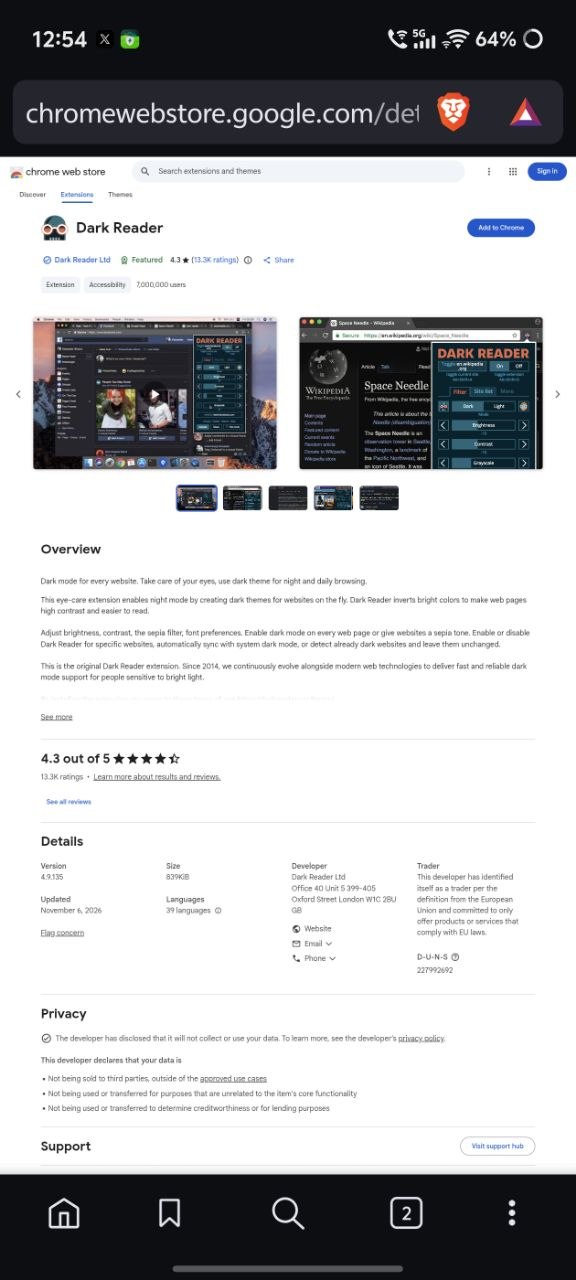
So, I hit the three-dot menu and opened the website as a desktop site. Initially, the “Add to Chrome” button was grayed out, but after a restart, it finally worked.
To manage these extensions and enable/disable them, no dedicated menu exists at the moment. You’ll need to go back to brave://extensions and manage everything from there. There’s also an option that says “Pin new extensions to toolbar,” but nothing showed in the toolbar even after I enabled that, so it’s clearly not ready yet.
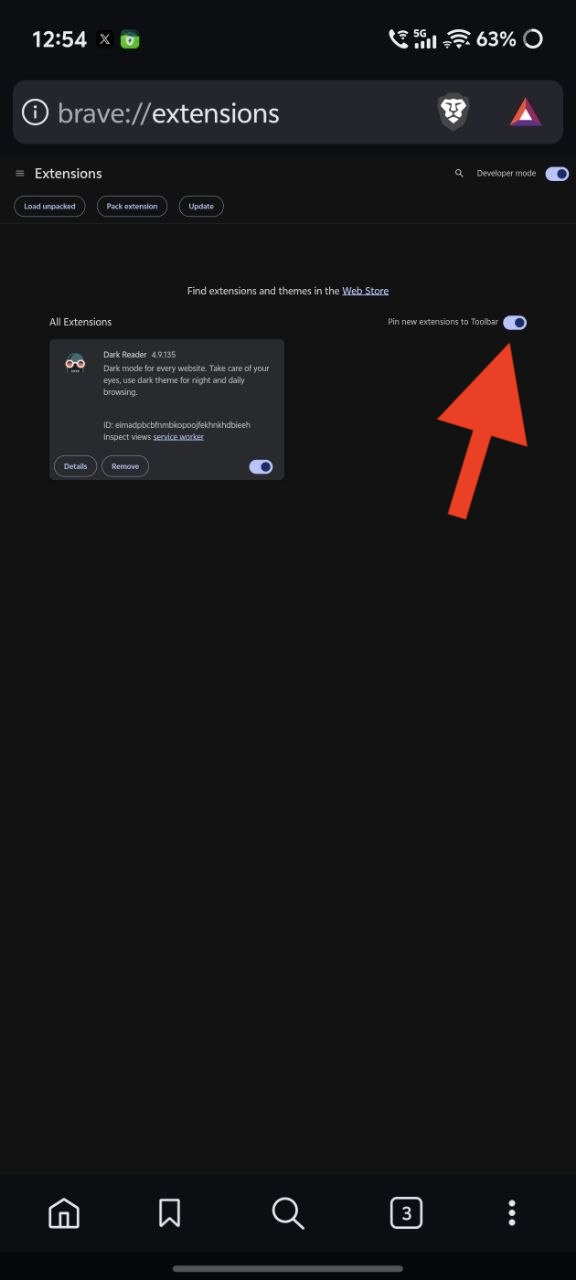
Fortunately, the extension itself appears to be functional enough.


Sudhanshu K
400 Posts
I have been a consumer technology enthusiast for over 5 years. Thanks to my experience in software beta testing and product reviews, I've understood and learnt a lot about what bugs and issues bother people, and I spend time trying to simplify their solutions. I cover smartphones, software, social media, apps, AI, and most consumer tech gadgets. Actively pursuing a Computer Science bachelor’s degree. I'm mostly active on Twitter/X (@TechWhirlUlt), drop a DM or tag me if you want to share info or connect!