





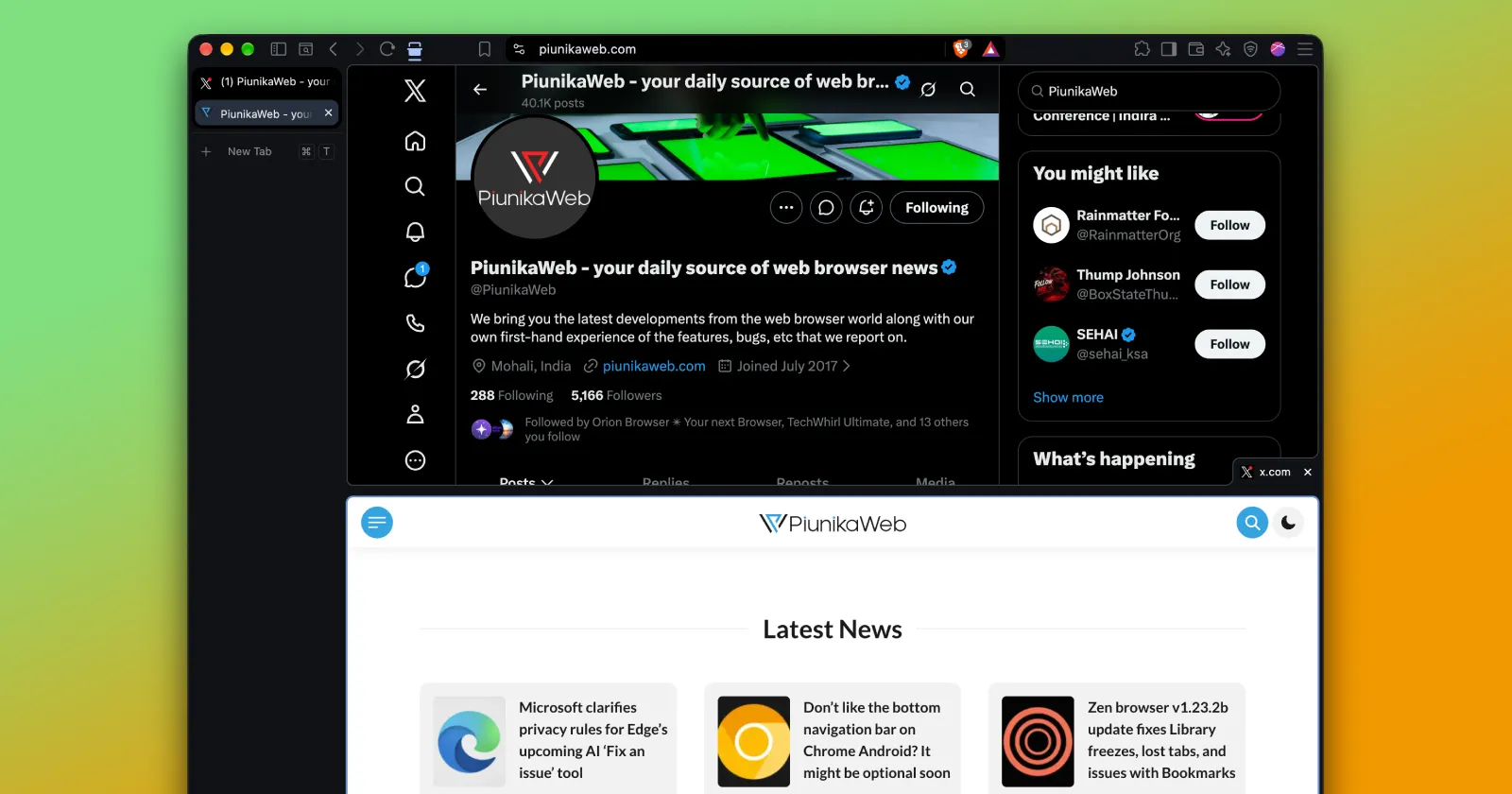
You can now stack tabs in split view so one appears on top of the other. 😌
— Brave (@brave) October 9, 2026
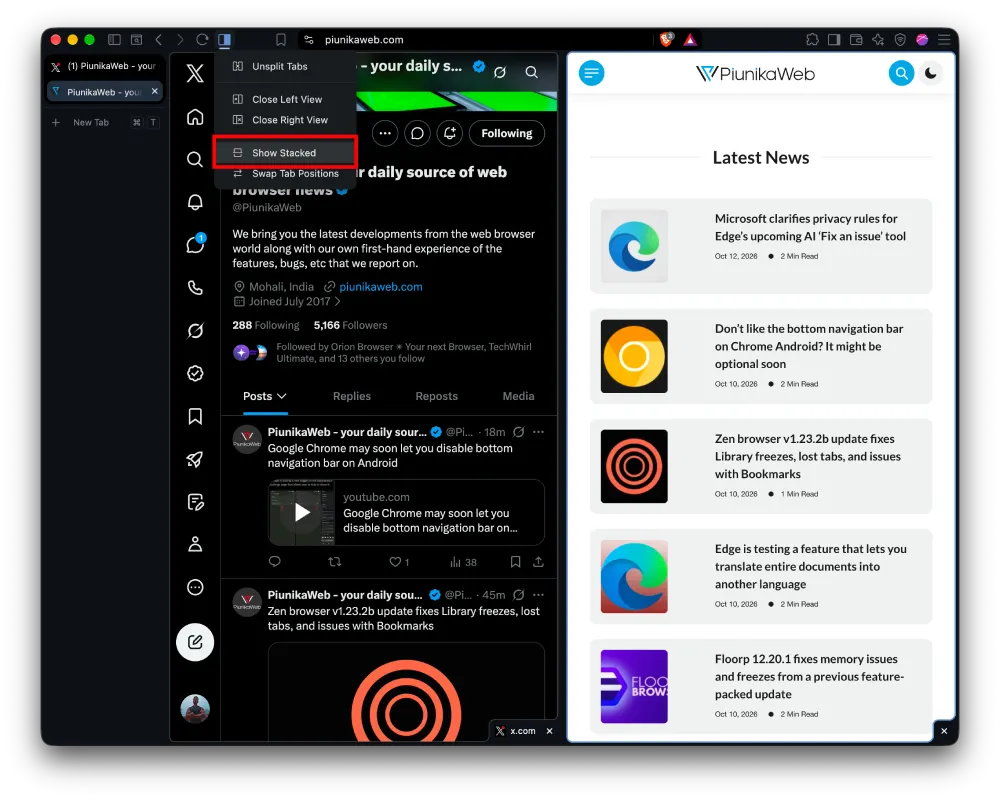
Just click the split view icon to the left of the address bar and select "Show stacked."
To change it back, click "Show side by side" in that menu. pic.twitter.com/sjRnsrmMJN
Brave has picked up a neat new layout option for its split view mode. With a recent update, the browser now lets you stack two tabs on top of each other rather than limiting you to the traditional side-by-side split.
The team revealed the addition in a post on X, noting that “you can now stack tabs in split view so one appears on top of the other.” You can also build a split view just by right-clicking a link or selecting two tabs together.
With the new stacked layout, the screen is split horizontally, placing one webpage right above the other in a single window. If you look at the tab bar, both pages remain grouped under one split tab entry, with a divider running across the middle that you can drag to adjust the height of each pane.
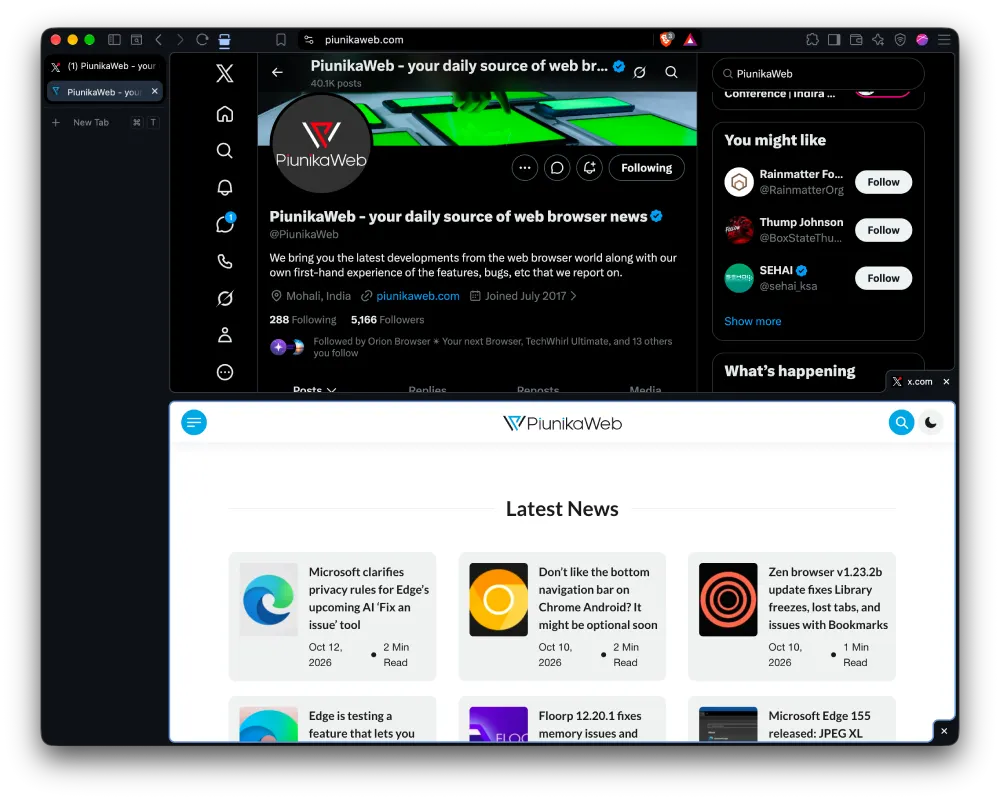
Switching into the layout takes just a couple of clicks. Tapping the split view button right beside the address bar opens a dropdown menu with options to unsplit, swap positions, or select “Show Stacked.” When you want your standard view back, that same menu lets you return to side-by-side mode.
Split screen tools have had an interesting run in Brave. Longtime users might recall when Chromium dropped the flag to disable split view, an update that annoyed people whose right-click menus got disrupted when trying to open links in separate windows.
This addition to the browser comes at a time when Brave has been cooking up several new features and improvements. The desktop app recently gained native JPEG XL image support with Chromium 155. The same release also fixed repeated MacBook crashes and protected private screenshots from syncing through clipboard history.

We stand out from the tech-media crowd because we break news stories; we mainly bring you stuff that you won’t find anywhere in the mainstream tech media. Our stories have been picked up by some of the world’s most popular websites and media outlets—more info is available here.

Dwayne Cubbins
3103 Posts
I cover fast-moving stories across apps, online platforms, and everyday tech — phones, wearables, consoles, and whatever else people are fighting with this week. Bugs, rollouts, scams, policy enforcement, and the occasional internet-culture rabbit hole are all fair game. My goal is simple — make confusing tech news readable. When I'm not working, I'm working out or chilling with my dog. Got a tip? You can find me on X @dcubbins.