





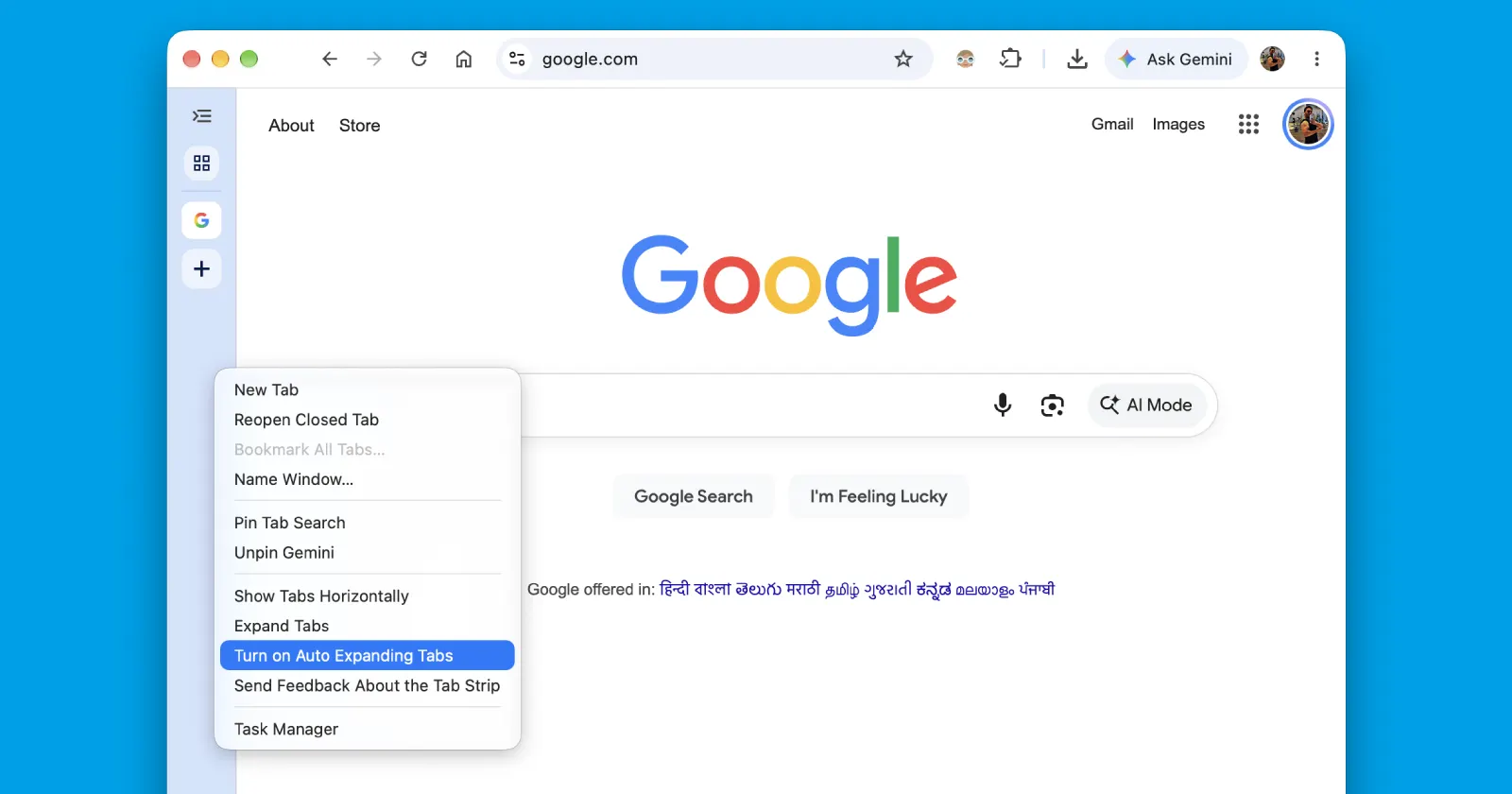
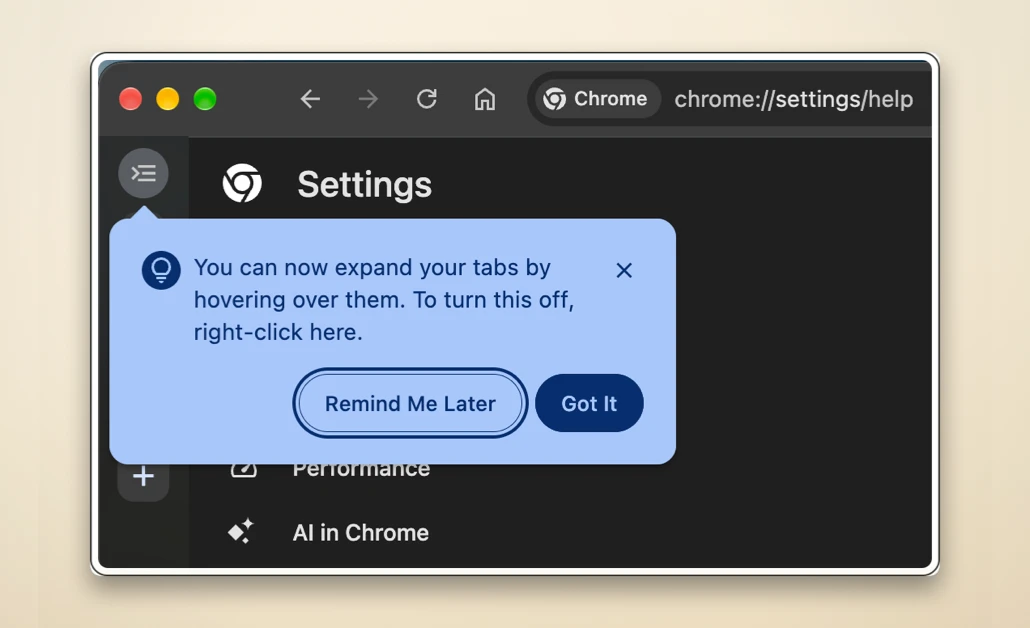
Roughly a week ago, I reported that Google might be getting ready to roll out the hover-to-expand vertical tabs feature in Chrome. Back then, the functionality showed up in Chrome Canary, with a tooltip that said, “You can now expand your tabs by hovering over them. To turn this off, right-click here.”
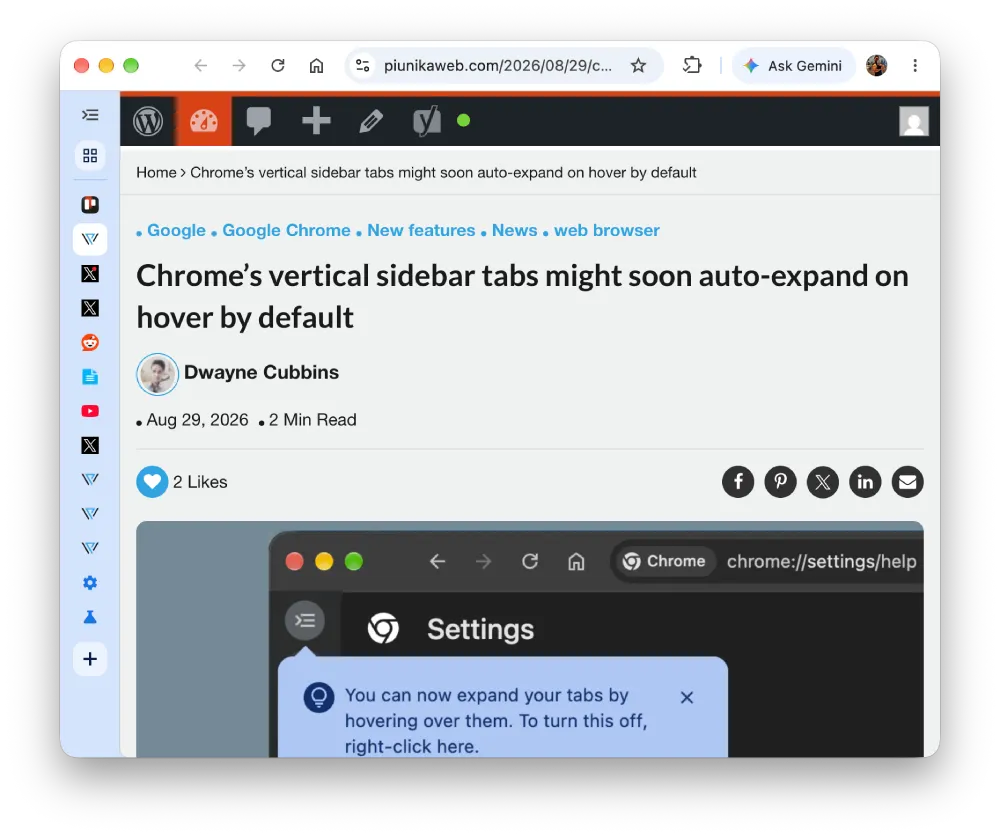
Now, it looks like the feature is finally rolling out to the stable version of Chrome. Browser sleuth Leopeva64 noticed the feature in the latest Chrome version 152.0.7977.83 update. It’s also worth pointing out that the functionality is available without turning on the ‘Vertical Tabs Expand On Hover’ flag.
Google has started rolling out the feature that auto-expands the vertical tab panel on hover, as well as the keyboard shortcut to collapse or expand vertical tabs in Chrome Stable. You can turn off the panel’s auto-expansion from the tabstrip context menu:https://t.co/bx2sdHRqle pic.twitter.com/tS3OdzQfUq
— Leopeva64 (@Leopeva64) September 6, 2026
In addition, users can use a keyboard shortcut to expand or collapse tabs quickly. On Windows, you have to press Ctrl+Shift+L to toggle between the two states. On Mac, it’s Cmd+Shift+L.
If you do not see the option just yet, don’t fret. It’s gradually being rolled out to users and doesn’t seem to be tied to a specific version of Chrome. For instance, I still do not see the feature on Chrome version 152.0.7977.83 by default. Leopeva64 also notes that the feature is only showing up on one of their devices.
The keyboard shortcut, on the other hand, is widely available. So if you’re tired of having to click the dedicated button to expand or collapse tabs on Chrome, you can use the keyboard shortcut for now until the option to expand tabs on hover is rolled out to all users.
As I mentioned in the previous article, Chrome handles vertical tabs a bit differently than other browsers like Zen and Dia. Rather than hiding the sidebar completely, you still see the tab icons in the thin vertical sidebar. So it’s not exactly the “frameless” browsing experience you’d get on other browsers.
That said, if you wish to turn off auto-expanding tabs, you don’t need to jump into Chrome’s settings menu. You can right-click on the sidebar to enable or disable auto-expanding tabs.
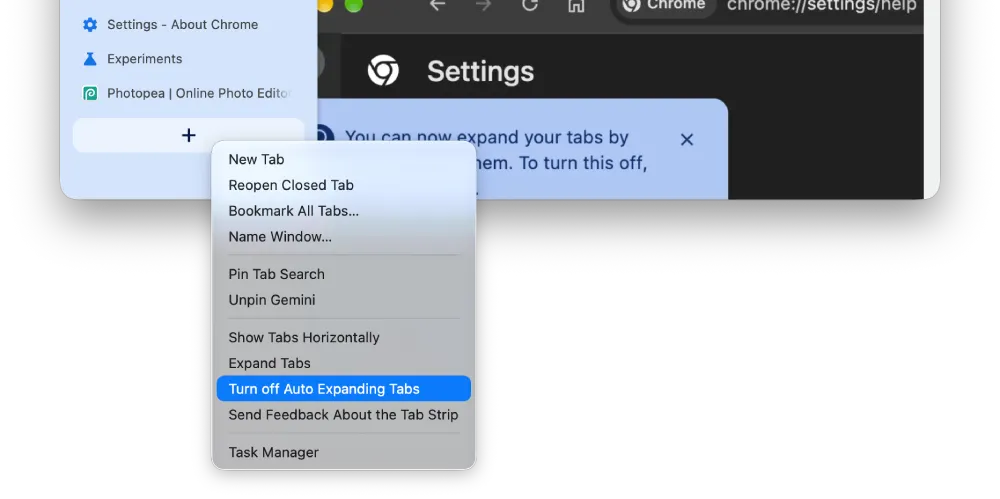
Nonetheless, the option to expand tabs on hover is a welcome addition to Chrome. We’ll have to wait and see how long it takes before the feature goes live for more users.


Dwayne Cubbins
2998 Posts
I cover fast-moving stories across apps, online platforms, and everyday tech — phones, wearables, consoles, and whatever else people are fighting with this week. Bugs, rollouts, scams, policy enforcement, and the occasional internet-culture rabbit hole are all fair game. My goal is simple — make confusing tech news readable. When I'm not working, I'm working out or chilling with my dog. Got a tip? You can find me on X @dcubbins.