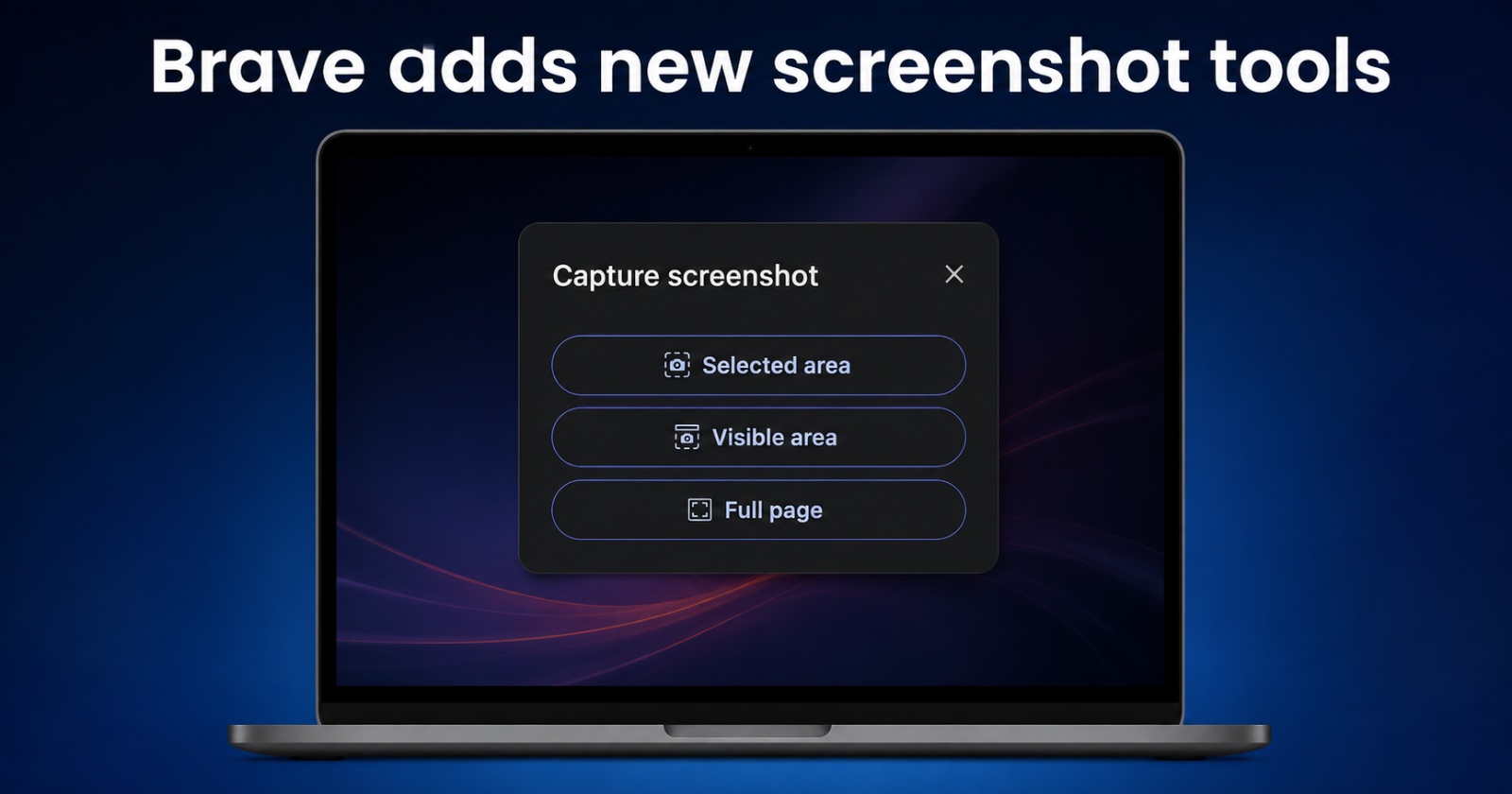
Brave’s screenshot tool was pretty basic before, and people have been asking for improvements. Now, they’ve rolled out major improvements to it, and it features 3 main options.
Instead of just capturing the visible area or the entire screen, you can choose to only capture a specific portion of your screen. It works similarly to Command + Shift + 4 on macOS or Snipping Tool on Windows, and it’s quite helpful because you don’t have to manually crop later on.
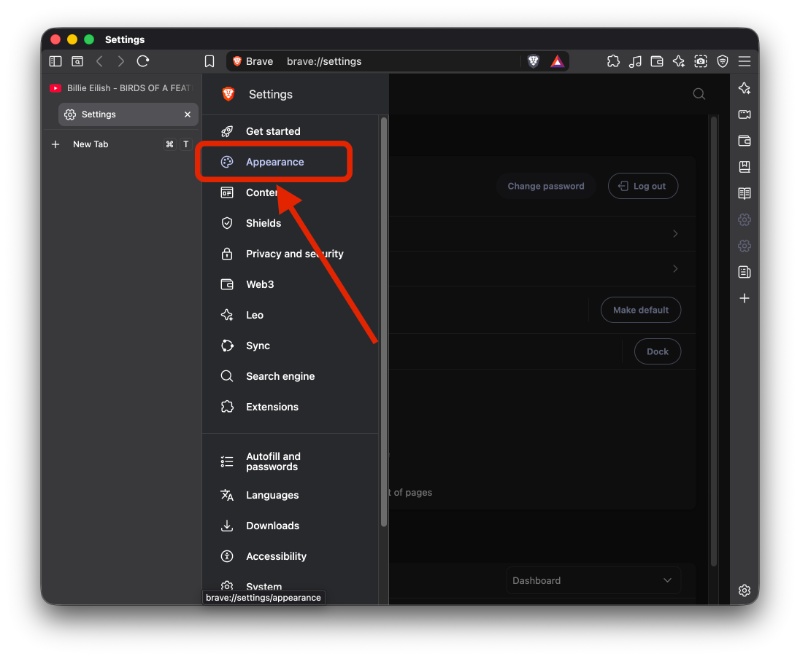
However, the new screenshot tools aren’t enabled by default. In order to enable them, you’ll have to open Brave Settings and then click on the hamburger menu at the top left, which reveals a list of various sub-settings. From there, select “Appearance.”
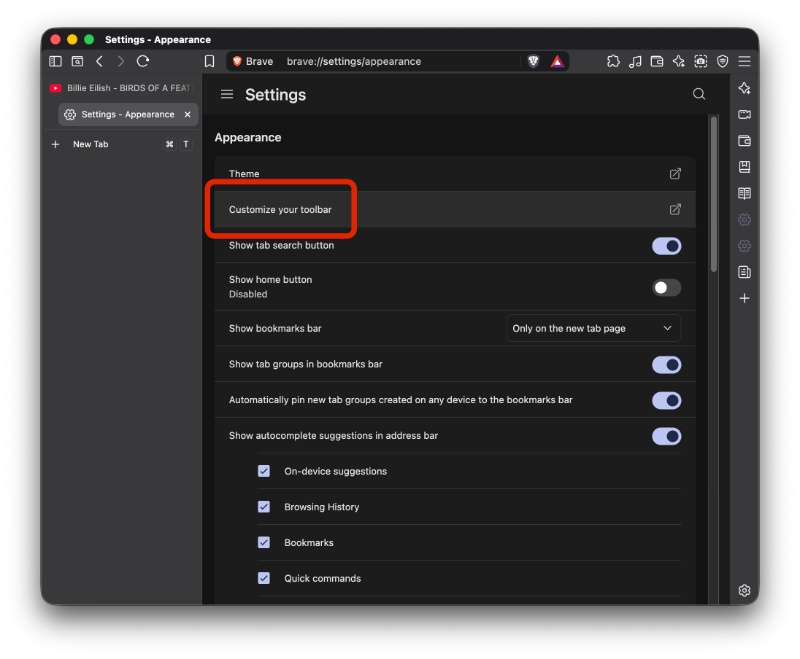
After this, you’ll find an option that says “Customize your toolbar.”
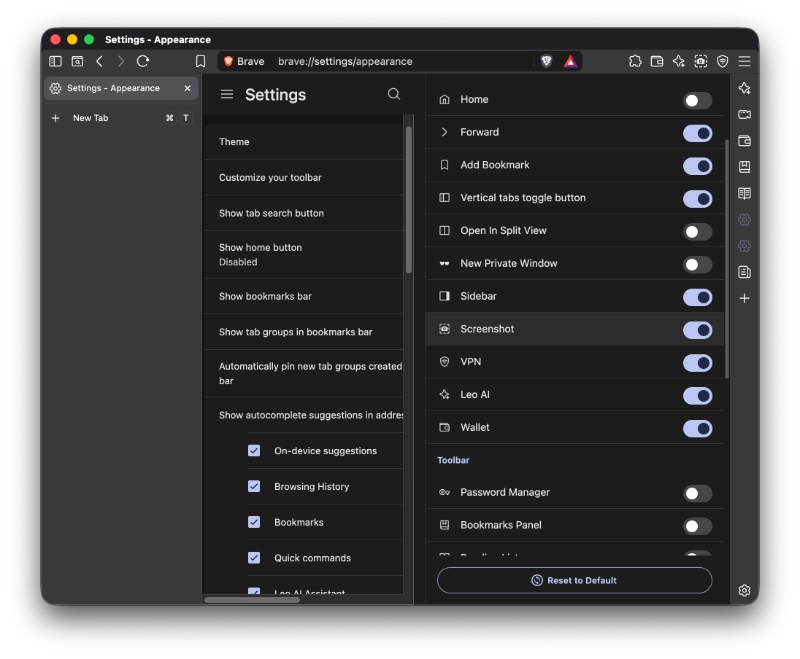
You’ll get access to the new screenshot tools after enabling the toggle for “Screenshot” from the available list. By default, Brave doesn’t turn it on, probably because they don’t want to clutter the toolbar.
In the toolbar, clicking the screenshot button will reveal three options: Selected area, Visible area, and Full page.
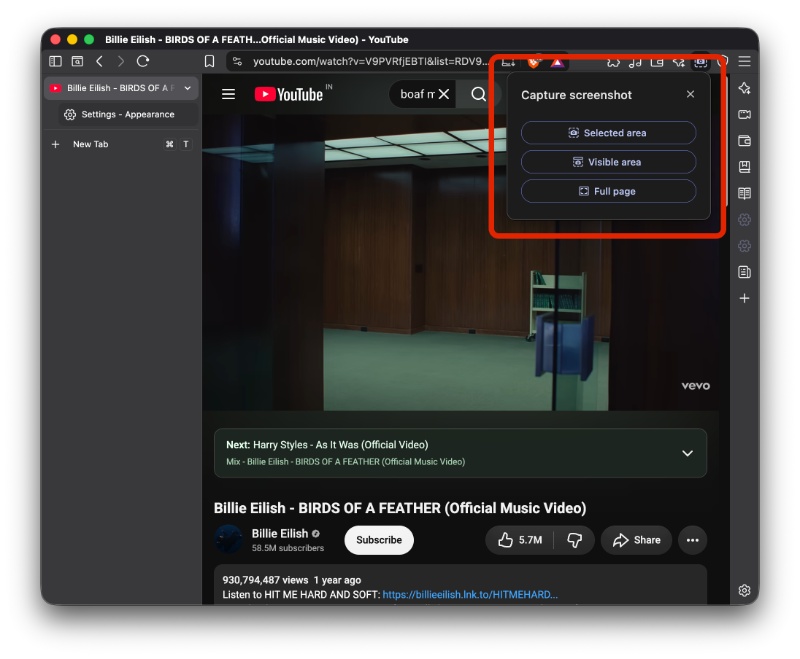
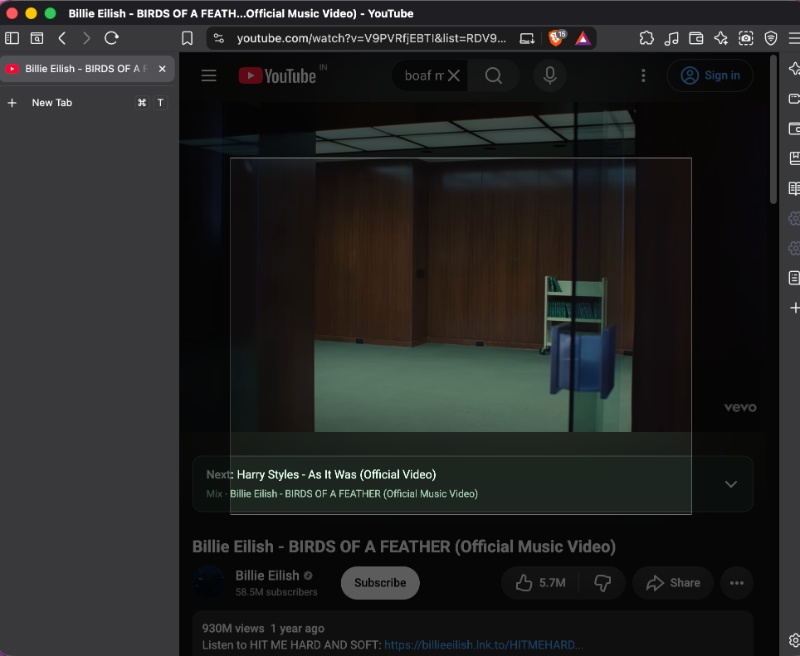
As mentioned before, the “Selected area” option lets you choose what part of the screen you want to capture.
The “Visible area” option will not capture the toolbar, tabs, address bar, and other parts of the browser. It’ll only capture the visible content that’s displayed on the screen, and none of the other options/menus that may be open. And the “Full page” option is used for capturing the entire screen.
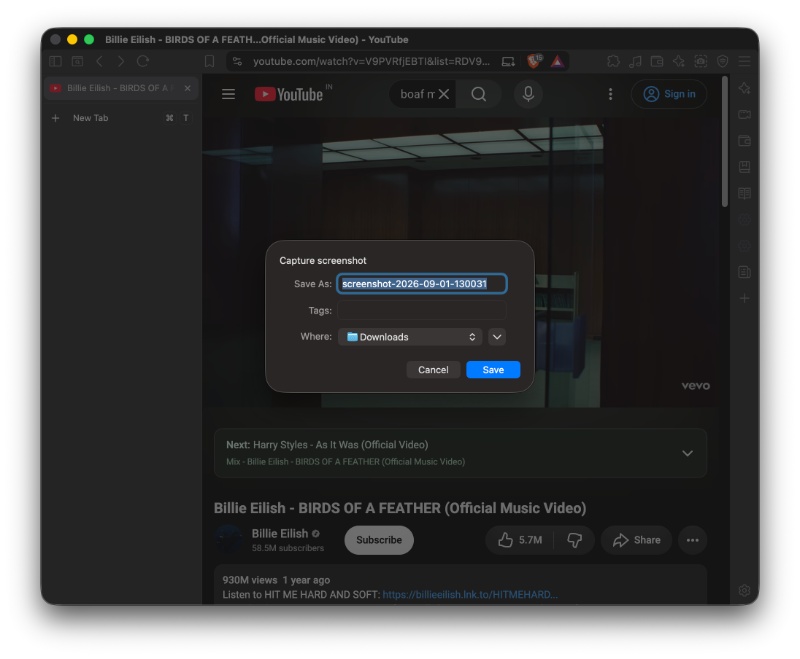
Once you’ve taken the screenshot, you’ll get a pop-up that asks for your desired location to save it in.
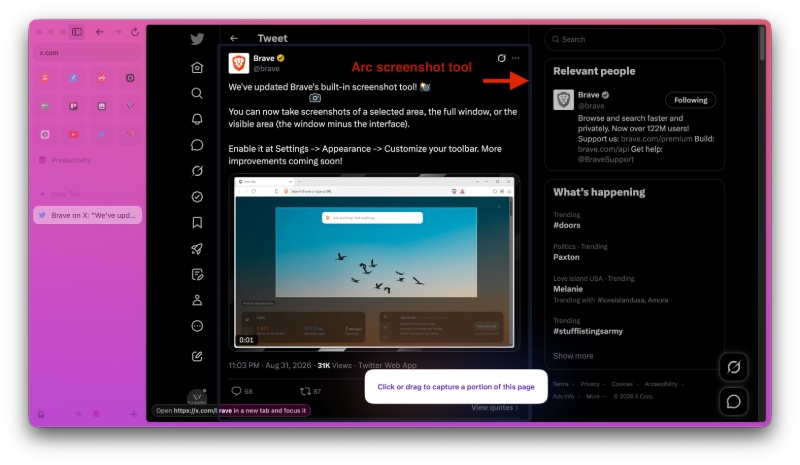
Brave officially posted about this feature on X, and one person asked about adding a “Copy to clipboard” option. There’s already a keyboard shortcut for that — Shift + Command or Control + S, and that copies the selected area to the clipboard, shows a preview, and gives the same pop-up that asks you for the desired location for saving it in.
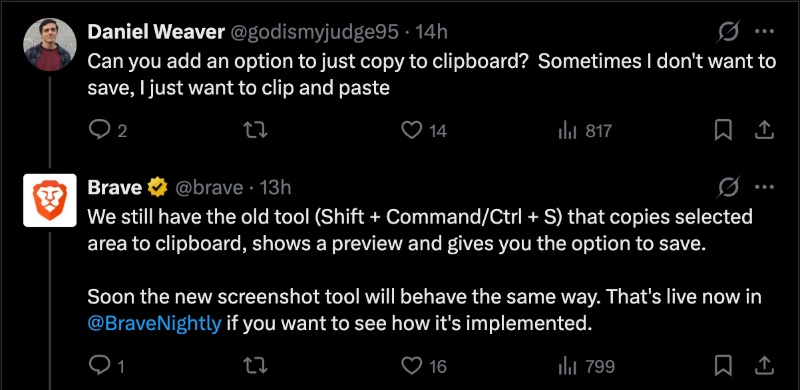
The new screenshot will also behave the same way soon, and the implementation is currently live in Brave Nightly as well.
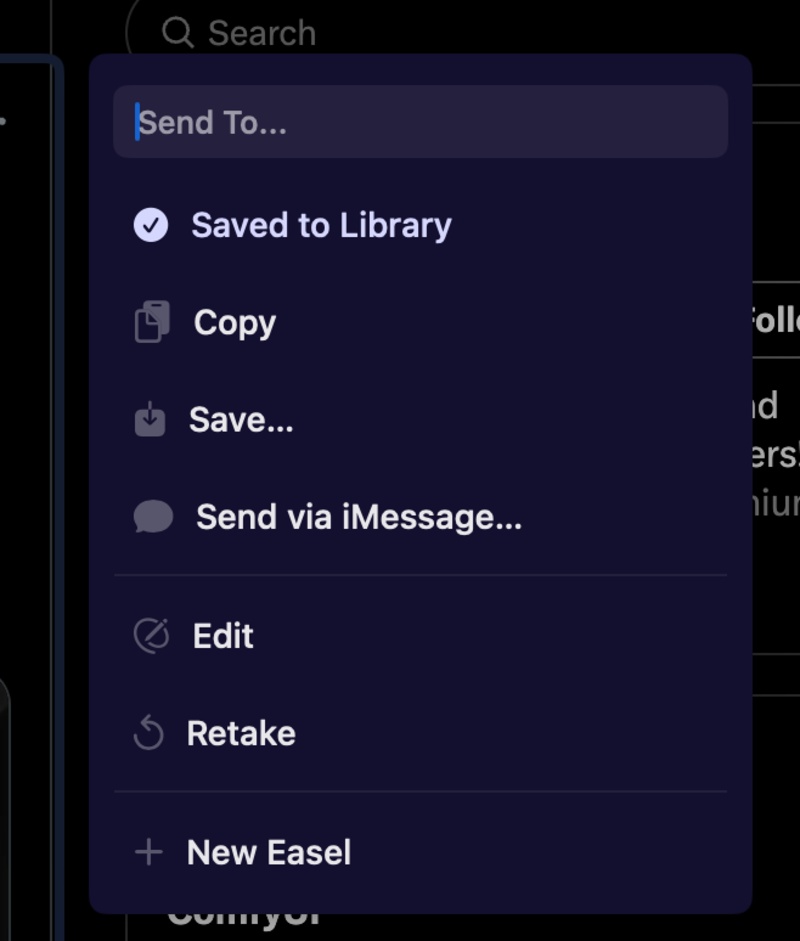
I’ve compared this screenshot tool from Brave to another browser, Arc, and I found some features that could be helpful on Brave: Automatic selection of relevant areas, a direct “Copy” button, an option to edit the screenshot, and an option to directly share the screenshot. The company can work on adding more features, since the tool is still bare-bones compared to what I use every day.
In other Brave news, the native Leo AI is about to deliver a major formatting upgrade for students, since it adds LaTeX support for the rendering of mathematical equations and symbols. More on that here.


Sudhanshu K
356 Posts
I have been a consumer technology enthusiast for over 5 years. Thanks to my experience in software beta testing and product reviews, I've understood and learnt a lot about what bugs and issues bother people, and I spend time trying to simplify their solutions. I cover smartphones, software, social media, apps, AI, and most consumer tech gadgets. Actively pursuing a Computer Science bachelor’s degree. I'm mostly active on Twitter/X (@TechWhirlUlt), drop a DM or tag me if you want to share info or connect!
Next article View Article