Pixel users, rejoice! Google has just announced that Gemini Live’s camera and screen sharing features are now free for all Android users with the Gemini app, no subscription needed. This is a significant change, as these advanced AI capabilities were previously only available to users with the latest flagship devices or those who paid for the Gemini Advanced subscription.
Gemini Live allows users to have conversational interactions with Google’s AI. With the latest update, users can now use their camera to show objects or scenes to the AI and ask questions about them, or share their screen to get help with apps or websites. For example, if you’re trying to identify a plant, you can point your camera at it and ask Gemini Live what it is. Or, if you’re struggling with a particular app, you can share your screen, and Gemini Live can provide step-by-step guidance.
These features were first showcased at Google’s I/O 2024 conference as part of the Project Astra initiative, which aims to make AI more interactive and helpful in real-time scenarios. Initially, access was limited to Gemini Advanced subscribers and it was only free for Pixel 9 and Galaxy S25 series users. But Google has now decided to make them available to all Android users with the Gemini app, starting today and rolling out over the coming weeks.
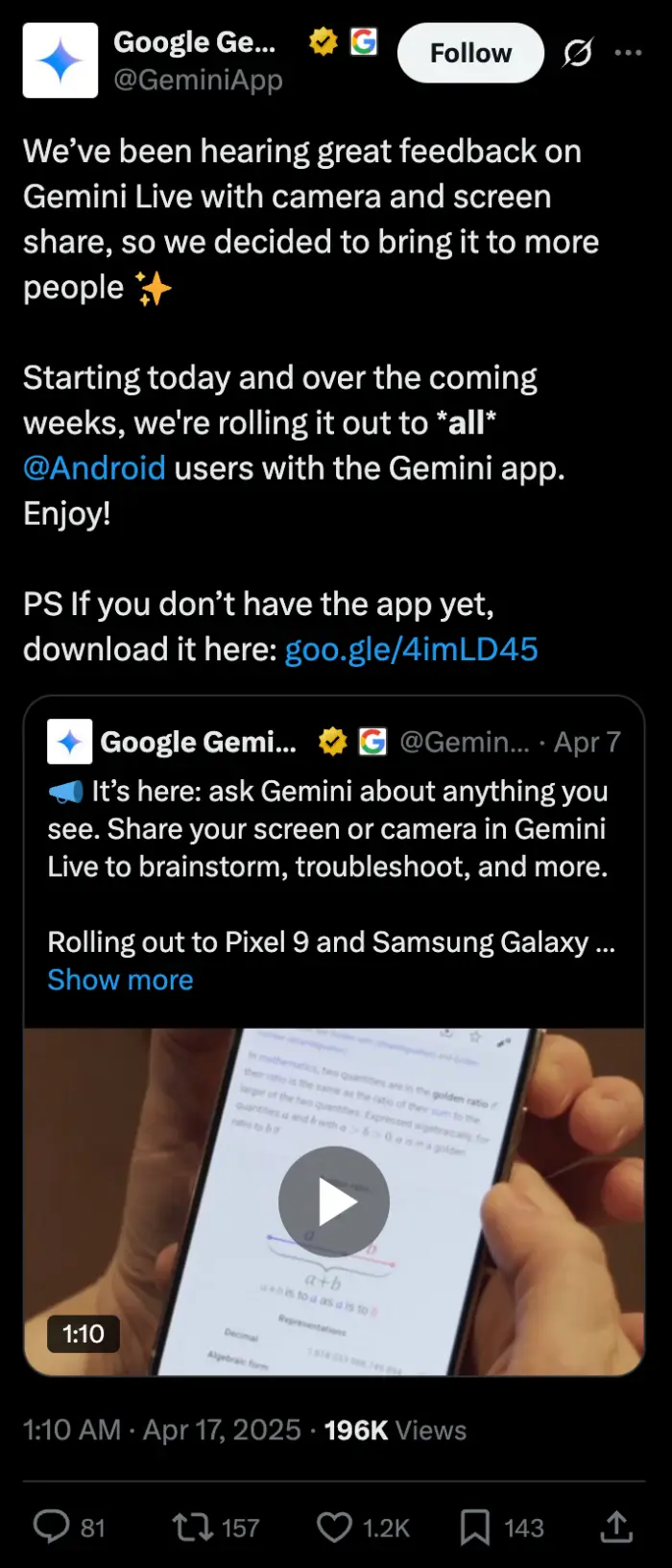
📣 It’s here: ask Gemini about anything you see. Share your screen or camera in Gemini Live to brainstorm, troubleshoot, and more.
Rolling out to Pixel 9 and Samsung Galaxy S25 devices today and available for all Advanced users on @Android in the Gemini app:… pic.twitter.com/fjTD4qhvjz
— Google Gemini App (@GeminiApp) April 7, 2025
I’m particularly happy with this decision by Google. Why? Just a few days ago I ranted about how it seems like Google might start using these features to push users towards subscriptions. So it seems like voicing out your concerns doesn’t always fall on deaf ears. By making the feature free, Google is showing a commitment to making AI more accessible to everyone.
This isn’t an isolated incident. Just last month, Google released Gemini 2.5 Pro as an experimental feature for free users, indicating a broader strategy to expand access to its AI tools.
To start using Gemini Live with camera and screen sharing, users need to open the Gemini app, tap the Gemini Live icon, and then select the camera or screen share option.

Dwayne Cubbins
1853 Posts
My fascination with Android phones began the moment I got my hands on one. Since then, I've been on a journey to decode the ever-evolving tech landscape, fueled by a passion for both the "how" and the "why." Since 2018, I've been crafting content that empowers users and demystifies the tech world. From in-depth how-to guides that unlock your phone's potential to breaking news based on original research, I strive to make tech accessible and engaging.
Next article View Article