As Google sunsetted its dedicated Shopping List app, many Pixel phone users may be wondering how to create a checklist within the Google Keep app. Fear not as it offers a robust set of features that not only replicate the functionality of the Shopping List app but also improves it.
Steps to create a checklist in Google Keep
Creating a checklist in Google Keep is akin to crafting any other list. Here’s a detailed breakdown:
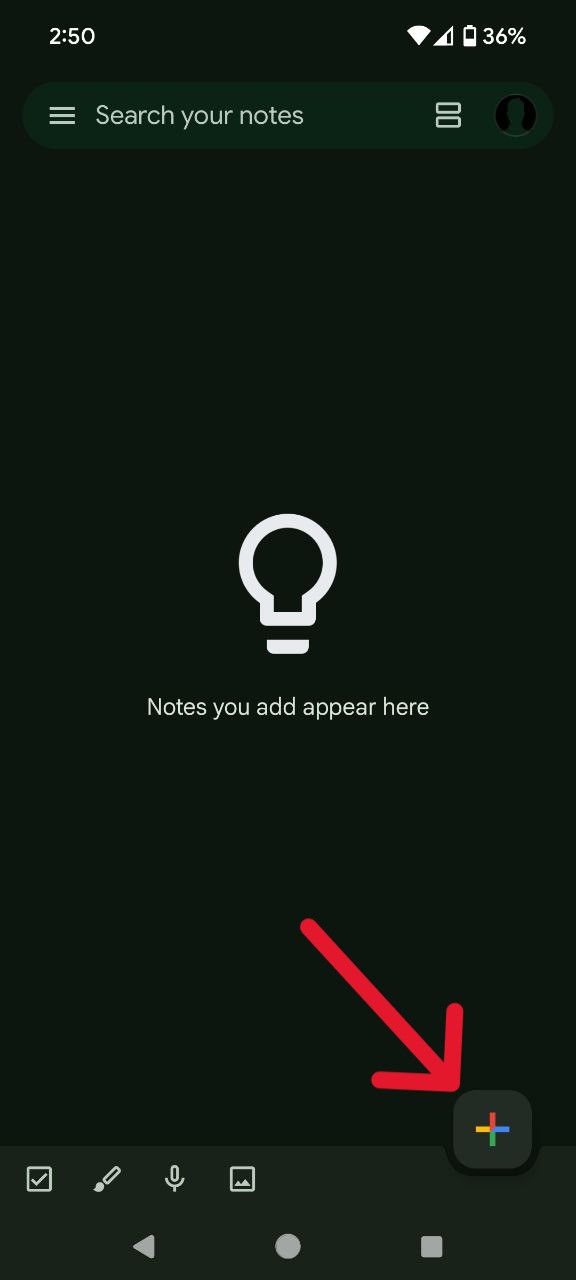
- Launch Google Keep and tap the prominent ‘+’ icon to initiate a new note creation process.
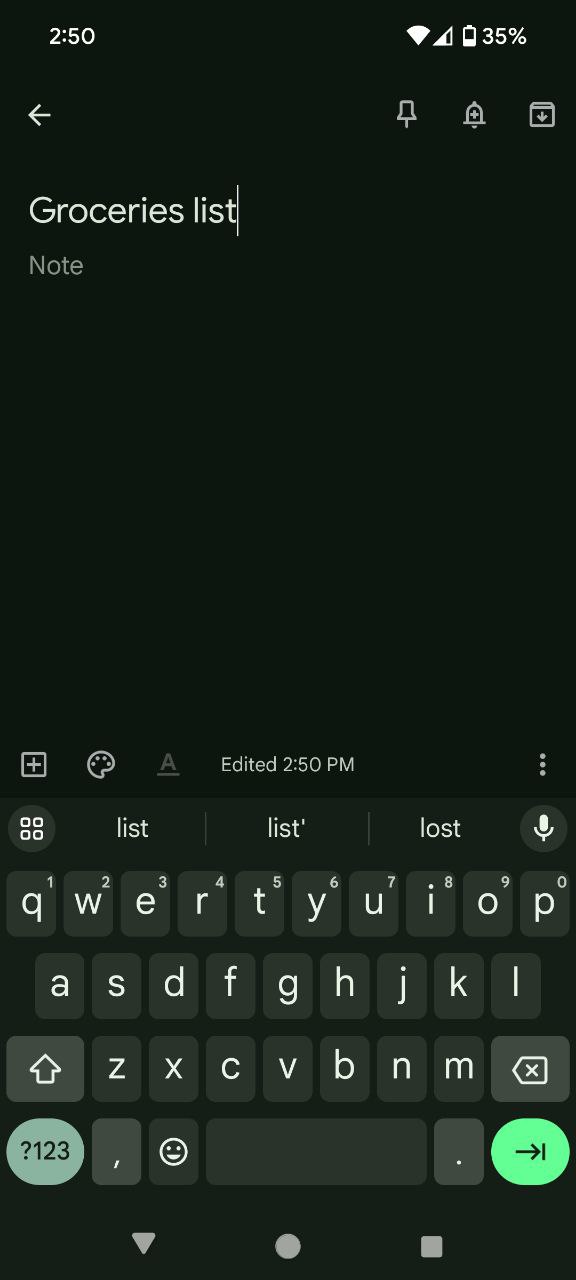
- Provide a relevant title for your checklist to ensure easy identification.
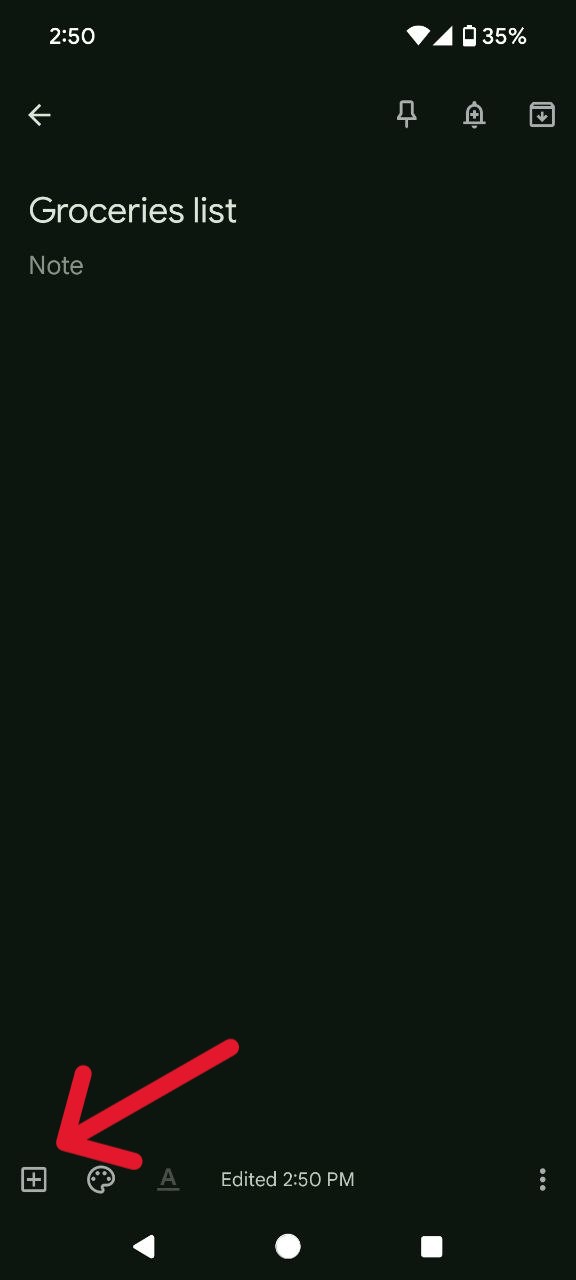
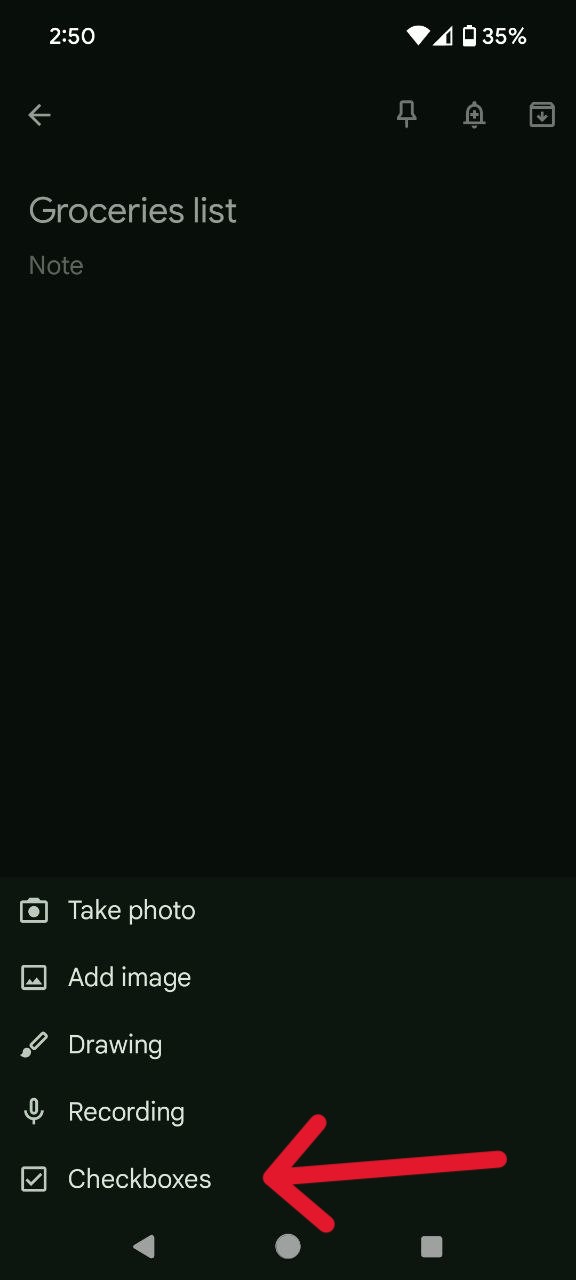
- Tap the boxed ‘+’ icon within the note.
- Select ‘Checkboxes’ from the menu. This action will insert checkboxes to facilitate itemization.
- Begin populating your checklist by typing item names, pressing ‘Enter’ after each entry to create a new line.
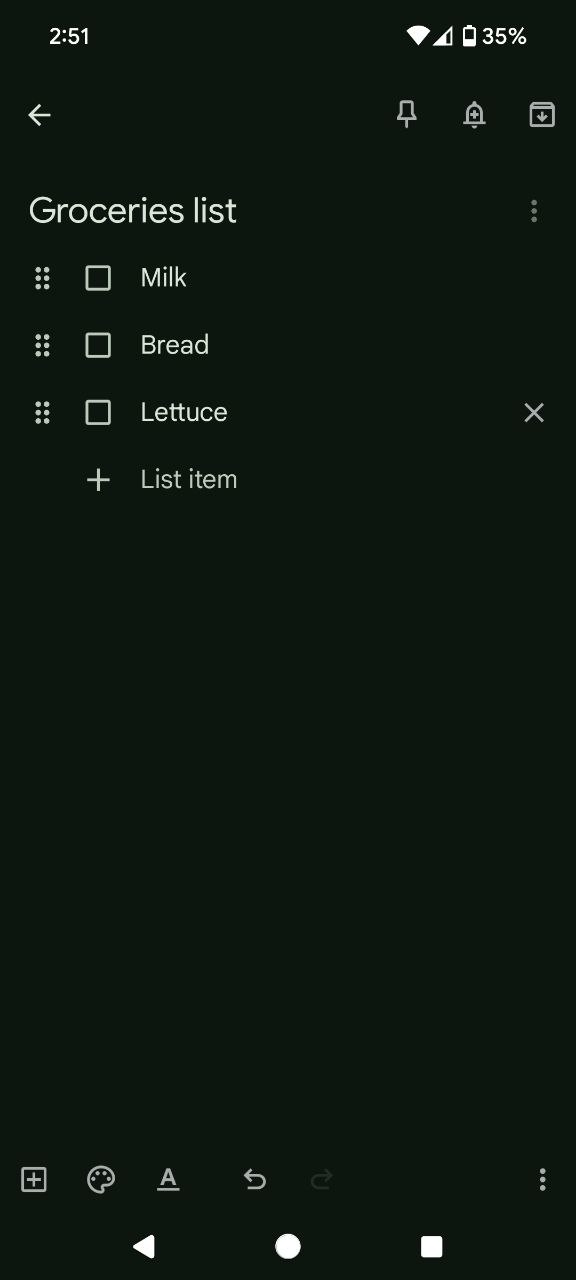
The fundamental structure of the list encompasses essential components such as a title, checkboxes for itemization, and flexibility in note length, accommodating up to 19,999 characters per note.
To enhance the visibility and organization of your checklist within Google Keep, consider implementing the following customization options. First up is labels and here’s how to implement them:
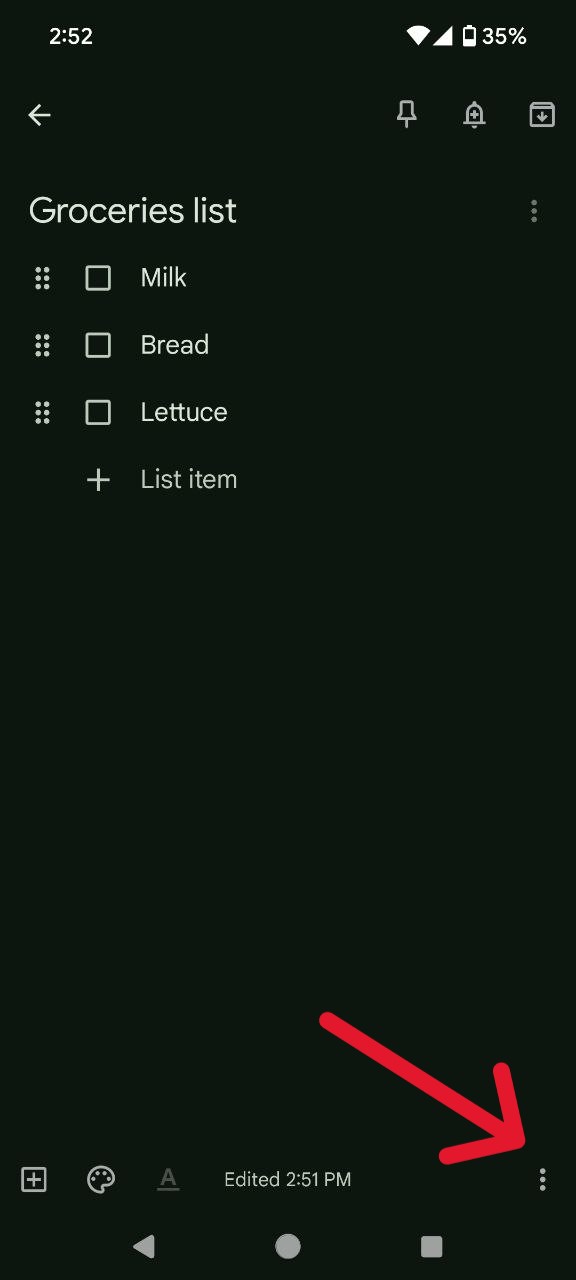
- Tap the three-dot menu at the bottom of the note.
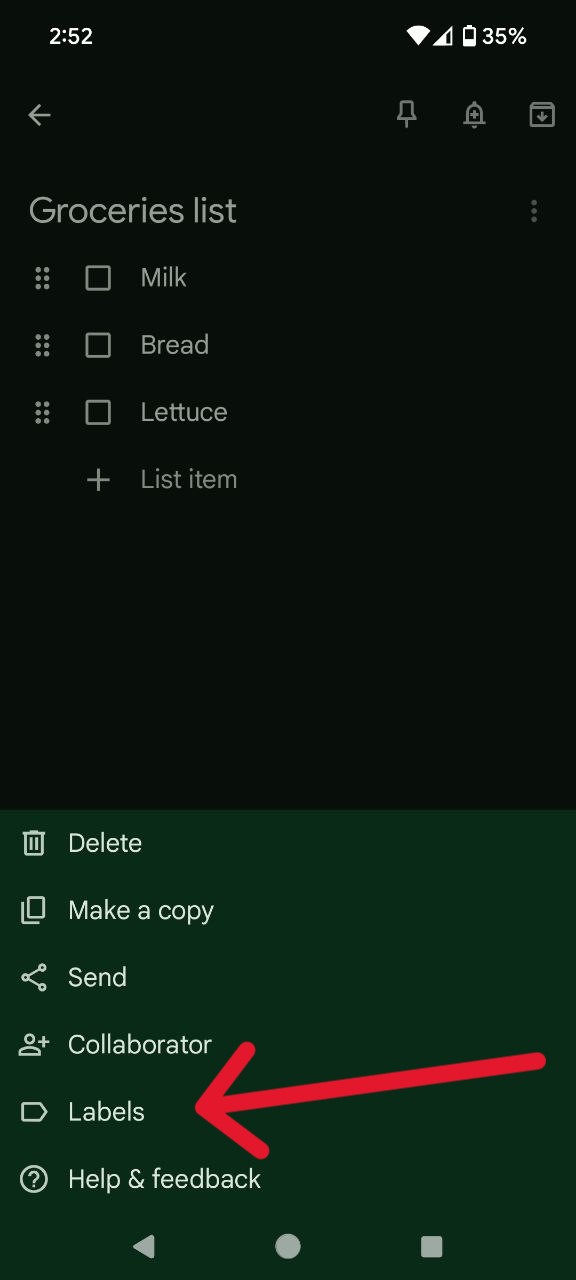
- Select ‘Labels’ and input a relevant label, such as ‘Shopping Lists.’
- Create the label, which will categorize your checklist for easy access and management.
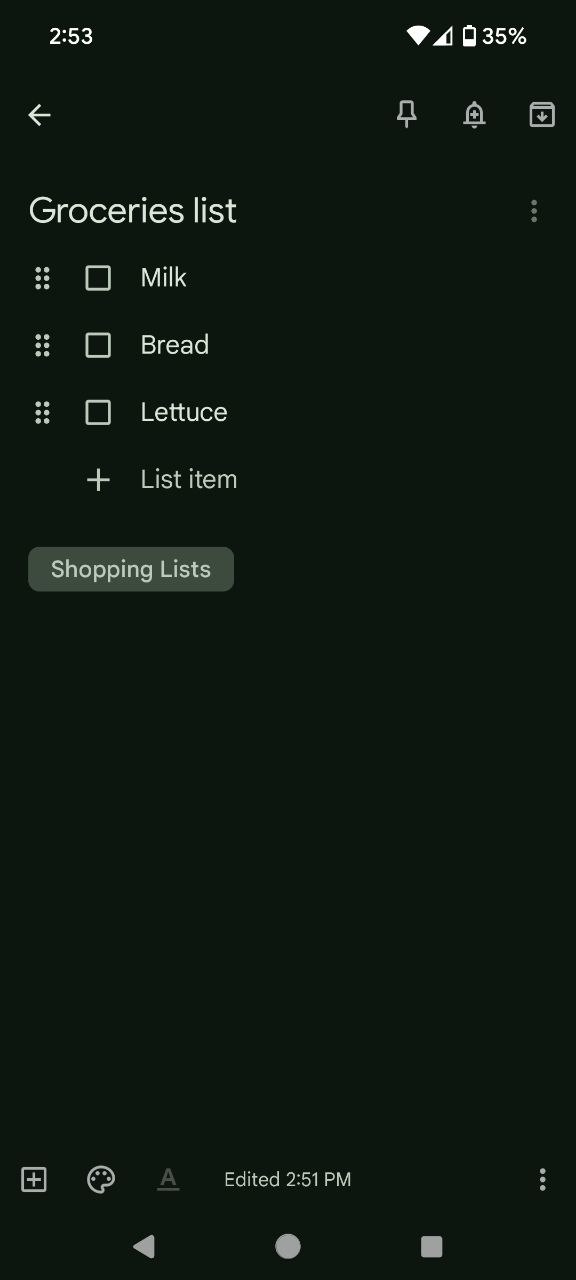
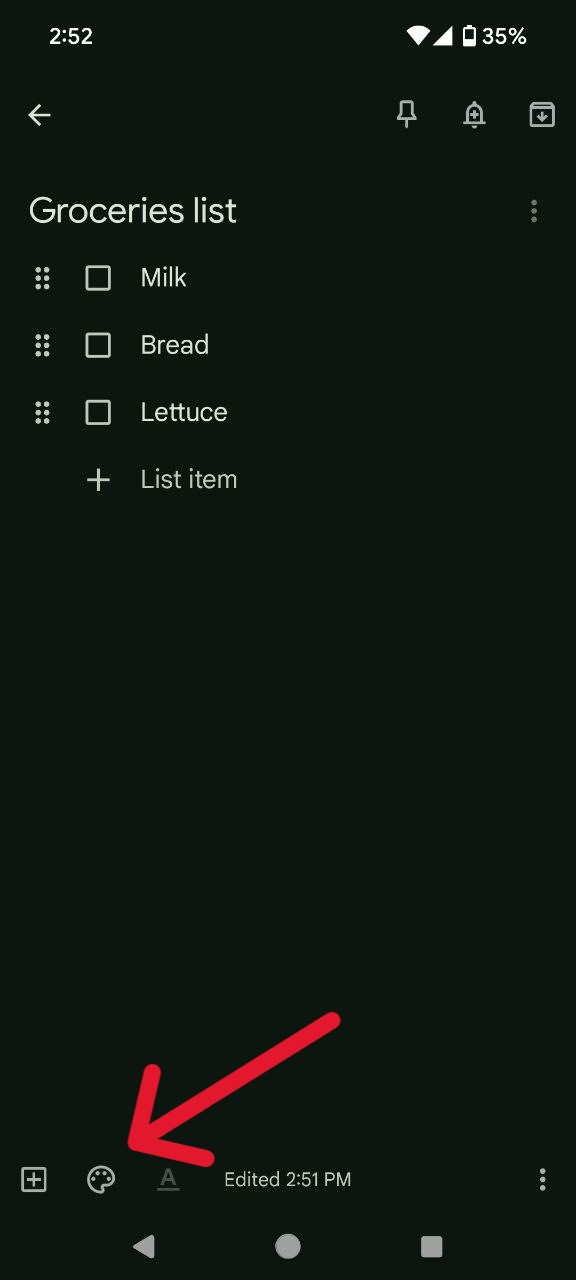
Google Keep also offers a spectrum of themes, ranging from basic colors to captivating wallpapers. Here’s how to customize the theme:
- Within your Google Keep note, tap the color palette icon.
- Choose a color theme or wallpaper that resonates with your preferences or aligns with the checklist context.
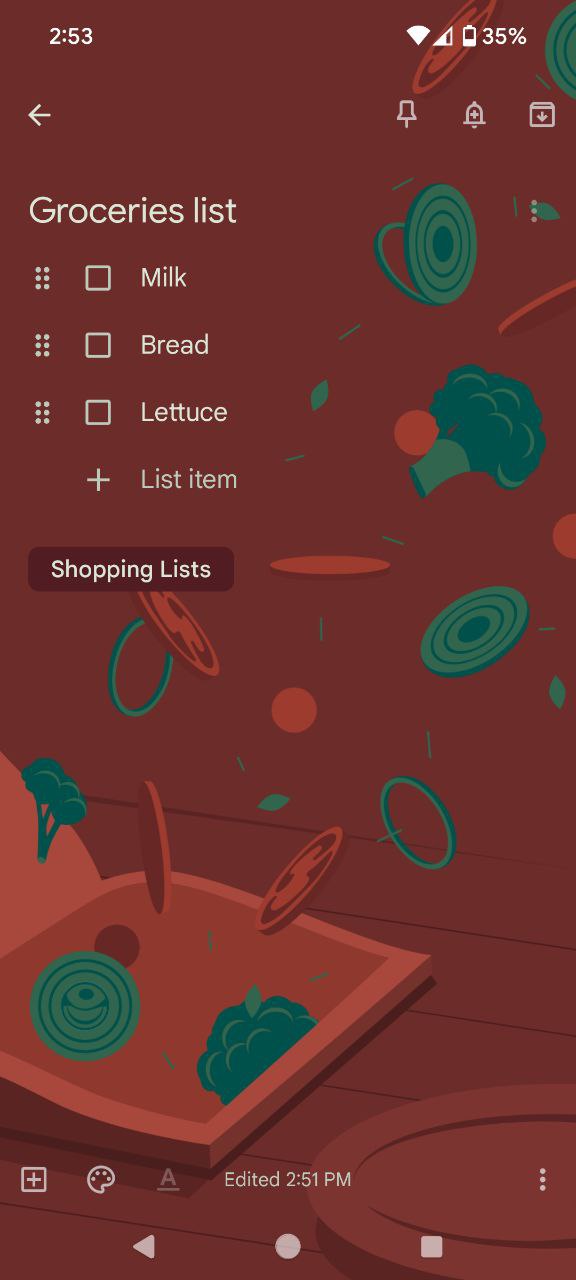
By using these customization features, you can improve the visibility, organization, and personalization of your checklist in Google Keep.

Karanjot Sidhu
1024 Posts
A computer science engineer who loves tech and won't stop talking about it. Here at Piunikaweb, I mostly cover Google Pixel deals and how-tos, though you may find me covering Pixel news as well sometimes. Apart from being a nerd, i love gaming and watching movies in my free time.
Next article View Article