Here’s the crux of the article in video form:
The Google Pixel 8, known for its sleek design and innovative features, empowers users with the ability to tailor their experience down to the smallest detail, including vibration settings. Whether you’re aiming to strike the perfect balance between notification alerts or seeking a more subtle touch feedback, this guide will walk you through the process of changing your vibration settings seamlessly.
Step-by-step tutorial to change vibration settings on your Google Pixel 8
This step-by-step tutorial will guide you through the process of adjusting vibration settings on your Google Pixel 8, ensuring you receive the tactile feedback that suits your style.
Step 1: Initiating Quick Settings
To begin the journey of customizing your vibration settings, locate and press either of the volume buttons along the right side of your Pixel phone. Alternatively, for a more in-depth approach, you can access Sound & vibration settings through the Settings app.
Tip: Quick Settings offer a shortcut to streamline your customization process.
Step 2: Navigating to Sound & Vibration settings
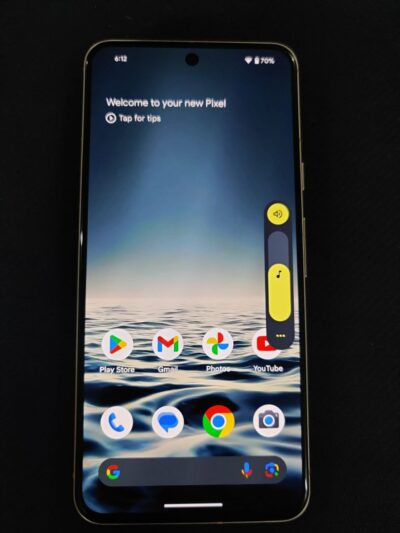
Once you’ve engaged Quick Settings, tap on ‘More’ to unveil a plethora of options. Here, you’ll find ‘Settings’; tap on it to delve into the heart of your Pixel’s customization capabilities.
Step 3: Unveiling Vibration & Haptics settings
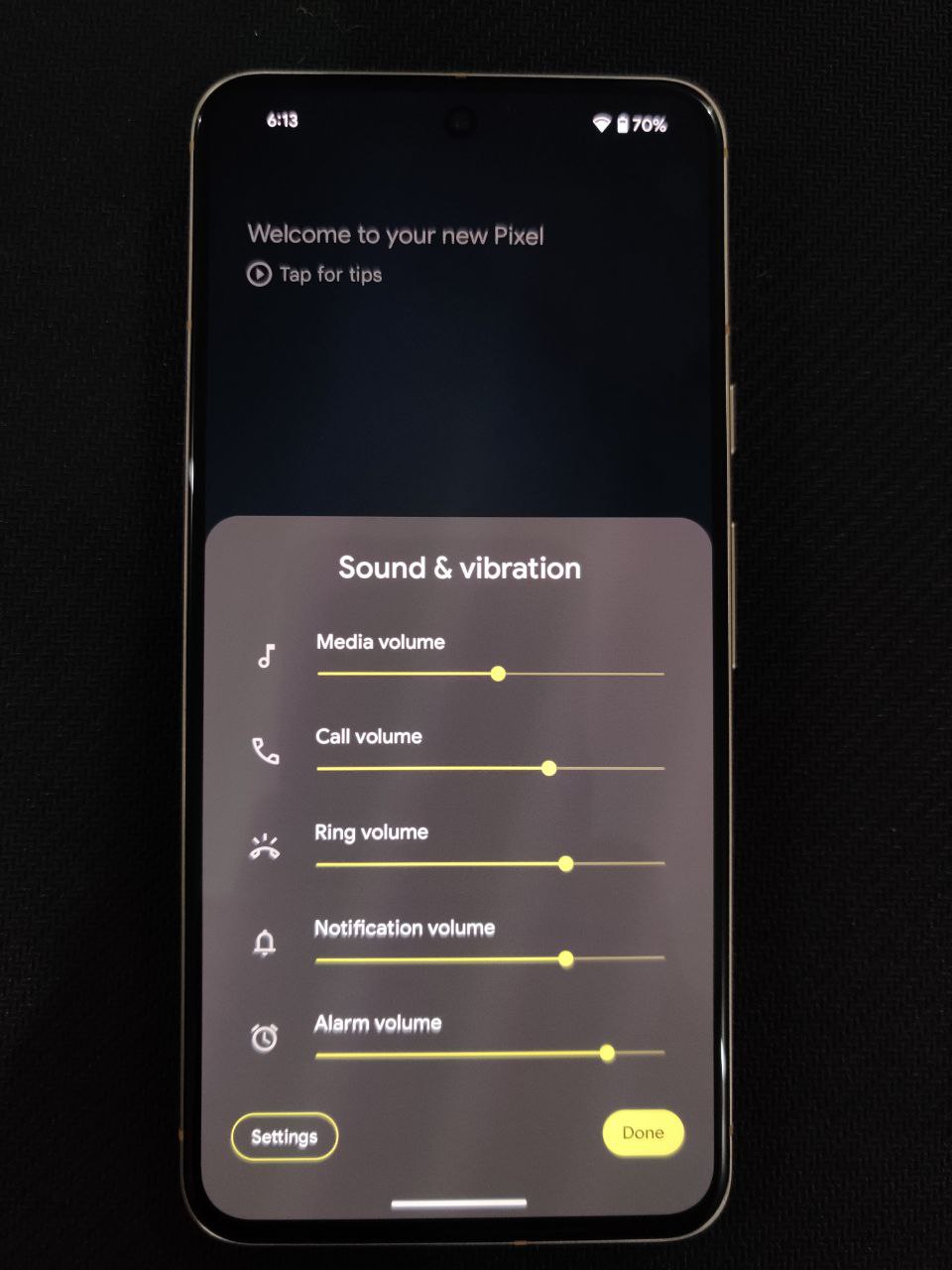
In the Settings menu, scroll down until you encounter ‘Vibration & haptics.’ This section serves as the hub for all things vibration-related, allowing you to fine-tune various aspects of your Pixel’s tactile response.
Step 4: Customizing vibration settings
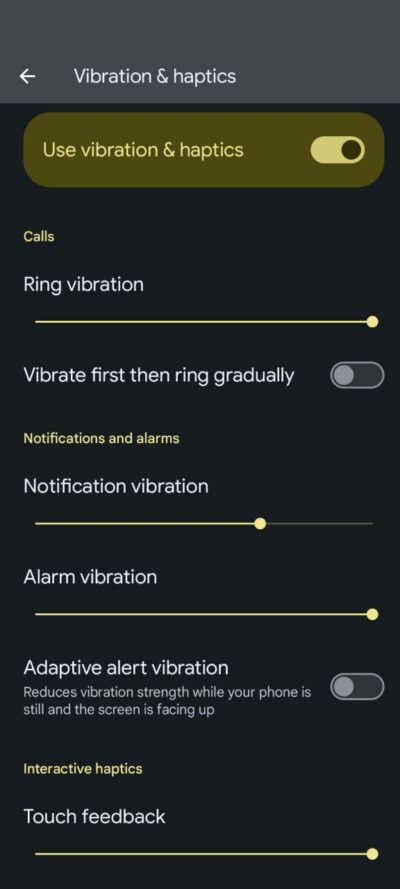
As you enter the Vibration & haptics settings, a world of customization awaits. You’ll be greeted with a spectrum of vibration settings, each catering to a specific aspect of your Pixel’s functionality. These include:
- Ring Vibration: Adjust the intensity of vibrations for incoming calls.
- Notification Vibration: Fine-tune vibrations for app notifications, ensuring you never miss an alert.
- Alarm Vibration: Tailor vibrations to wake you up with a gentle nudge or a more robust shake.
- Touch Feedback: Personalize the vibration response when interacting with your touchscreen.
- Media Vibration: Set the intensity of vibrations for multimedia experiences.
Step 5: Perfecting your vibration settings
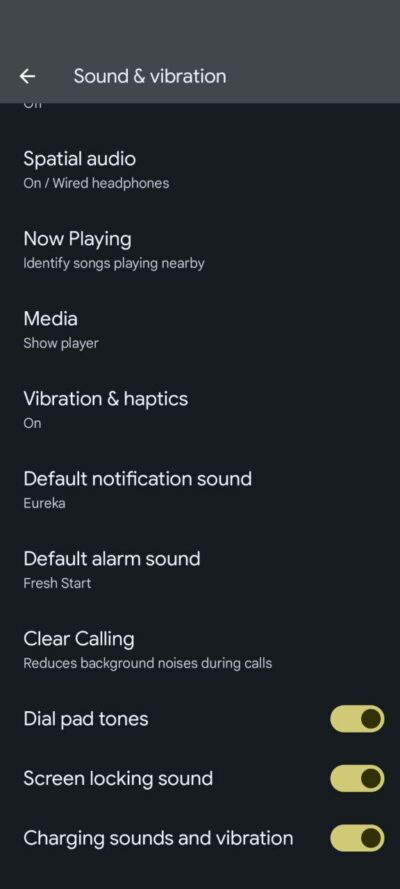
Slide the vibration levels to your desired intensity for each category. This is where the real magic happens, allowing you to strike the perfect balance between staying informed and maintaining a discreet user experience. So, change vibration settings on Google Pixel 8 according to your needs.
Tip: Test each setting in different environments to ensure it aligns with your daily routine.
In essence, this level of control over your Pixel 8’s tactile responses empowers you to curate an environment that aligns with your work, leisure, and social interactions.

Karanjot Sidhu
1024 Posts
A computer science engineer who loves tech and won't stop talking about it. Here at Piunikaweb, I mostly cover Google Pixel deals and how-tos, though you may find me covering Pixel news as well sometimes. Apart from being a nerd, i love gaming and watching movies in my free time.
Next article View Article