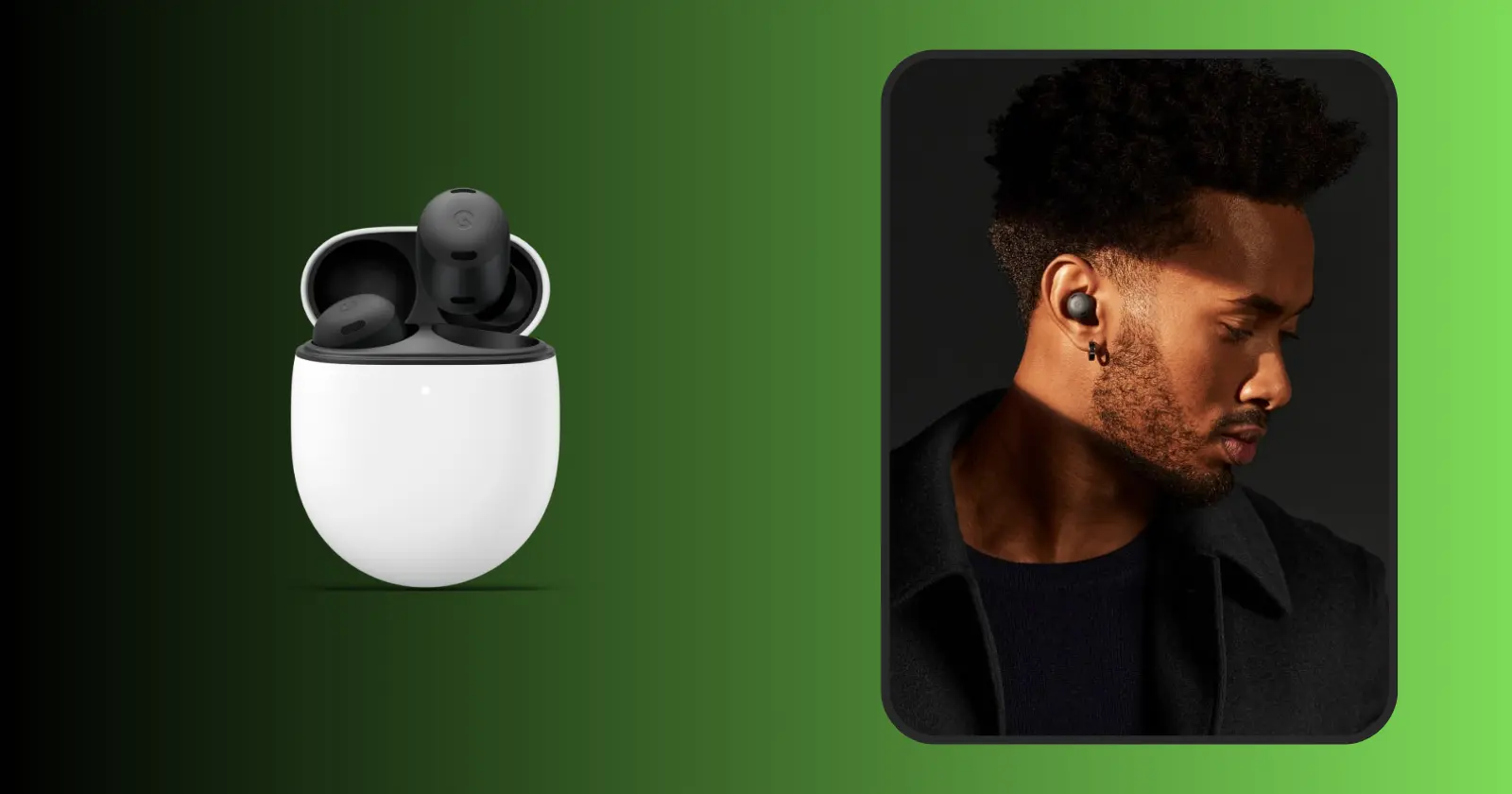
The Google Pixel Buds Pro have already established themselves as a top-tier choice for those seeking a stellar audio experience on the move. What many may not realize is that you can elevate that experience even further by tapping into the powerful connection between your Pixel phone and the Pixel Buds Pro. Unlike some other earbuds that demand additional apps for sound adjustments, the Pixel Buds Pro seamlessly integrate with your Pixel phone, allowing for easy customization directly through the device’s settings.
How to adjust Pixel Buds Pro EQ on your Pixel phone
Connecting your Pixel Buds Pro to your Pixel phone is a breeze. Simply pop the earbuds out of their case, slip them into your ears, and let the magic unfold. There’s no need to fumble through the Google Play Store for a dedicated app. Android takes care of the pairing effortlessly, thanks to Google’s meticulous attention to hardware connectivity.
Now, let’s address the elephant in the room, the custom EQ (Equalizer). Unlike other audio devices that provide a standalone app for sound adjustments, the Pixel Buds Pro’s custom EQ is discreetly nestled within the device settings. No need to search for a dedicated app in your App Drawer because, well, there isn’t one. All you need is right there in your Settings. Let’s walk through the steps.
Step 1: Connect your earbuds
The journey begins with the simple act of pulling your Pixel Buds Pro out of their case, placing them snugly into your ears, and ensuring they’re connected to your Pixel phone.
Step 2: Open Settings
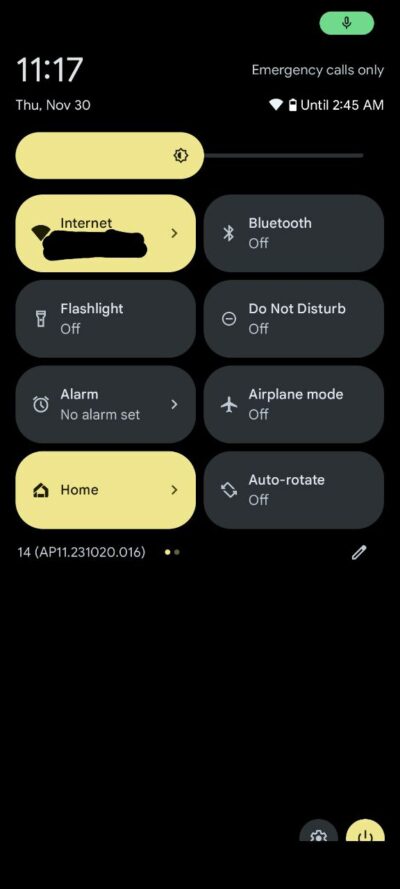
Swipe down your Notification Shade twice, and tap the gear icon located near the bottom-right corner to access your phone’s Settings.
Step 3: Go to Connected devices
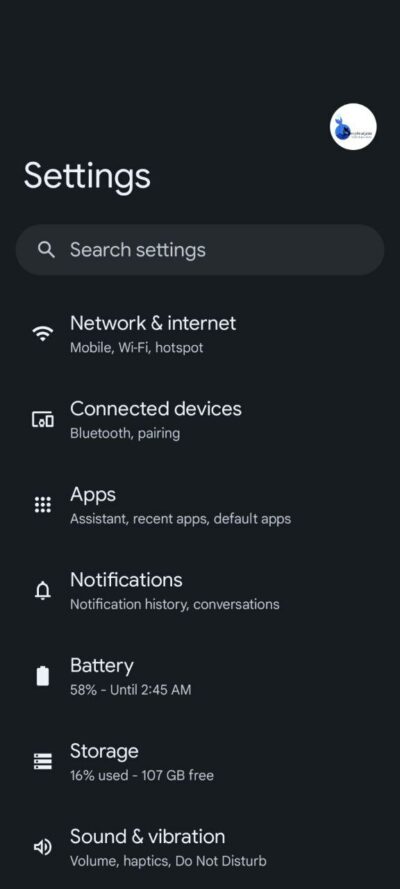
Within the Settings menu, locate and tap on ‘Connected devices.’
Step 4: Open your Pixel Buds Pro option
In the Connected Devices page, find and tap the gear icon associated with your Pixel Buds Pro.
Step 5: Open the Sound option
Navigate to the “Sound” entry on the next page.
Step 6: Access the Custom EQ option
Within the Sound page, you’ll find various audio settings. Locate the Equalizer (EQ) and tap the gear icon to access the Custom EQ options.
Step 7: Adjust the EQ to meet your taste
With your favorite music playing through your Pixel Buds Pro, fine-tune the sound to perfection by adjusting the sliders for Upper Treble, Treble, Mid, Bass, and Low Bass. Android will remember these changes in real-time, so no need to worry about saving preferences.
And there you have it! You’re now equipped with the knowledge to unlock the full potential of your Pixel Buds Pro. Close the Settings app, and immerse yourself in the improved soundscape emanating from your earbuds. Whether you’re a bass enthusiast, a lover of crisp trebles, or someone who appreciates a balanced mix, the Pixel Buds Pro and your Pixel phone offer the flexibility to tailor your audio experience precisely to your liking.
Featured image: Pixel Buds Pro

Karanjot Sidhu
1024 Posts
A computer science engineer who loves tech and won't stop talking about it. Here at Piunikaweb, I mostly cover Google Pixel deals and how-tos, though you may find me covering Pixel news as well sometimes. Apart from being a nerd, i love gaming and watching movies in my free time.
Next article View Article