





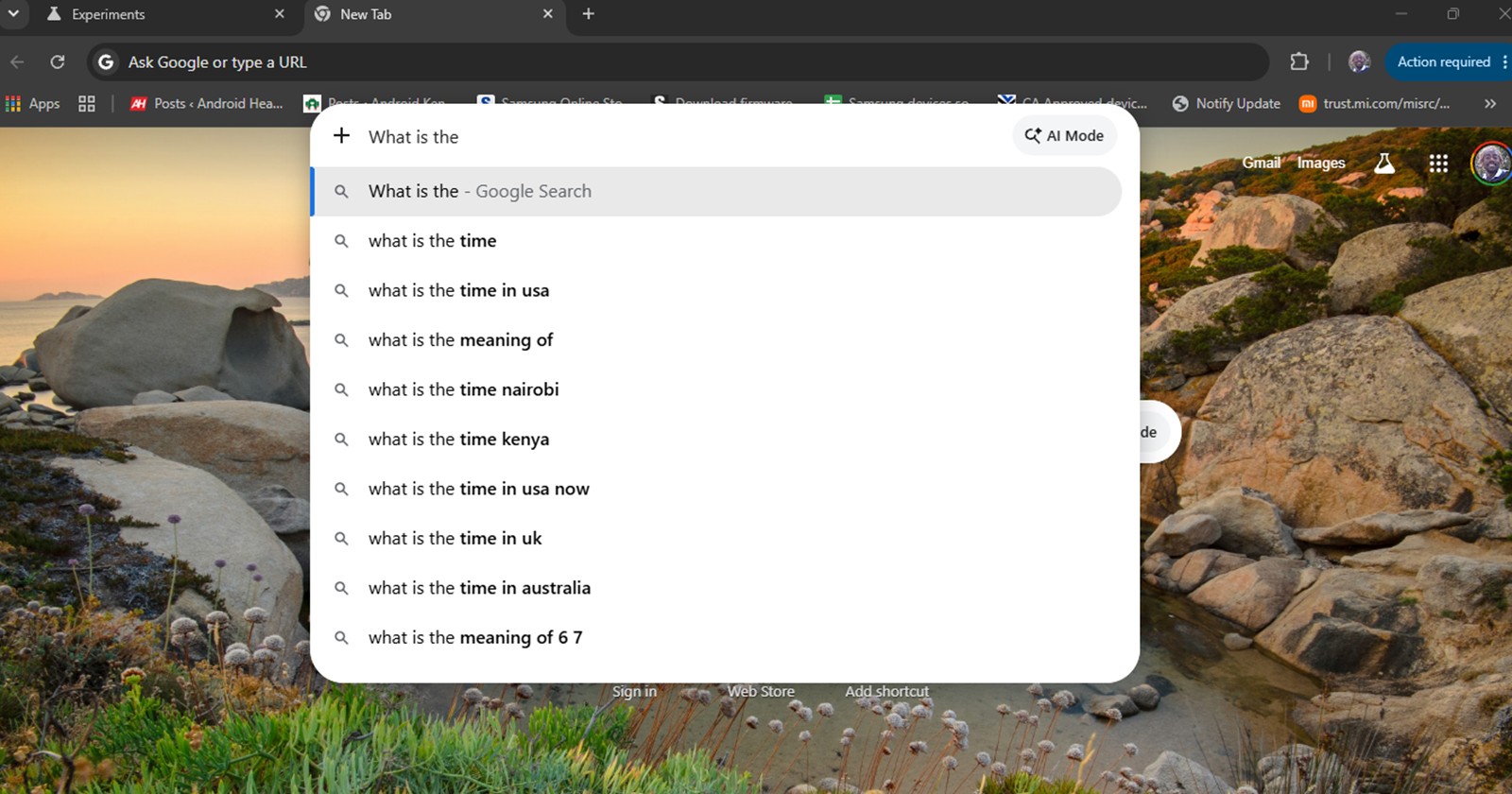
Just a week ago, a rather intriguing prototype code-named “Everywhere Omnibox” appeared in the Chromium Gerrit. The developer notes described a “standalone desktop compose popup” that would essentially untether Chrome’s address bar from the browser window. Now, just days after that initial discovery, Google has quietly pushed this experimental feature into Chrome Canary, and it fundamentally changes how we interact with the browser.
If you’ve ever used macOS Spotlight, Microsoft PowerToys Run, or the Microsoft Edge Search bar, you already know the vibe. But Google is giving this concept a distinctly AI-driven twist.
Here is everything I’ve learned about the Everywhere Omnibox, how it works, and what it means for the future of desktop browsing.
Unboxing the “Everywhere Omnibox”
In its current Canary iteration, the Everywhere Omnibox does exactly what its name implies: it brings the Chrome address bar to the center of your screen, no matter what you are doing.
To summon it, you simply hit a global keyboard shortcut—Ctrl+Shift+Space on Windows and Linux, or Cmd+Shift+Space on macOS. Instantly, a sleek, standalone search bar appears floating in the dead center of your display.
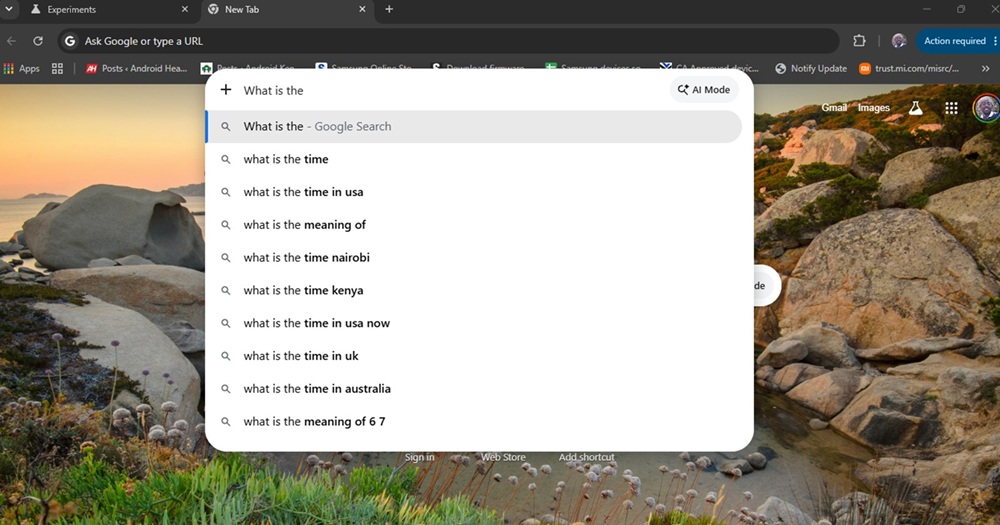
In my testing, I noticed that the interface is currently locked in place. You can’t drag it around your desktop, and it features a “dismiss on click-away” behavior. The moment you click anywhere outside of the floating box, it vanishes, keeping your screen clutter-free. It’s a transparent, frameless layout that feels much more like a native operating system feature than a clunky browser extension.
It’s not just Search; it’s a Gemini AI hub
While the Everywhere Omnibox looks a lot like the desktop search widget Microsoft Edge currently offers, Google’s approach takes a massive leap forward by placing artificial intelligence right at the forefront. Developed internally under the moniker “Project Loom,” this feature serves as a direct bridge to Google’s Gemini models.
Instead of the traditional “Search Google or type a URL” placeholder, the Everyday Omnibox greets you with an inviting “Ask anything” prompt.
What really caught my eye is the discreet “+” button located on the left side of the text field. Clicking this opens up a powerful sub-menu that transforms the omnibox from a simple search bar into a full-fledged productivity tool. From this menu, you can:
- Upload files and images for the AI to analyze.
- Create images directly from text prompts.
- Access various Gemini models seamlessly without having to open a new tab and navigate to the Gemini web interface.
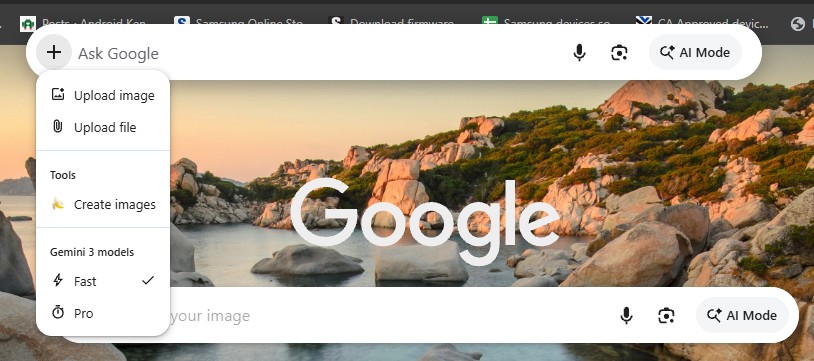
Of course, it still retains its classic Chrome DNA. You get your familiar omnibox suggestions, your browsing history, and standard Google Search results, effectively merging traditional web navigation with next-generation AI tasks.
How to try Chrome Omnibox Everywhere and availability
Because this is a bleeding-edge prototype, you won’t find it in your standard Chrome installation just yet. To test it out, you need to run Google Chrome Canary and enable the specific omnibox-loom flag.
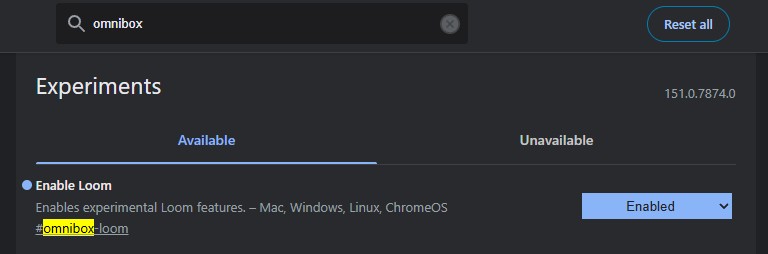
However, don’t expect this to hit the stable channel next week. The Gerrit commit explicitly warns: “Note: This feature is a prototype behind a flag and is not intended to launch any time soon.” Google is clearly still in the lab with this one, likely refining the AI integration and making sure the global keyboard hooks play nicely with various operating systems. But even in this early state, the Everywhere Omnibox is a compelling look at the future of Chrome.


Hillary Keverenge
2646 Posts
Tech has been my playground for over a decade. While the Android journey began early, it truly took flight with the revolutionary Lollipop update. Since then, it's been a parade of Android devices (with a sprinkle of iOS), culminating in a mostly happy marriage with Google's smart home ecosystem. Expect insightful articles and explorations of the ever-evolving world of Android and Google products coupled with occasional rants on the Nest smart home ecosystem.