





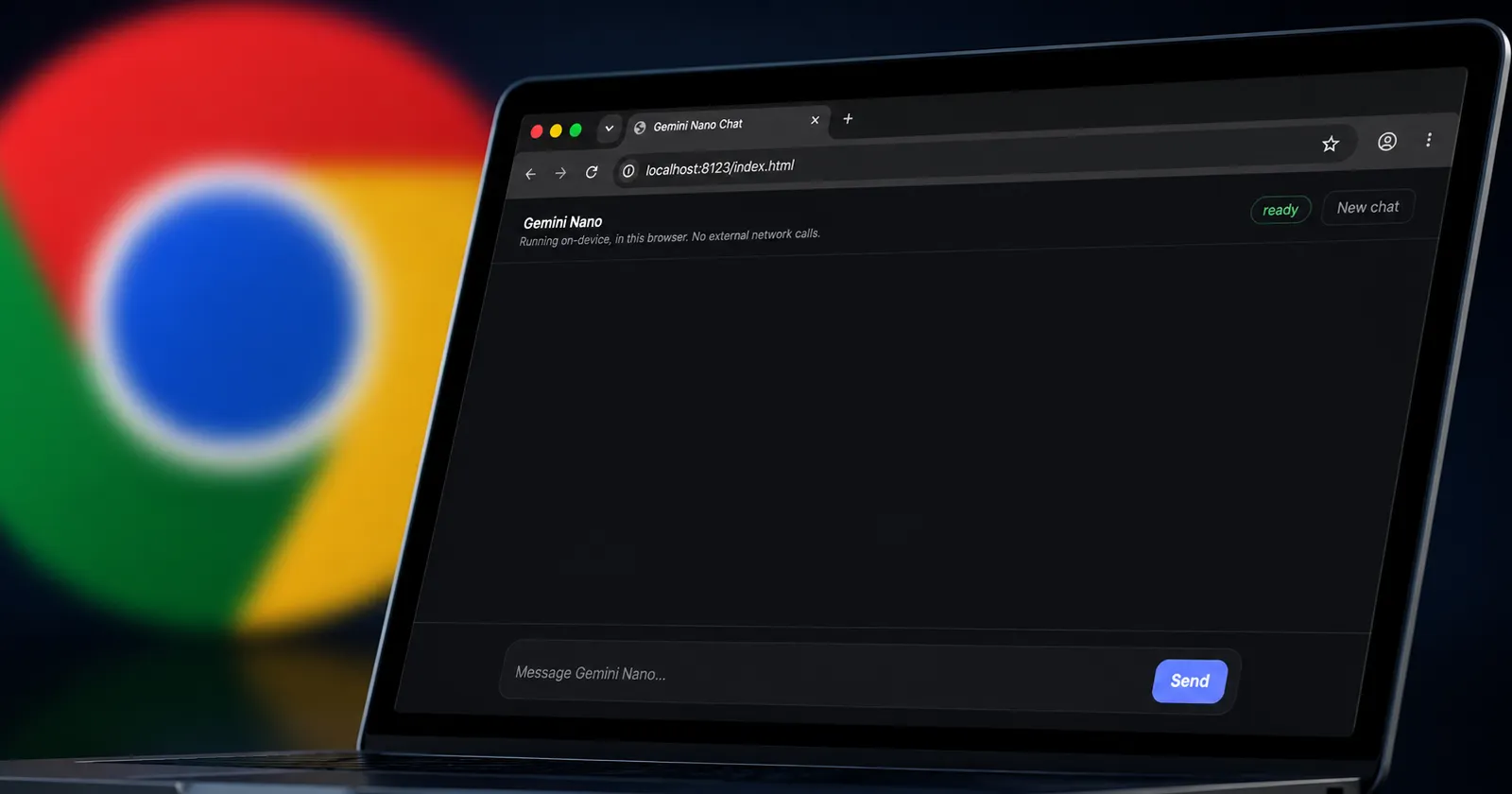
So apparently Google ships a Gemini Nano 4B LLM (context limit : 9216 tokens) baked into chrome
— Arnav Gupta (@_ar9av) June 17, 2026
I tried to expose it out as an OpenAI-compatible API for my local, so basically no API key, no external network calls, no need of ollama
Demo and repo below ↓ pic.twitter.com/RUtcrzk1aF
Google Chrome has a built-in Gemini Nano model sitting right on your computer, and most people have no idea it’s there. A developer named Arnav Gupta recently showed it’s possible to expose Chrome’s on-device AI through its built-in Prompt API and serve it as a local, OpenAI-compatible chat endpoint. No API key, no cloud calls, no Ollama needed.
Chrome ships with a Gemini Nano 4B model with a context window of 9,216 tokens. It runs entirely on your device, which means your conversations don’t leave your machine.
I tested this myself on an M2 MacBook Air, and things didn’t go exactly as planned. The Gemma model worked fine, but when I went through the steps to enable Gemini Nano specifically, Chrome threw an error saying the device doesn’t meet the hardware requirements. You can see that in the screenshot below.
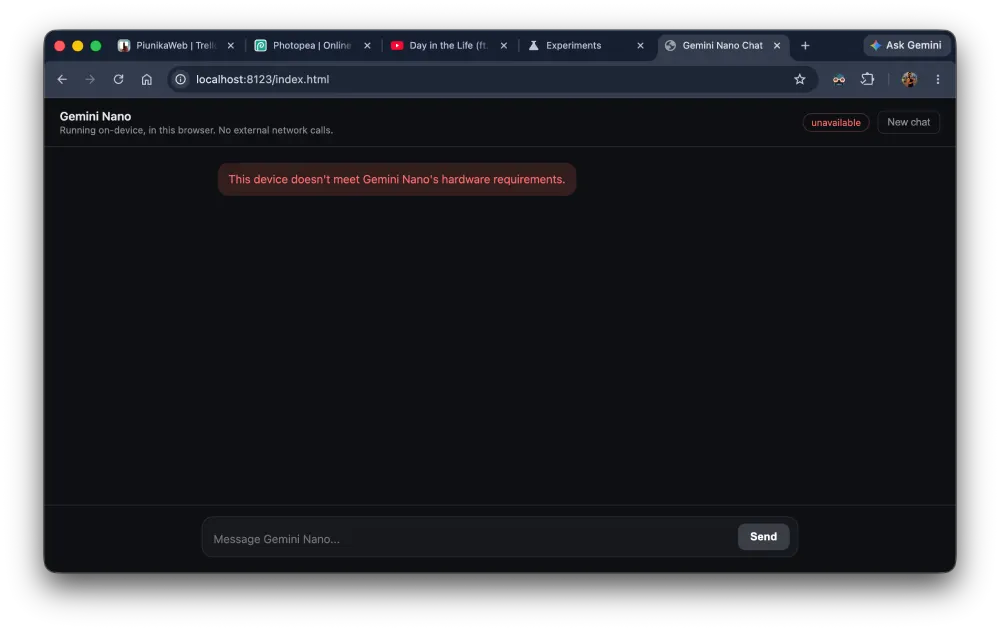
Gemini Nano through Chrome’s Prompt API appears to need more capable hardware, and even an M2 Mac doesn’t clear that bar. If your machine does meet the requirements, though, it works pretty much like any other local AI chatbot you’d run on your machine.
You type a message, it responds, and the whole thing runs inside your browser at localhost. Here’s a screenshot of the chat interface with the Gemma model that worked for me below:
Here’s how to use it on your machine
Note: Before proceeding, I want to highlight that the default AI model that was downloaded in my testing was Gemma before I enabled Gemini Nano specifically.
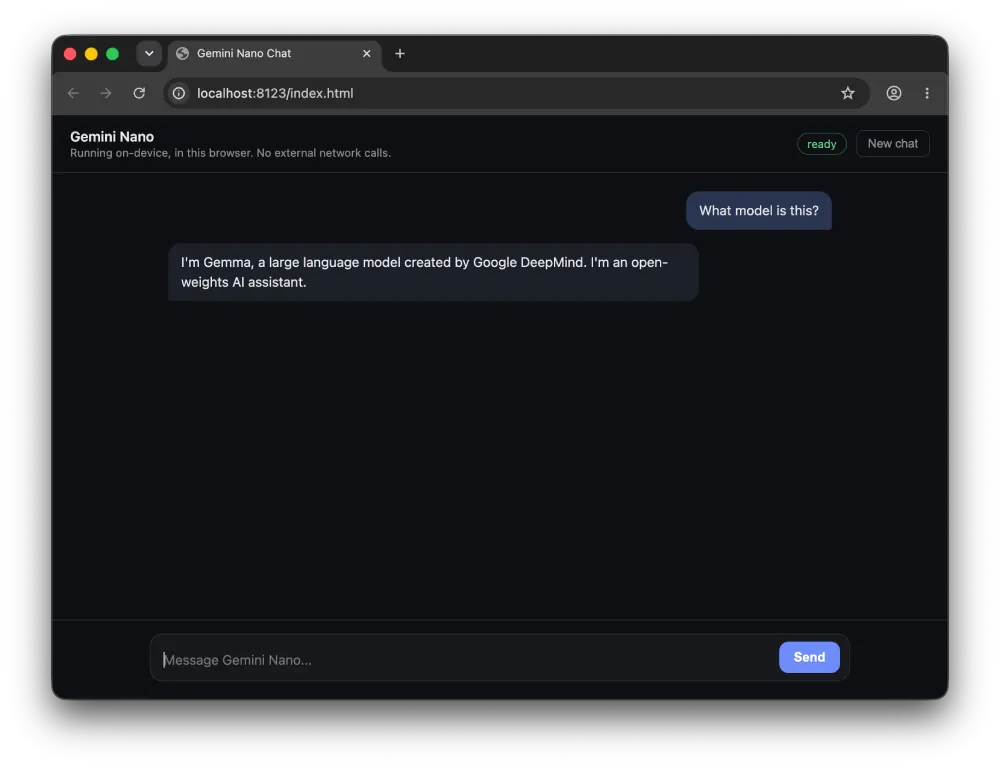
So even if you want a smaller model, you can skip the steps to enable Gemini Nano. And just enter the chat UI and let the default Gemma model download and run. Now let’s dive into the steps:
- Make sure you’re on a recent version of Chrome desktop.
- Open a new tab and go to chrome://flags. Search for “Prompt API for Gemini Nano” and enable it. Also enable “Optimization Guide On Device Model”. Relaunch Chrome.
- After relaunching, go to chrome://components and find “Optimization Guide On Device Model”. Click “Check for update” to trigger the model download.
- Clone the GitHub repo at using the command git clone https://github.com/Ar9av/gemini-nano-chrome.git, then paste cd gemini-nano-chrome into terminal, followed by npm start.
- Open your browser and go to localhost:8123/index.html.
The model download can take a bit depending on your connection, and the interface shows a progress bar with the percentage as it downloads, like in the screenshot below.
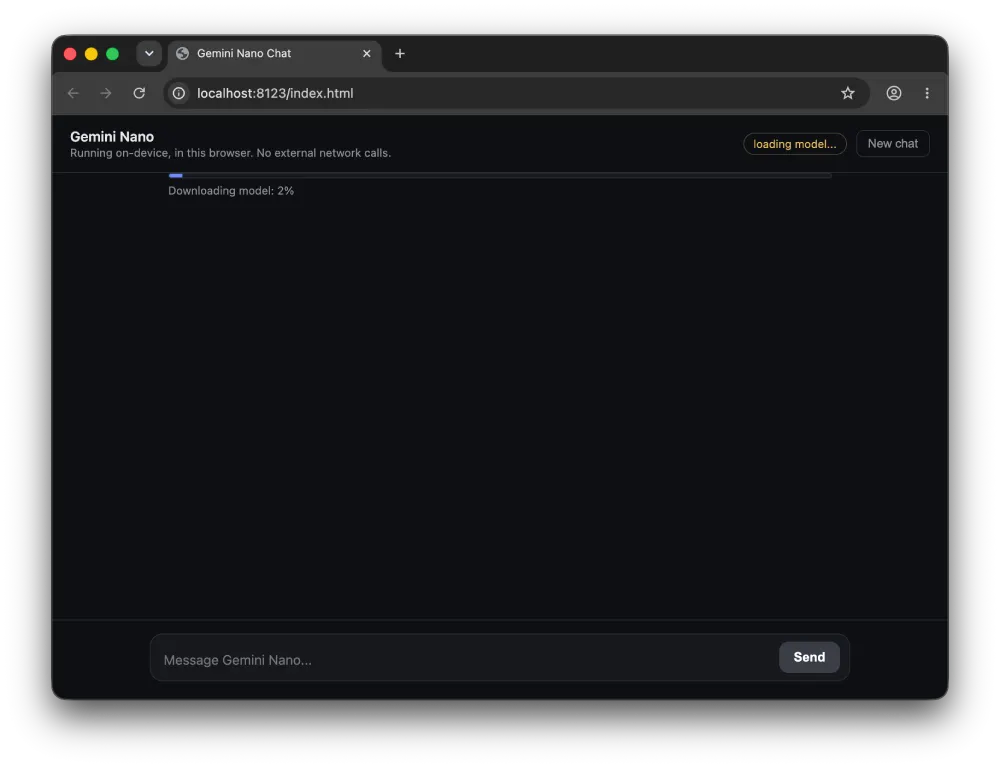
Once it hits 100%, the status switches to “ready” and you can start chatting. If you get the hardware requirements error like I did, it likely means your machine doesn’t have the GPU headroom Gemini Nano needs to run. Try it anyway and see what Chrome says. Just note that your results may vary depending on your hardware setup.

We stand out from the tech-media crowd because we break news stories; we mainly bring you stuff that you won’t find anywhere in the mainstream tech media. Our stories have been picked up by some of the world’s most popular websites and media outlets—more info is available here.

Dwayne Cubbins
3068 Posts
I cover fast-moving stories across apps, online platforms, and everyday tech — phones, wearables, consoles, and whatever else people are fighting with this week. Bugs, rollouts, scams, policy enforcement, and the occasional internet-culture rabbit hole are all fair game. My goal is simple — make confusing tech news readable. When I'm not working, I'm working out or chilling with my dog. Got a tip? You can find me on X @dcubbins.
Next article View Article
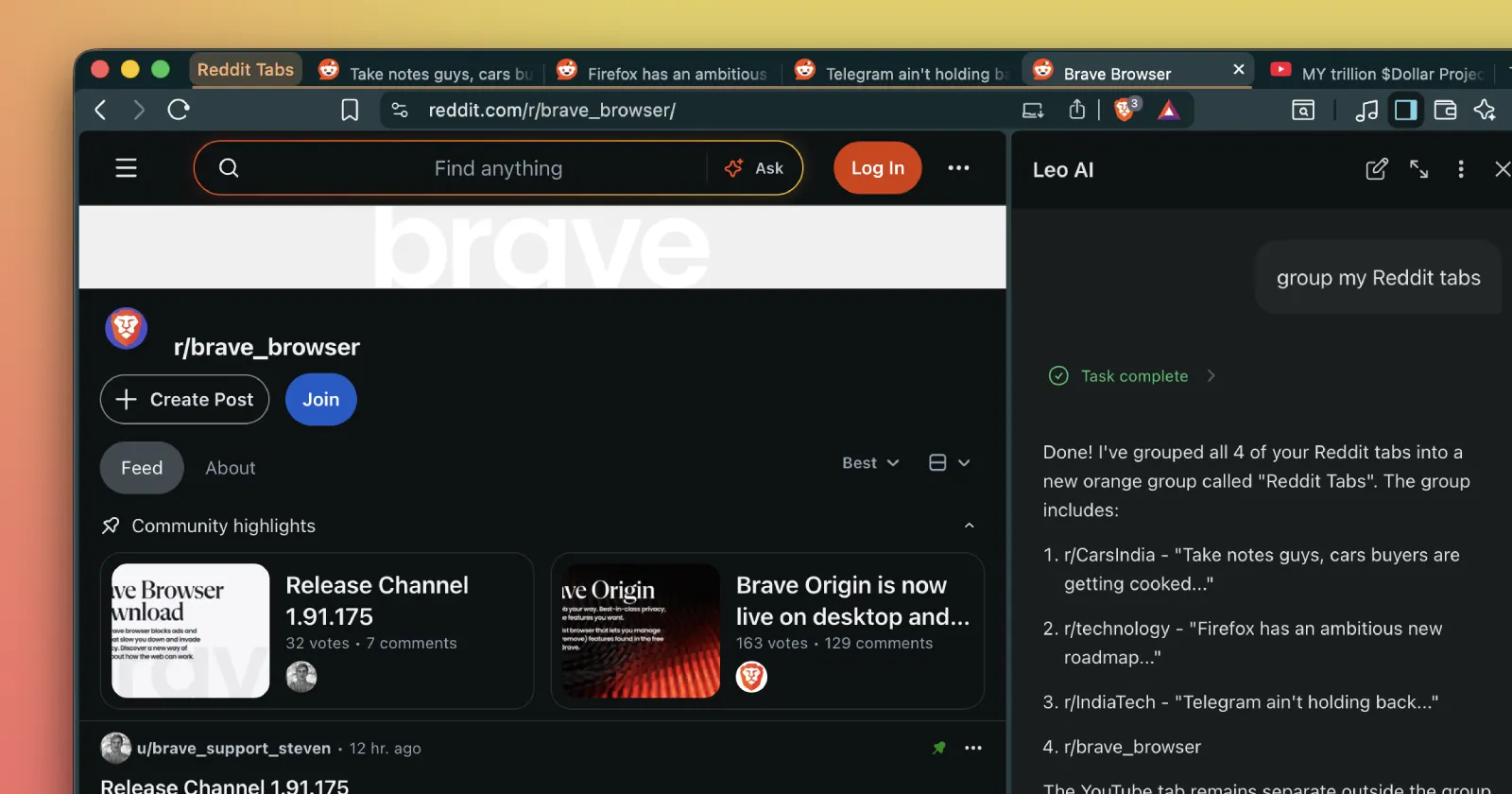
Brave Leo’s new feature could be a big deal for tab hoarders
Brave Nightly just got a genuinely useful Leo feature. You can now ask Leo to clean up your tabs, and it'll actually go ahead rearranging tabs within a window...
Jun 18, 2026 1 Min Read