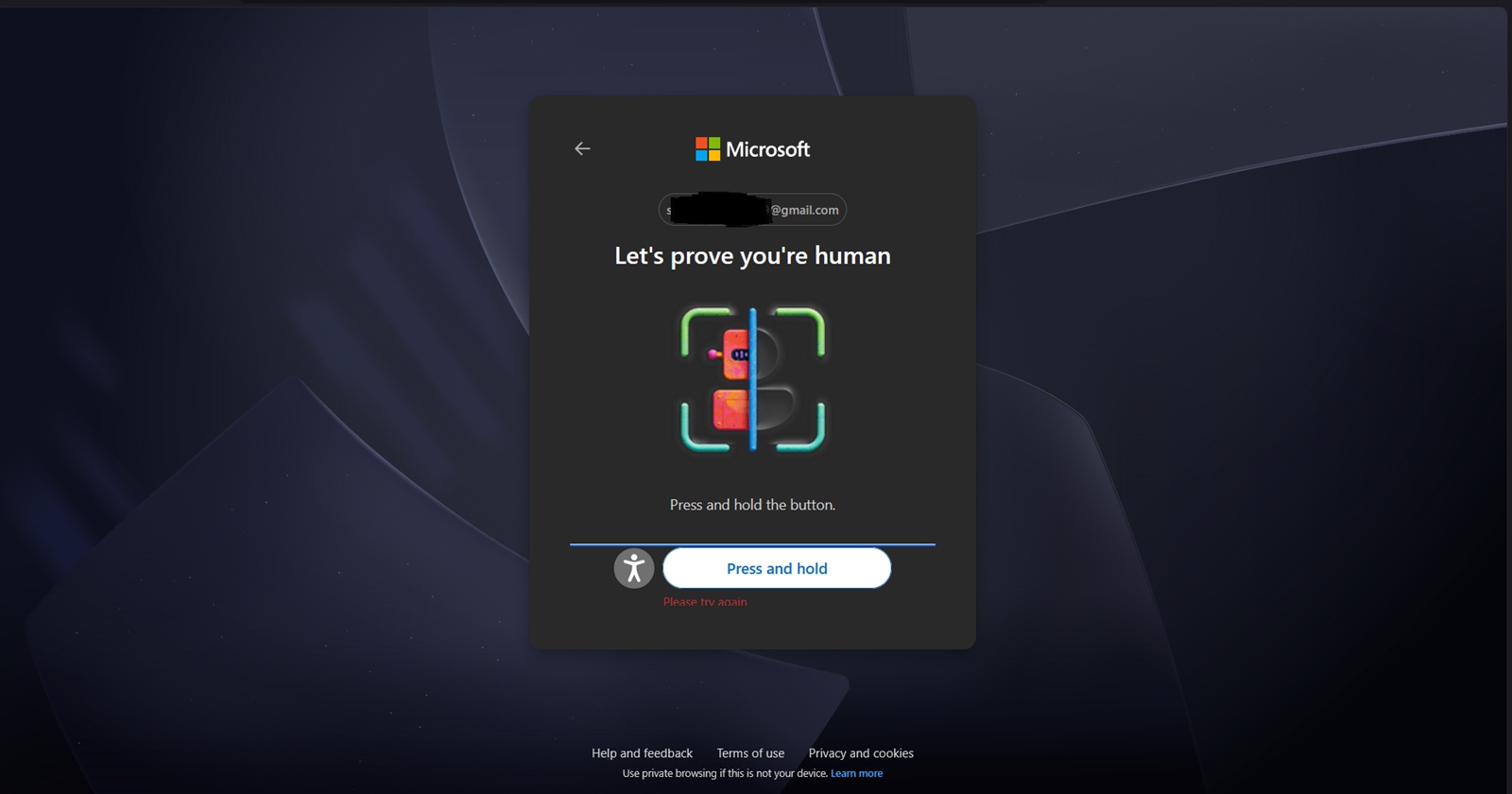
No matter how polished a software ecosystem is, bizarre bugs always find a way to sneak through the cracks. Over the past few weeks, a strange issue has been plaguing Microsoft Account holders trying to log in or create new accounts.
Affected users find themselves hitting an absolute brick wall during the security verification phase. Instead of a standard puzzle, they are greeted by a “Press and hold the button” CAPTCHA that either completely refuses to validate their humanity or fails to appear entirely.
We’ve attempted to replicate the issue across several of our own test devices and accounts. While we couldn’t trigger the bug ourselves (suggesting it isn’t an overnight global outage hitting every single user), there is evidence from the community that a significant number of people are genuinely stuck.
If you are currently trapped in this verification loop, you don’t have to wait until tomorrow to try again. Based on extensive user accounts and successful troubleshooting, here is a breakdown of what is happening and exactly how to fix it.
The problem: A CAPTCHA that treats humans like bots
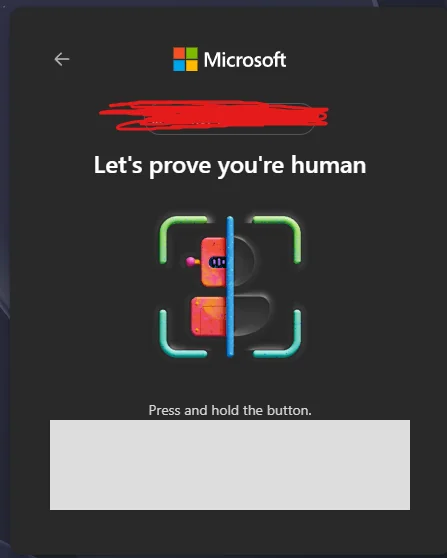
The issue manifests during the Microsoft account login or registration process, specifically on the “Let’s prove you’re human” verification page. Users report two main variations of this headache:
- The missing button: The text explicitly commands the user to “Press and hold the button,” but the button itself is nowhere to be found, leaving behind a blank white box.
- The infinite “Try again” loop: For others, the button or icon does show up. However, after manually holding it down and waiting for the progress bar to complete, the system throws a generic “Something went wrong” or “Try again” error.
Trying to force your way through this broken verification is a trap. If you retry too many times, Microsoft’s automated security kicks in and locks you out entirely with the dreaded error: “You’ve requested too many codes today. Please try again tomorrow.”
Why is this happening?
The primary trigger behind this broken CAPTCHA isn’t a server-side crash, but rather an aggressive conflict between Microsoft’s security scripts and your browser’s privacy settings.
When your browser blocks certain cross-site tracking scripts, telemetry, or third-party cookies, the elements required to render and validate the “Press and hold” script fail to load. This explains why the button goes invisible or fails to send a success signal back to Microsoft’s verification servers.
How to fix the “Press and hold” CAPTCHA issue
If you are currently locked out, use these verified community workarounds to bypass the broken verification loop before you get rate-limited for 24 hours.
1. Switch over to Microsoft Edge
Ironically, the most seamless fix for most users is jumping ship to Microsoft’s own native browser. Multiple users who faced total failure on Google Chrome, Mozilla Firefox, and Safari reported that switching to Edge immediately solved the issue. The verification button rendered correctly and accepted the input on the very first try. This is another test for the accusations the browser is facing regarding its aggressive tactics against the competition.
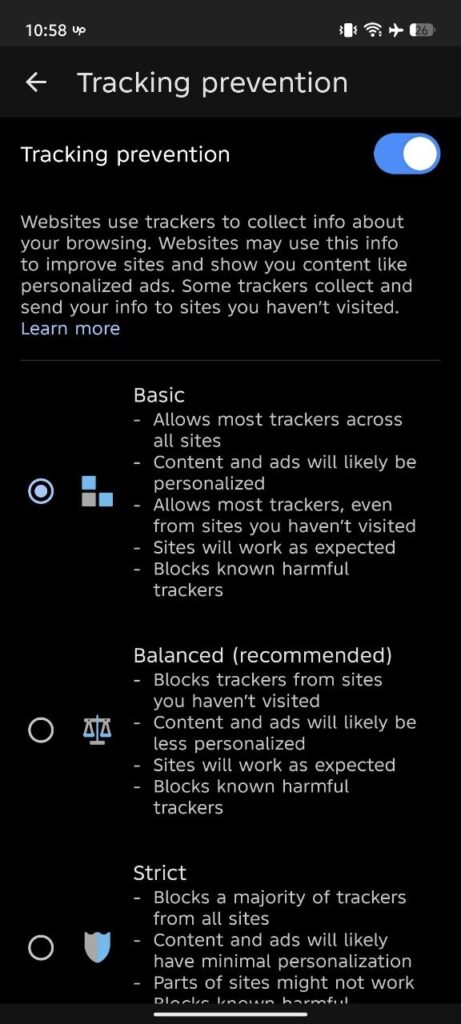
2. Lower or disable Tracking Prevention
If you are already using Microsoft Edge (or another browser with built-in privacy guards) and still can’t see the button, your privacy settings are likely set to “Strict.” You need to temporarily dial them back.
On Desktop:
- Look at your browser’s address bar and click the Padlock icon (🔒) located right next to the URL.
- Locate Tracking prevention for this site (or similar privacy guards) and toggle it to OFF or switch it from “Strict” to “Basic”.
- Refresh the tab and attempt to sign in again.
Alternatively, you can navigate directly to edge://settings/privacy on Edge, locate the Tracking Prevention header, and temporarily turn it off.
On Mobile (Edge App):
- Tap the hamburger menu (three lines) at the bottom right of the screen.
- Go to Settings > Privacy and security > Tracking prevention.
- Turn the toggle OFF or switch it to Basic, then reload your login page.
3. Check your ad-blockers and private windows
Aggressive extensions like uBlock Origin, Privacy Badger, or built-in ad-blockers in browsers like Brave can completely strip out the script running the CAPTCHA.
- Turn off extensions: Temporarily disable your ad-blocker for the Microsoft login domain.
- Avoid Incognito/Private mode: Some users noted that the verification consistently failed in private windows (which block third-party cookies by default) but succeeded in a standard browsing window once tracking prevention was adjusted.
Other solutions to try:
- Allow third-party cookies, then refresh and try again.
- If it still fails, clear your browser cache or try a different browser entirely.
- If Microsoft starts warning that you have requested too many codes, stop retrying for a while and come back later.
Once you successfully pass the verification and log into your account, make sure to navigate back into your browser settings to re-enable your Strict Tracking Prevention and ad-blockers to keep your daily browsing secure.


Hillary Keverenge
2723 Posts
Tech has been my playground for over a decade. While the Android journey began early, it truly took flight with the revolutionary Lollipop update. Since then, it's been a parade of Android devices (with a sprinkle of iOS), culminating in a mostly happy marriage with Google's smart home ecosystem. Expect insightful articles and explorations of the ever-evolving world of Android and Google products coupled with occasional rants on the Nest smart home ecosystem.
Next article View Article