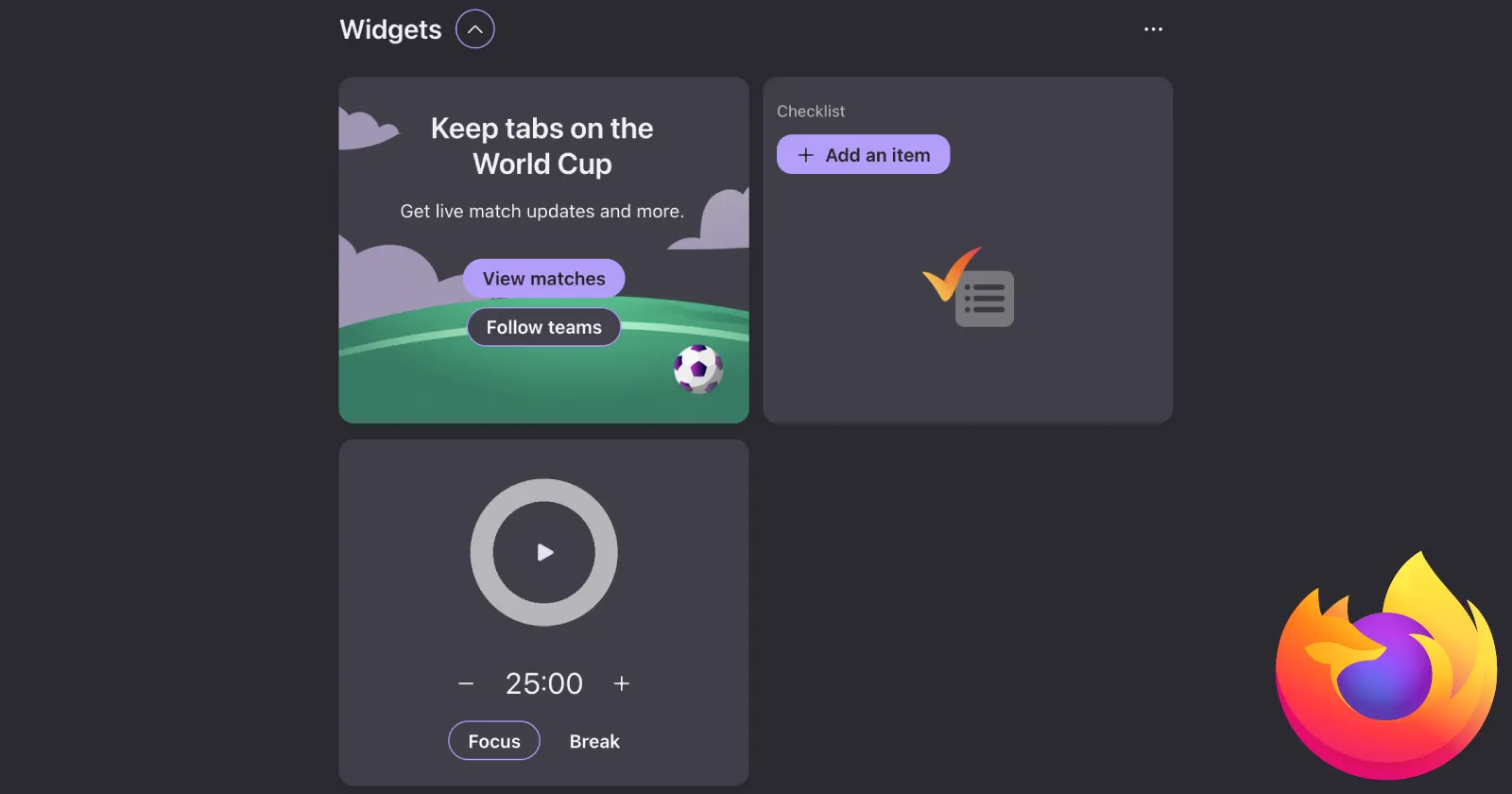
Firefox recently rolled out a set of New Tab widgets timed to the 2026 FIFA World Cup. As we covered earlier this week, the update brings live sports tracking, a checklist, a timer, and other tools directly to your homepage, essentially turning the New Tab page into a personal dashboard.
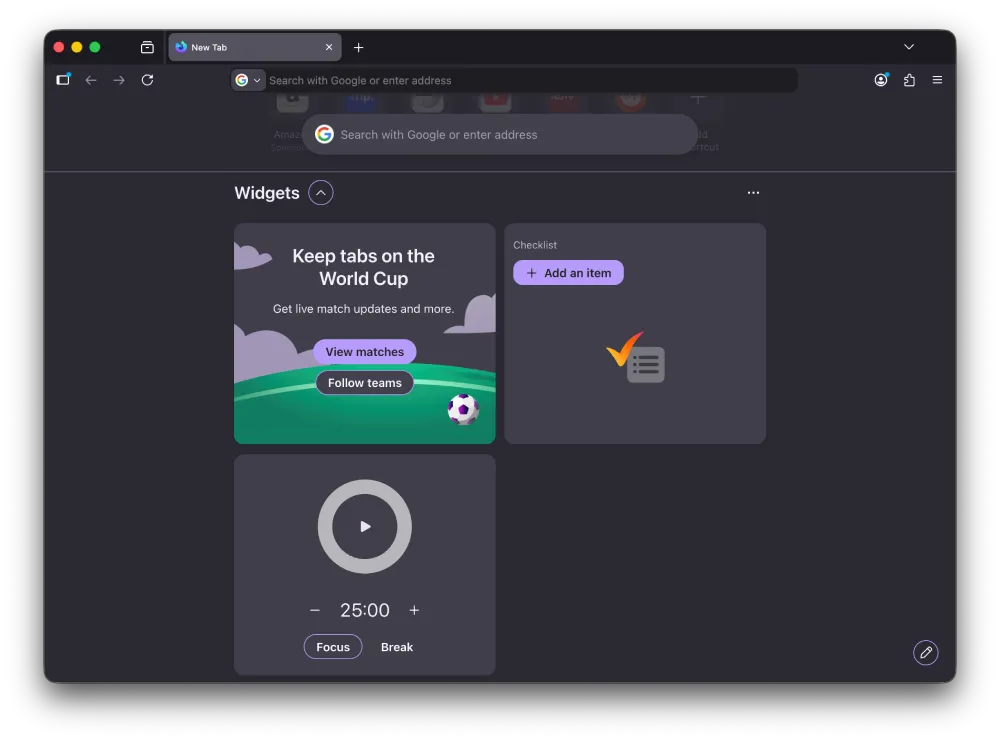
Not everyone wants that, though. If you’d rather keep your New Tab clean and minimal, disabling the widgets takes just a few clicks.
Before we dive in, it’s also worth noting that you don’t have to remove all of them. Firefox lets you toggle individual widgets, so if the football widget is the one you actually want, you can keep that and ditch the others.
Here’s how to do it
Open Firefox and go to a new tab. In the bottom-right corner of the page, you’ll see a Customize button with a pencil icon — click that.
A panel slides open on the right side of the screen. You’ll see options for Wallpapers, Shortcuts, and Widgets, each with its own toggle. To turn off all widgets at once, just flip the Widgets toggle off. That removes the entire section from your New Tab page.
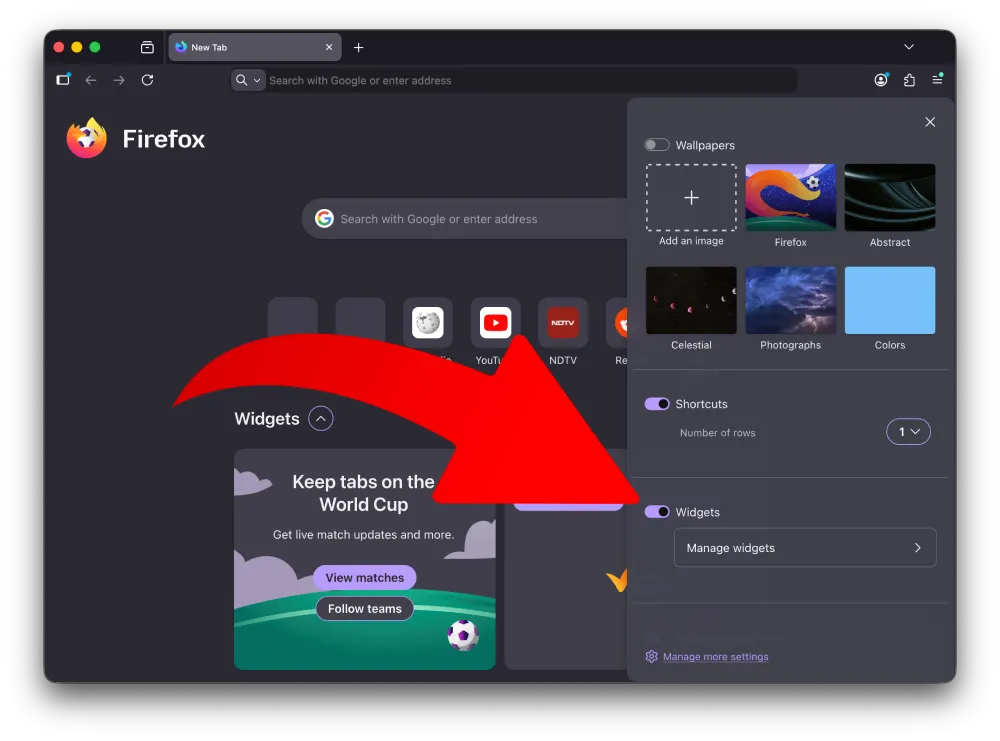
If you want more control, click Manage widgets under that same toggle. That takes you to a secondary screen listing each widget individually: Timer, Lists, and Sports are the three currently available. Each one has its own toggle, so you can switch off just the ones you don’t want. Disabling Sports removes the World Cup widget specifically, while leaving the checklist or timer in place if you use those.
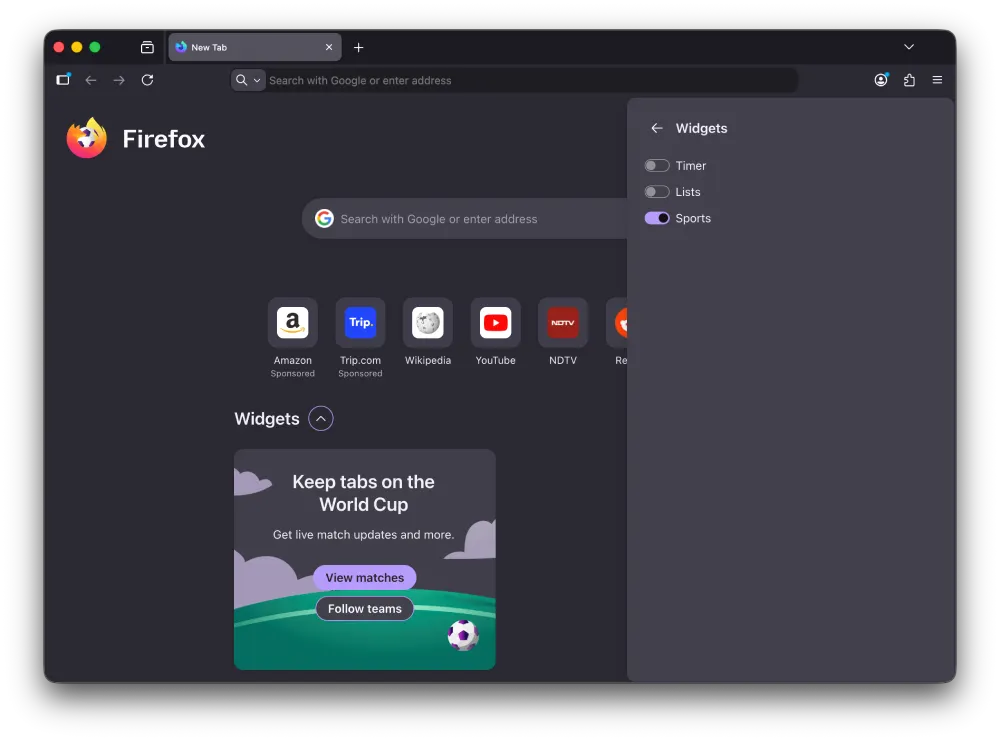
Once you’re done, click the X at the top of the panel or click anywhere outside it to close. The New Tab page updates immediately to reflect whatever you left enabled.
That’s really all there is to it. The Customize panel also lets you swap out wallpapers and adjust how many rows of shortcuts appear, so it’s worth a look even if the widgets aren’t what brought you there.


Dwayne Cubbins
3055 Posts
I cover fast-moving stories across apps, online platforms, and everyday tech — phones, wearables, consoles, and whatever else people are fighting with this week. Bugs, rollouts, scams, policy enforcement, and the occasional internet-culture rabbit hole are all fair game. My goal is simple — make confusing tech news readable. When I'm not working, I'm working out or chilling with my dog. Got a tip? You can find me on X @dcubbins.
Next article View Article