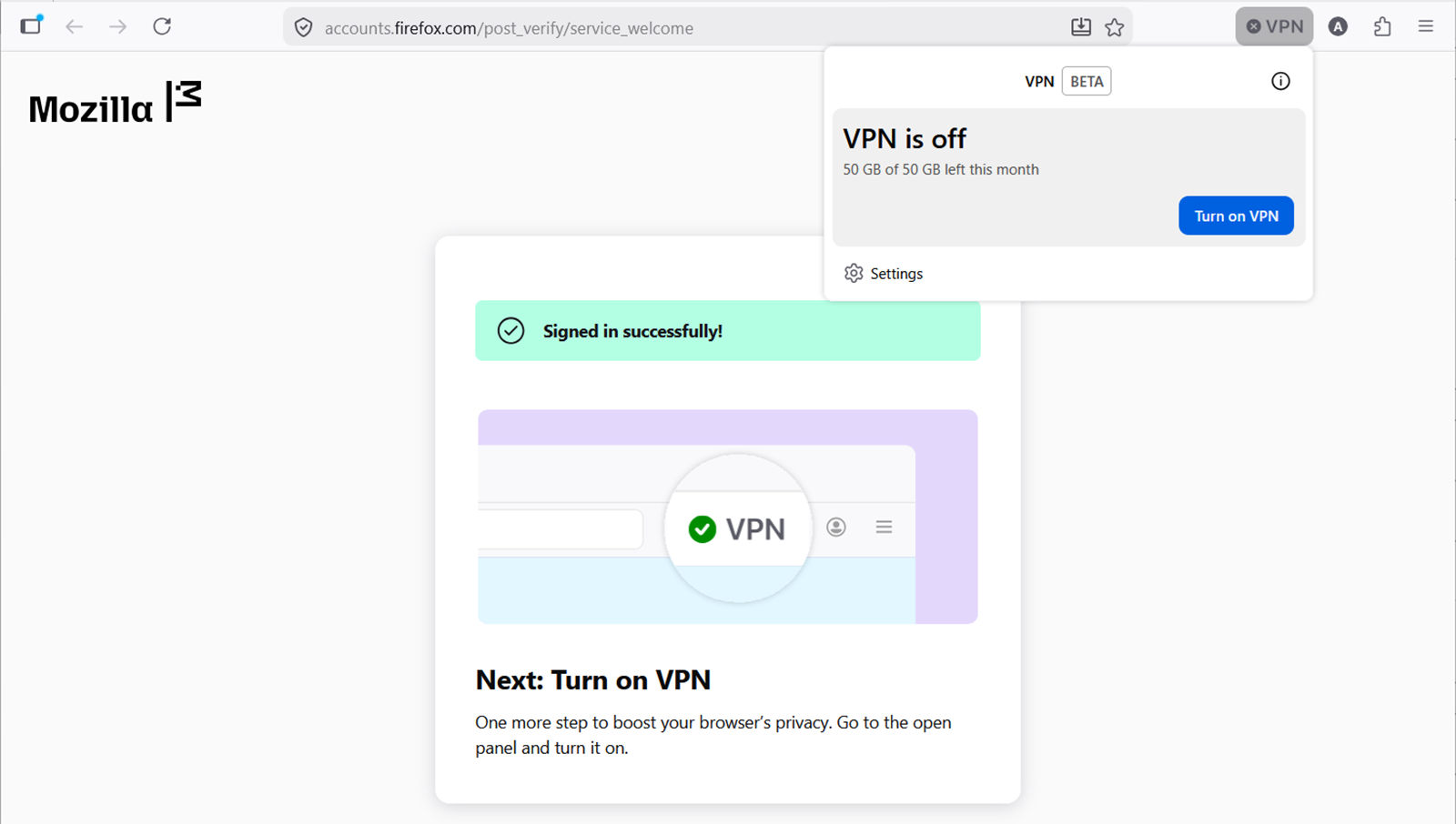
Mozilla recently introduced a brand-new built-in VPN feature in Firefox, giving users an easy way to hide their IP address and add an extra layer of privacy while browsing. The feature is free, integrated directly into the browser, and doesn’t require installing separate software.
Naturally, that announcement generated a lot of excitement among Firefox users. But it has also created plenty of confusion.
Since Mozilla is rolling out the feature gradually, many users have no idea whether their country is supported, why the VPN isn’t showing up, or how they can enable it. I’ve also noticed that many people are confusing Firefox’s built-in VPN with the standalone Mozilla VPN service, even though the two products work quite differently.
To make things easier, here’s everything you need to know about Firefox’s new built-in VPN, including supported countries, setup instructions, limitations, and troubleshooting tips.
What is Firefox’s built-in VPN?
Firefox’s built-in VPN is a browser-level privacy feature that routes your Firefox traffic through a secure proxy server and masks your IP address. Unlike traditional VPN services that protect your entire device, Firefox’s built-in VPN only works inside the Firefox browser. Any traffic coming from other applications on your computer or phone remains unaffected.
The feature is completely free and currently includes 50GB of VPN data every month. Mozilla says the VPN is designed to improve browsing privacy without requiring users to install additional software or pay for a subscription.
Firefox built-in VPN vs Mozilla VPN
This is where many users get confused. The new Firefox built-in VPN:
- Works only inside Firefox
- Includes 50GB of free monthly data
- Requires a Mozilla account
- Currently available in limited regions
- Doesn’t require a paid subscription
Mozilla VPN, on the other hand:
- Protects your entire device
- Encrypts traffic from all apps and services
- Offers unlimited usage
- Includes additional privacy features
- Requires a paid subscription
In short, Firefox’s built-in VPN is a lightweight browser privacy tool, while Mozilla VPN is a full-device VPN service. Interestingly, Mozilla recently expanded the standalone VPN offering by removing previous data restrictions.
Which countries currently support Firefox’s built-in VPN?
One of the biggest limitations right now is availability. Mozilla is conducting a staged rollout, meaning the feature is only available in selected countries and may not be visible to every eligible user immediately.
As of now, Firefox’s built-in VPN is rolling out in:
- Australia
- Austria
- Belgium
- Bulgaria
- Canada
- Chile
- Colombia
- Denmark
- Finland
- France
- Germany
- Ireland
- Italy
- Malaysia
- Mexico
- Netherlands
- New Zealand
- Norway
- Portugal
- Singapore
- South Africa
- Spain
- Sweden
- Thailand
- United Kingdom
- United States
Even if you live in one of these countries, Mozilla warns that the rollout is progressive. In other words, some users will receive access earlier than others.
Why you still don’t have the Firefox VPN feature
As of writing, neither I nor my colleagues have access to the Firefox built-in VPN. That’s not surprising because we’re located outside the currently supported regions. If you’re also in an unsupported country, there isn’t much you can do right now except wait for Mozilla to expand availability.
Mozilla has confirmed that additional regions will be added over time, although the company hasn’t shared a specific timeline for broader global rollout.
How to enable Firefox’s built-in VPN
If your account and region are eligible, enabling the feature is relatively straightforward.
Step 1: Update Firefox
The built-in VPN started rolling out with Firefox 149, so make sure you’re running Firefox 149 or newer.
Step 2: Look for the VPN icon
Mozilla says eligible users should see a VPN icon in the top-right section of the Firefox toolbar. Clicking the icon opens the setup screen.
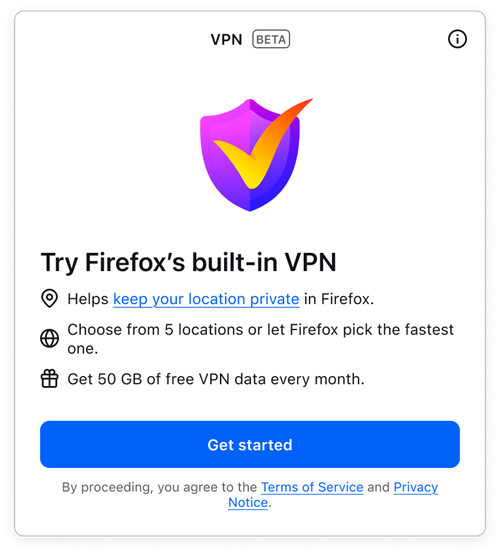
Step 3: Sign in with a Mozilla account
The feature requires a Mozilla account. If you don’t already have one, Firefox will guide you through creating an account during setup.
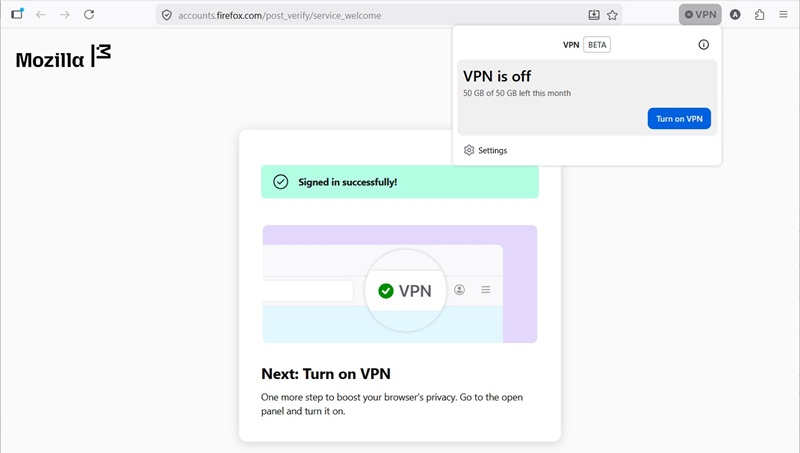
Step 4: Turn on the VPN
After signing in, you’ll see the VPN panel. Simply click ‘Turn on VPN’ to activate the feature. Firefox will automatically route your browsing traffic through the most suitable server.
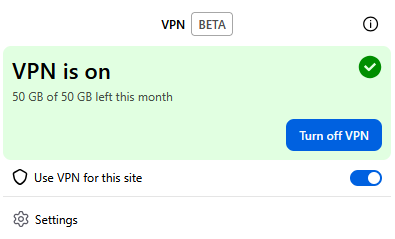
To enable or disable the VPN for a specific site in Firefox, use the toggle switch in the VPN panel.
Available VPN server locations
Even though the VPN is available in more than two dozen countries, server location options are currently limited. Users can manually choose from:
- Canada
- France
- Germany
- United Kingdom
- United States
There’s also a Recommended option that automatically selects the best available location. Mozilla says more server locations will be added in the coming months.
Understanding the 50GB monthly limit
The free VPN comes with a monthly data allowance of 50GB. Firefox will notify you when you’re approaching the limit. Once you exhaust the allocation:
- VPN protection is paused
- Browsing continues normally
- VPN access remains unavailable until the next reset
The allowance automatically resets at the start of every calendar month. For users who need unlimited VPN traffic, Mozilla recommends upgrading to Mozilla VPN.
Can you exclude specific websites?
Yes. Firefox allows users to create exceptions for websites that shouldn’t use the VPN. To manage exclusions:
- Open Firefox Settings.
- Navigate to Privacy & Security.
- Scroll to the VPN section.
- Select Manage website settings.
- Add websites you want excluded from VPN routing.
This can be useful for websites that rely on regional access or services that don’t behave correctly through VPN connections.
Why you may not see Firefox’s built-in VPN
Many users are discovering news about the feature but can’t find it inside Firefox. According to Mozilla, there are several possible reasons.
1. You’re outside a supported region
This is the most common explanation. If your country isn’t part of the current rollout, the VPN won’t appear.
2. The rollout hasn’t reached you yet
Even users in supported countries may not have access immediately because Mozilla is introducing the feature in phases.
3. Firefox studies are disabled
Mozilla says the rollout relies partly on Firefox’s experimentation system. To check:
- Open Settings
- Go to Privacy & Security
- Scroll to Data Collection and Use
- Ensure “Allow Firefox to improve features, performance, and stability between updates” is enabled
4. You’re part of a holdback study
Mozilla says some users are intentionally placed in a “VPN – MVP Beta Holdback” study that prevents access during testing. You can check by visiting: about:studies.
5. An enterprise policy is blocking it
Users on managed or work devices should visit: about:policies and look for the IPProtectionAvailable policy, which may prevent the VPN from appearing.
6. The VPN icon was removed
Firefox allows toolbar customization. If you accidentally removed the VPN icon, right-click the toolbar and check the customization or overflow menu.
7. Sign out and sign back in
Mozilla also recommends signing out of your Mozilla account and signing back in, provided you’ve confirmed your account credentials and Firefox Sync is enabled.
Does Firefox log your browsing activity?
Mozilla says the built-in VPN collects technical information needed to operate and improve the service. Examples include:
- Whether connections succeed or fail
- How much VPN data is used
However, Mozilla states that it does not log the websites you visit or the contents of your communications.
Does the VPN affect browsing performance?
Mozilla says users can browse normally with the VPN enabled. In my experience using various browser-based VPN and proxy solutions over the years, performance differences are usually minor for everyday browsing, although speeds can vary depending on server load and distance.
The main limitation here isn’t speed but rather the 50GB monthly cap, which may be restrictive for heavy users.
Firefox’s built-in VPN is one of the more interesting additions Mozilla has introduced recently. It lowers the barrier to private browsing by offering free VPN protection directly inside the browser without requiring a separate application.
That said, availability remains the biggest challenge.
The feature is currently limited to select regions, and even users in supported countries may need to wait for Mozilla’s staged rollout to reach them. For everyone else, including myself and my colleagues who are still outside supported markets, it’s simply a waiting game for now.
Still, if you’re lucky enough to have access already, this Firefox built-in VPN offers a simple and convenient way to improve browsing privacy without paying for a subscription.


Hillary Keverenge
2723 Posts
Tech has been my playground for over a decade. While the Android journey began early, it truly took flight with the revolutionary Lollipop update. Since then, it's been a parade of Android devices (with a sprinkle of iOS), culminating in a mostly happy marriage with Google's smart home ecosystem. Expect insightful articles and explorations of the ever-evolving world of Android and Google products coupled with occasional rants on the Nest smart home ecosystem.
Next article View Article