If you’re anything like me, you navigate your smartphone primarily through muscle memory. You know exactly where a button is without even looking, speeding through menus purely by feel. But if you are an avid Google Chrome for iOS user who relies on long-pressing the bottom menu to manage tabs, prepare for a jarring disruption. Google has quietly rearranged the long-press tab options, and it is already tripping up multitaskers.
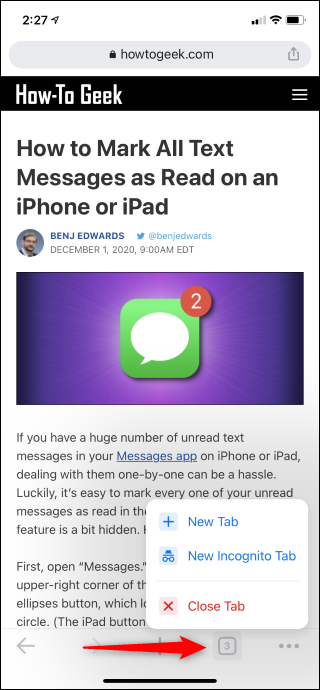
For years, tapping and holding the “+” or tab counter button at the bottom of the Chrome interface brought up a familiar, comfortable menu. “New Tab” sat conveniently at the top, followed by “New Incognito Tab,” with the destructive “Close Tab” option tucked safely at the bottom.
Now, the latest update flips this script. “Close Tab” boldly dominates the top spot, bumping “New Tab” to the middle and shoving “New Incognito Tab” down to the bottom.
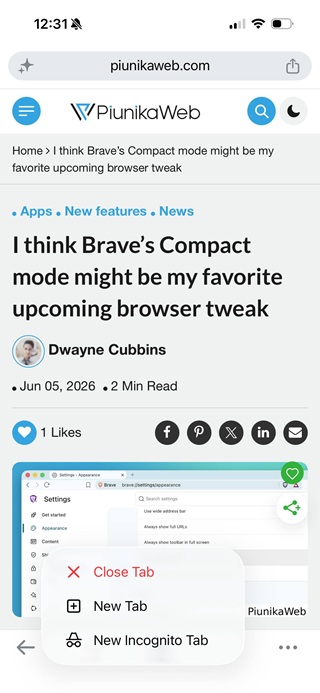
I can easily see why users are expressing frustration over this tweak. When you are used to instantly long-pressing and tapping the top option to open a fresh tab, accidentally hitting “Close Tab” instead is an infuriating hiccup in your workflow. Placing a destructive action right where users habitually tap for a creative one is a surefire recipe for accidental closures and undeniable annoyance. Muscle memory is notoriously stubborn to unlearn.
So, why make the sudden switch? It all comes down to ecosystem parity. This new iOS layout strictly mirrors the arrangement Google Chrome on Android has utilized for quite some time. When you long-press the tab count icon on an Android device, you get a nearly identical menu sequence: “Close tab” takes the top spot, followed by “New tab” and “New Incognito tab.” Android does feature an extra “Add tab to new group” option at the very bottom, which currently remains absent on iOS. Google is clearly streamlining its UI to ensure a consistent experience across operating systems.
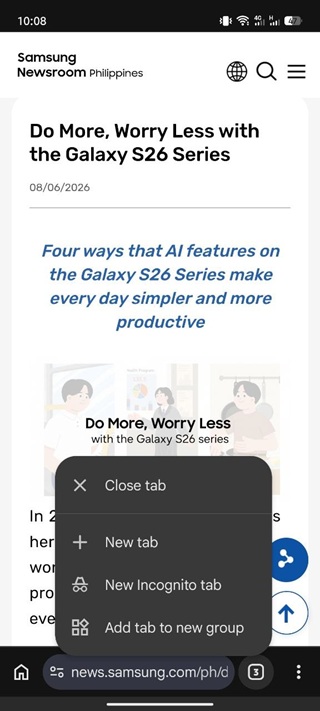
Unfortunately, I have bad news for those hoping to undo this change: you simply can’t. Because Google has widely implemented this arrangement in the latest stable release of the iOS app, there are no hidden settings or experimental flags available to revert to the old layout. You will just have to fight your instincts, retrain your thumbs, and look a little closer before you tap.
Of course, you can still send your disapproval of the new change to Google through the necessary feedback channels. But it’s unlikely that Google will revert this change.


Hillary Keverenge
2723 Posts
Tech has been my playground for over a decade. While the Android journey began early, it truly took flight with the revolutionary Lollipop update. Since then, it's been a parade of Android devices (with a sprinkle of iOS), culminating in a mostly happy marriage with Google's smart home ecosystem. Expect insightful articles and explorations of the ever-evolving world of Android and Google products coupled with occasional rants on the Nest smart home ecosystem.
Next article View Article