
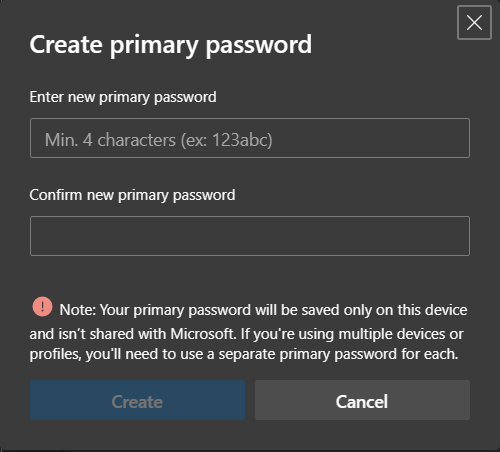
If you’re a Microsoft Edge user like me who prefers a dedicated layer of isolation for your browser credentials, today marks a massive shift. A few months ago, Microsoft announced that the Custom Primary Password feature was on the chopping block. Well, today is June 4, 2026, and the countdown has officially hit zero. Microsoft is fully removing the feature today, forcing an automatic migration to device-based authentication.
For years, Custom Primary Password allowed us to create a unique password specifically for Edge to lock down our saved credentials before autofilling them. As someone who handles a lot of sensitive data, I always appreciated having a browser-specific wall that didn’t just rely on my standard Windows PIN or Mac login. But Microsoft’s goal here is clear: streamline the user experience and align Edge with modern, OS-level biometric protections.
What exactly happens today?
If you never used a Custom Primary Password, today will pass like any other day. You won’t notice any disruptions, though you might see a cleaner, more simplified layout when you open your Password Manager settings.
However, if you are an opted-in user who ignored the steady stream of in-product deprecation warnings over the last couple of months, Edge will now automatically transition you. Moving forward, you will be required to use Windows Hello, macOS Touch ID, or your standard device sign-in password to view or autofill your saved credentials.
Will I lose my saved passwords?
This is the big question hitting forums today, and thankfully, the answer is a resounding no. This update does not delete or alter your saved passwords or passkeys. It strictly changes how you unlock them. Your data remains perfectly safe, but your method of access is now tied directly to your operating system’s security infrastructure.
How to verify your new setup
If you want to ensure everything is locked down correctly under the new system, the process is straightforward:
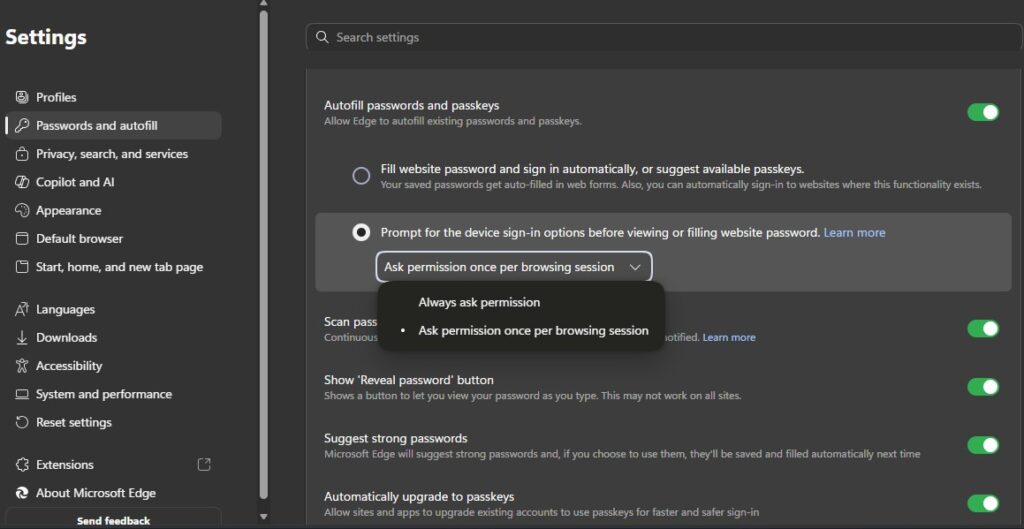
- Open Edge and head to Settings > Passwords and autofill > Microsoft Password Manager.
- Click on More settings.
- Ensure the toggle for Autofill passwords and passkeys is enabled.
- Select the option to Prompt for the device sign-in options and authenticate with your device credentials.
While I will personally miss the standalone flexibility of a custom browser password, switching over to biometric device authentication is undeniably faster for day-to-day browsing. It’s the end of an era for Edge’s independent security gate, but it is a necessary step toward a unified, passwordless future.


Hillary Keverenge
2708 Posts
Tech has been my playground for over a decade. While the Android journey began early, it truly took flight with the revolutionary Lollipop update. Since then, it's been a parade of Android devices (with a sprinkle of iOS), culminating in a mostly happy marriage with Google's smart home ecosystem. Expect insightful articles and explorations of the ever-evolving world of Android and Google products coupled with occasional rants on the Nest smart home ecosystem.
Next article View Article