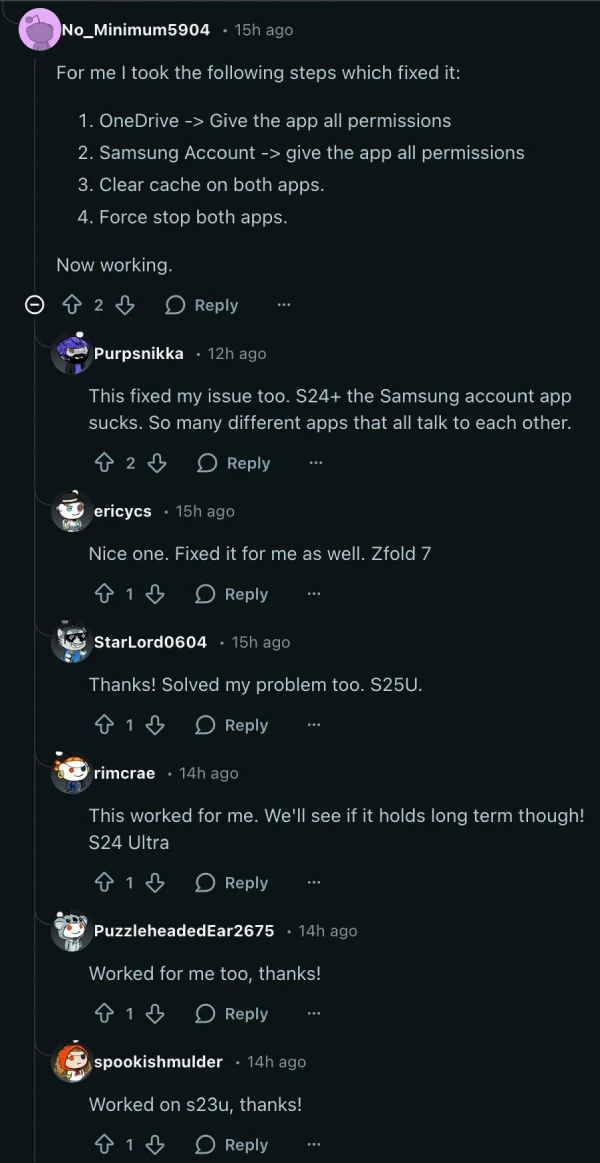
Update 17/12/25 – 09:19 am (IST): One potential workaround shared on Reddit seems to have done the trick for many users. Here’s what you need to do according to Reddit user No_Minimum5904:
- OneDrive -> Give the app all permissions
- Samsung Account -> give the app all permissions
- Clear cache on both apps.
- Force stop both apps.
Original article published on December 15, 2025, follows:
If you have been greeted by a barrage of error messages on your Samsung phone in the last few days, you’re not alone. A significant number of Samsung owners are reporting that the Samsung Account app is crashing repeatedly, effectively locking them out of key ecosystem services.
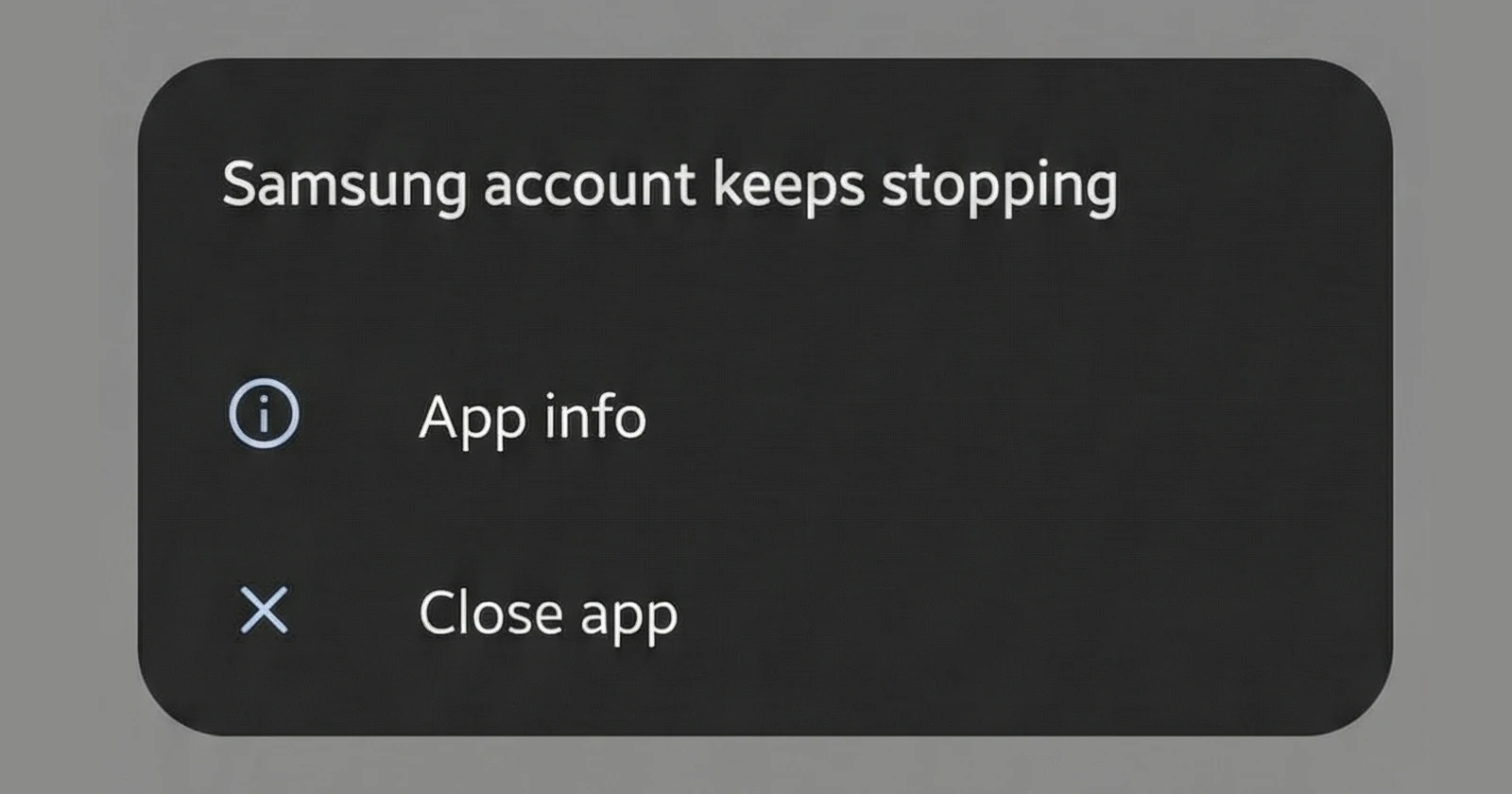
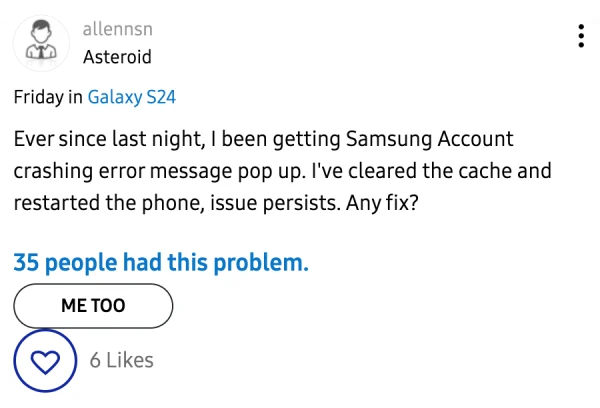
The issue manifests as the dreaded standard Android system popup. It reads “Samsung Account keeps stopping” and creates a loop that interrupts whatever you’re trying to do. It’s not just a background glitch. It’s a UI-interrupting headache that demands you close the app or send feedback, only for it to pop right back up moments later.
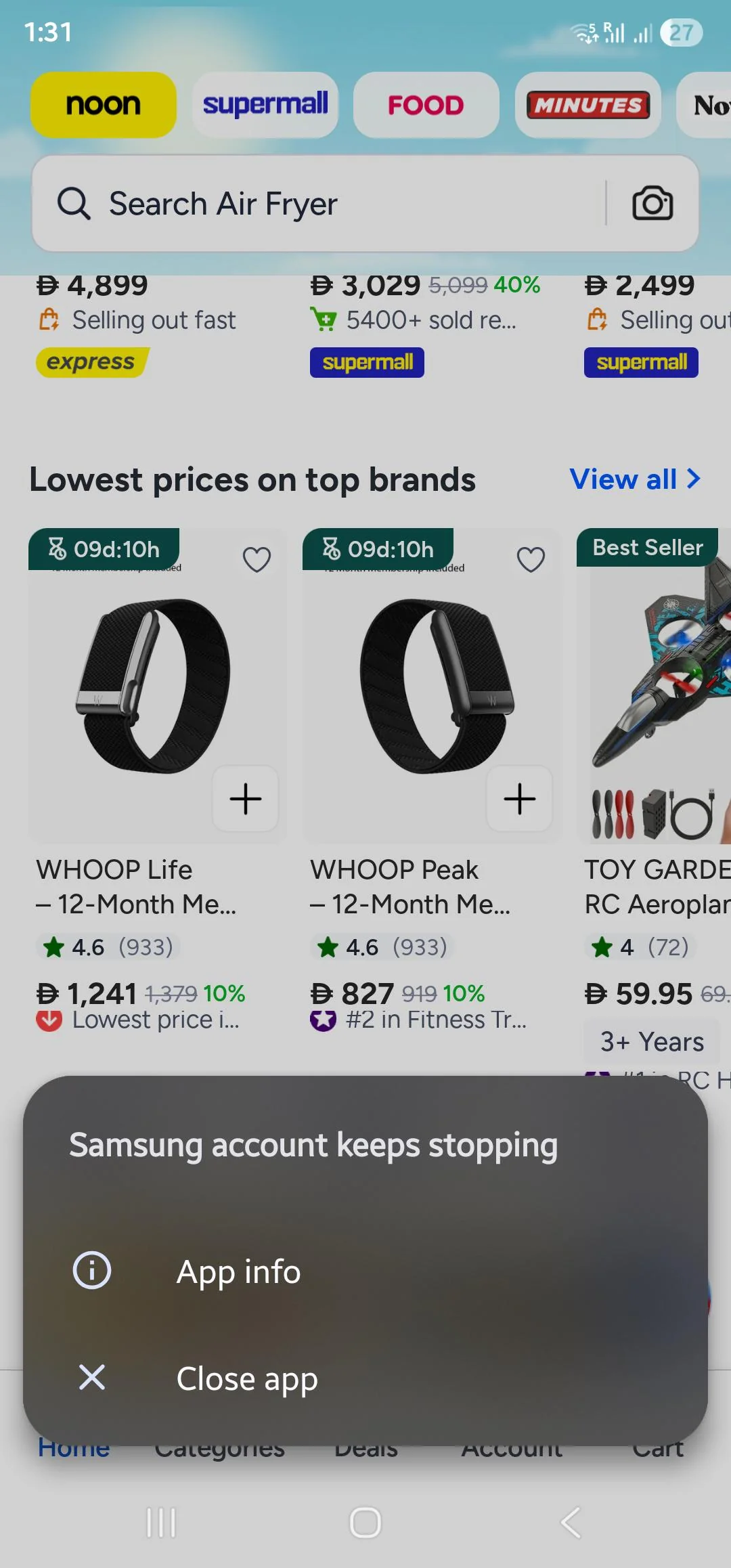
We’re seeing reports flood into Reddit and the official Samsung Community forums. The affected devices run the gamut from the older Galaxy S21 Ultra to the current Galaxy S24 lineup. Even tablet users aren’t safe, with reports surfacing from Galaxy Tab owners experiencing the exact same loop.
Android veterans know that app crashes are usually isolated to a bad update for a specific game or social platform. But when a core system framework like the Samsung Account goes down, it becomes more than just a glitch that you can ignore until the next patch.
So what is breaking it? While Samsung hasn’t issued an official post-mortem yet, community sleuths have a solid lead. Multiple users on the Samsung EU forums are pointing fingers at Microsoft OneDrive. It appears the deep integration between Samsung Gallery and OneDrive — which handles your photo syncing — might be the root cause.
This theory gains weight when you look at reports of users being unable to access their cloud settings. Some users noted that the crashes began immediately after trying to interact with their gallery sync settings. I also spotted a comment where at least one user noted that they fixed the problem by simply disabling OneDrive.
If disabling OneDrive isn’t ideal for your situation, then try navigating to Settings > Apps > Samsung Account. From there, go to Storage and select Clear Data and Clear Cache. It’s a bit of a brute-force solution, but users on the Samsung Community forums report that it stops the relentless pop-ups.
It’s likely that Samsung might patch the bug within the next couple of days, given the severity. We will update this article once we have any further details to share.

Dwayne Cubbins
1838 Posts
My fascination with Android phones began the moment I got my hands on one. Since then, I've been on a journey to decode the ever-evolving tech landscape, fueled by a passion for both the "how" and the "why." Since 2018, I've been crafting content that empowers users and demystifies the tech world. From in-depth how-to guides that unlock your phone's potential to breaking news based on original research, I strive to make tech accessible and engaging.
Next article View Article