Update 30/10/25 – 05:04 pm (IST): Another handy workaround that you can try is to use the ‘Chapters’ feature to skip to a certain portion of the video, which apparently gets rid of the dark filter.
Original article published on October 21, 2025, follows:
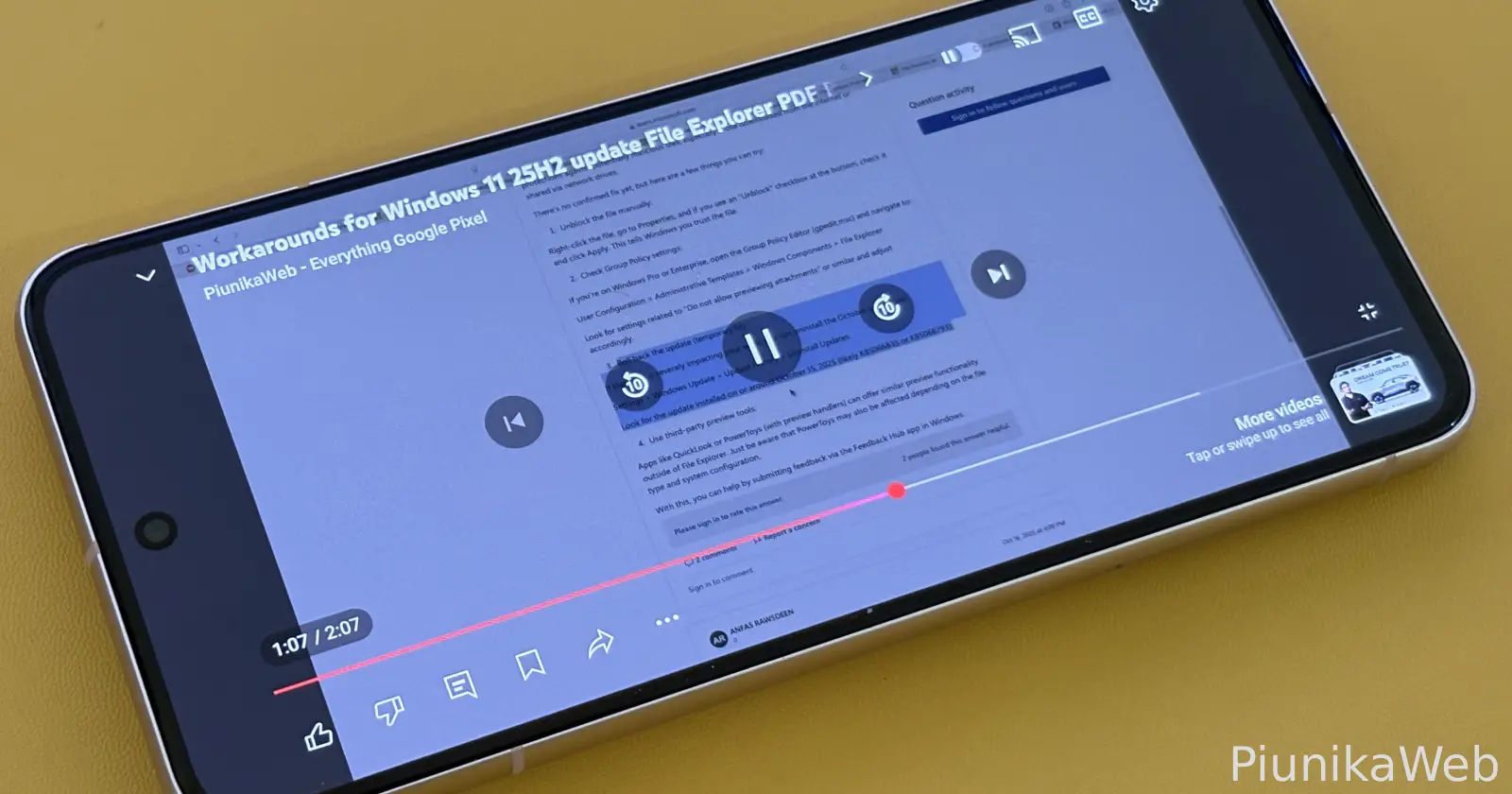
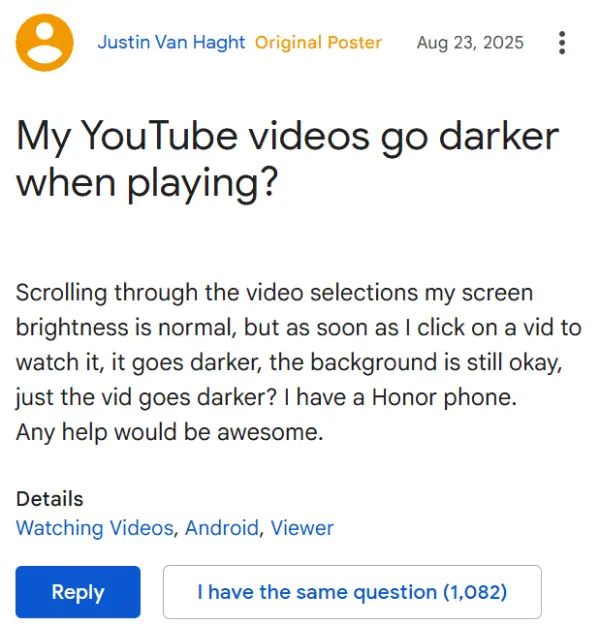
Android users are running into a weird bug where YouTube videos suddenly dim when they start playing. The rest of the interface stays bright, but the moment you click on a video to watch it, the playback area goes noticeably darker. A frustrated user on the Google support forums first reported this back in August, and since then, over 1,000 people have chimed in with the same complaint.
There’s also a post on X from a frustrated user asking if anyone else is dealing with the same thing.
The problem seems to hit hardest when watching videos in full screen or when you rotate your phone. Some people notice their Shorts play fine, and videos look normal when minimized in the corner, but the second they expand to full view, everything gets dim. Users on Reddit have been complaining about this too, and the issue appears to be spreading across different Android phone brands.
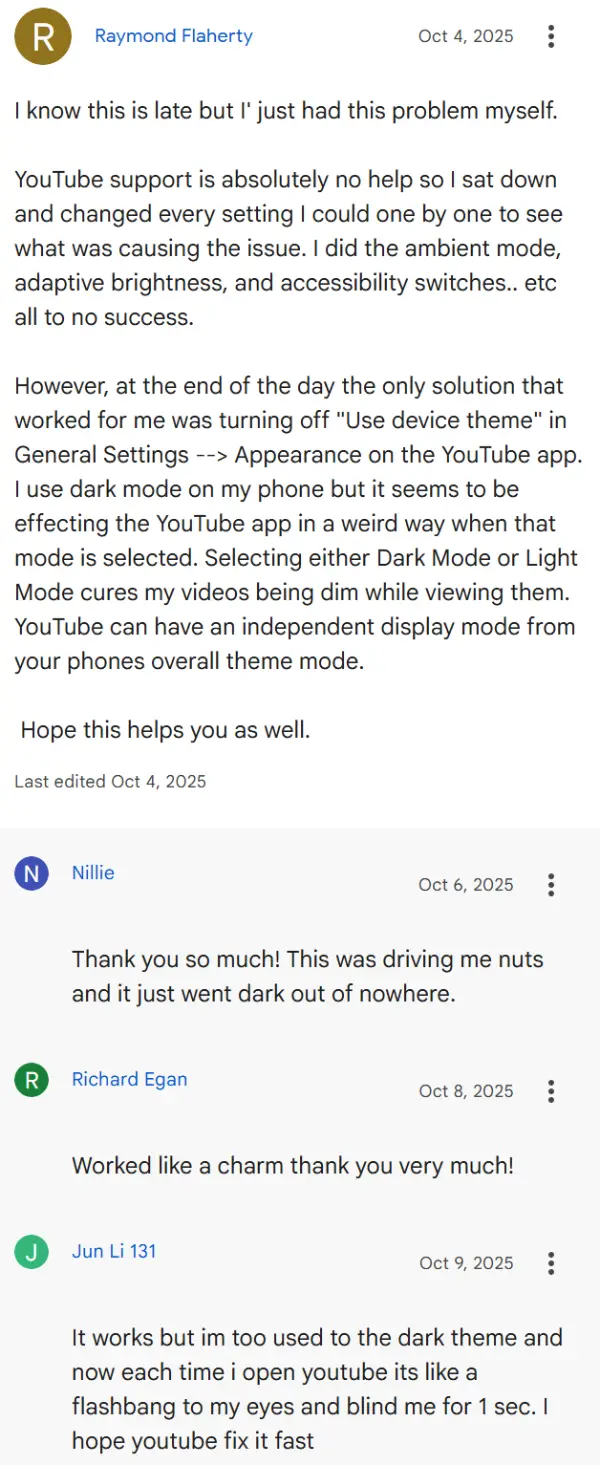
The quickest fix that’s working for most people involves heading into YouTube’s settings and toggling the theme option. Go to your profile picture, tap Settings, then General, and look for Appearance.
If you have “Use device theme” turned on, switch it to either Dark theme or Light theme instead. Some users found that switching to Light mode first, backing out to the home screen, then switching back to Dark mode does the trick.
If that doesn’t solve it, try restarting your phone. It sounds basic, but multiple people have confirmed this fixes the darkening issue, at least temporarily. Clearing the YouTube app’s cache and data is another option that you can try. Long press the YouTube icon, tap the info button, go to Storage, and clear all data. Don’t worry, this won’t delete your account or subscriptions.
A few other solutions floating around include turning off adaptive brightness in your phone’s main settings (not just in YouTube), checking if you accidentally have battery saver mode enabled, or looking for any color mode settings that might have switched on their own. One person with a Motorola phone fixed it by changing their display color setting from Natural to Vivid, then back to Natural again.
Another user suggests enabling the accessibility player in YouTube’s accessibility settings, which somehow prevents the dimming.
The weird part? This issue just started popping up in October for most people, and YouTube hasn’t officially acknowledged the bug yet. Until they push out a proper fix, these workarounds should help get your videos looking bright again.

Dwayne Cubbins
1793 Posts
My fascination with Android phones began the moment I got my hands on one. Since then, I've been on a journey to decode the ever-evolving tech landscape, fueled by a passion for both the "how" and the "why." Since 2018, I've been crafting content that empowers users and demystifies the tech world. From in-depth how-to guides that unlock your phone's potential to breaking news based on original research, I strive to make tech accessible and engaging.
Next article View Article