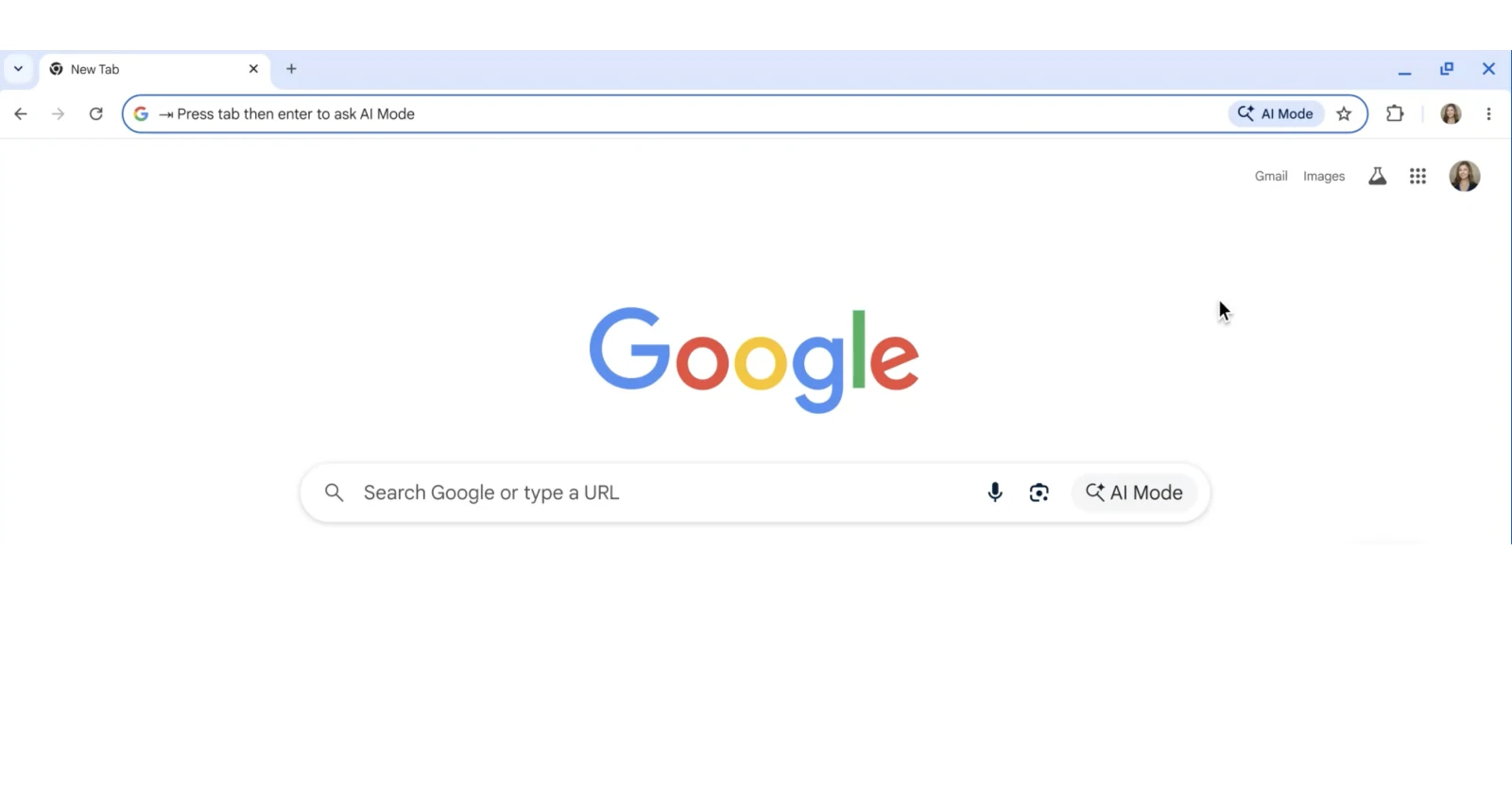
Google’s been pushing its Gemini assistant pretty hard lately, and the latest victim is Chrome’s address bar. If you’ve opened a new tab recently and spotted that “Press tab then enter to ask AI Mode” message or the AI Mode button sitting where your search bar used to be clean and simple, you’re not alone. Reddit threads and the official support forums are lighting up with frustrated users trying to figure out how to get rid of this thing.
The update rolled out last month as part of the broader Gemini in Chrome push, but it seems like more users are getting hit with it now.
What makes this particularly annoying is that disabling “AI innovations” in Chrome’s settings doesn’t actually turn off the AI Mode button. Yeah, you read that right. Google put the off switch somewhere else entirely.
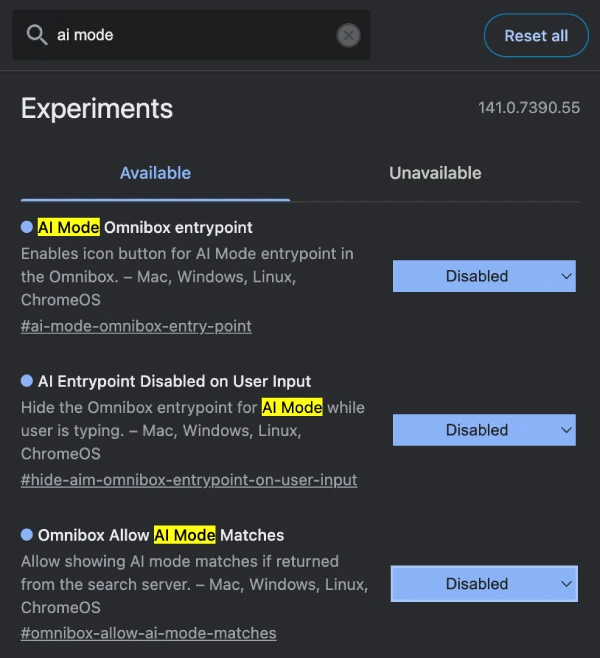
Here’s the good news: you can actually disable it, but you’ll need to dig into Chrome’s experimental features. Type chrome://flags into your address bar and hit enter. This takes you to Chrome’s flags page, which is basically where all the experimental and under-the-hood features live. Once you’re there, search for “AI Mode” in the search box at the top.
You should see a flag called “AI mode Omnibox entrypoint” set to “Default.” Click the dropdown menu next to it and change it to “Disabled.” Some users report seeing three or four AI Mode-related flags, so if you want to be thorough, disable all of them. After making these changes, Chrome will prompt you to relaunch the browser for the changes to take effect.
Once you restart, that persistent AI Mode prompt should be gone from your address bar. You’ll get back the classic “Search Google or type a URL” placeholder text that’s been there for years. No more tab-and-enter prompts trying to get you to use Gemini every time you open a new tab.
The fact that this requires messing with flags isn’t exactly encouraging. When Google puts something behind a flag instead of in the main settings menu, it usually means they plan to make it a permanent feature eventually. For now though, the workaround works, and you can browse without constant AI feature prompts staring back at you.


Dwayne Cubbins
3093 Posts
I cover fast-moving stories across apps, online platforms, and everyday tech — phones, wearables, consoles, and whatever else people are fighting with this week. Bugs, rollouts, scams, policy enforcement, and the occasional internet-culture rabbit hole are all fair game. My goal is simple — make confusing tech news readable. When I'm not working, I'm working out or chilling with my dog. Got a tip? You can find me on X @dcubbins.
Next article View Article