






Yeah, thanks oneui.
byu/Last-Film-492 inoneui
Samsung’s One UI 8 update introduces a host of new features, but one of the most visually appealing is the Adaptive Clock for the lock screen. This clever feature is designed to intelligently interact with your wallpaper, wrapping the clock’s numbers around a person or pet in the photo for a clean, magazine-like look.
Yes, it’s what Apple offers on iOS, but it’s still a useful addition that adds a lot of personality to your device. However, if you’ve updated to One UI 8 and found this feature isn’t working, you’re not alone. Many users have taken to platforms like Reddit, X, and Samsung’s own community forums to report that the clock remains static.
Check out some of the reports, like this one on Reddit, where the OP shared two screenshots showing how it’s supposed to appear, versus how it actually appears:
Similarly, someone shared a video of the issue on Facebook, you can check it out below:
So, what gives? The issue seems to stem from a conflict with a popular tool in Samsung’s own customization suite. For many users experiencing this problem, the culprit appears to be LockStar, a module within the Good Lock app that offers advanced lock screen customization.
While LockStar gives users granular control over their lock screen, it seems it hasn’t been fully updated to play nicely with One UI 8’s native adaptive clock functionality, causing the new feature to fail.
Even for those who don’t use LockStar, the Adaptive Clock can be finicky. The feature relies on AI to detect a subject in your wallpaper, and it’s not always perfect. Some users have noted that the clock fails to adapt even with a clear subject in the photo, suggesting the underlying subject-detection mechanism still has some bugs to iron out. The feature seems to work most reliably with wallpapers that have a very clear, prominent person or pet as the focal point.
Since the problem is LockStar, the most obvious fix, as highlighted by multiple users, is to simply remove the LockStar module. You can do this by opening the Good Lock app, tapping on the LockStar module, and selecting the uninstall option. After a reboot, your lock screen clock should start adapting to your wallpaper correctly.
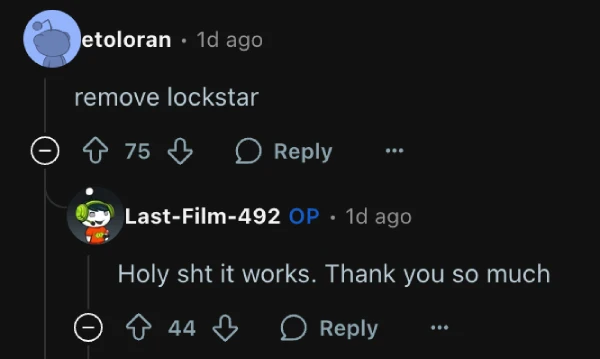
If you don’t have LockStar installed or if uninstalling it doesn’t solve the problem, there’s another clever workaround highlighted previously by SammyGuru that you can try. This trick essentially “forces” the system to recognize the subject in your photo.
Go into your lock screen settings, choose your wallpaper, and apply one of Samsung’s decorative frames around the person or pet. Once the frame is applied, the adaptive clock should kick in. Here’s the cool part: you can then go back and remove the frame, and the adaptive clock effect will often remain active. While it’s a bit of a hack, it’s a reliable way to get the feature working.
It’s likely that Samsung might patch the bug with an upcoming update for LockStar. In the meantime, let me know if this helped do the trick for you on your Samsung device.
Featured image credit: Accomplished-Ad8330 / Reddit

We stand out from the tech-media crowd because we break news stories; we mainly bring you stuff that you won’t find anywhere in the mainstream tech media. Our stories have been picked up by some of the world’s most popular websites and media outlets—more info is available here.

Dwayne Cubbins
3027 Posts
I cover fast-moving stories across apps, online platforms, and everyday tech — phones, wearables, consoles, and whatever else people are fighting with this week. Bugs, rollouts, scams, policy enforcement, and the occasional internet-culture rabbit hole are all fair game. My goal is simple — make confusing tech news readable. When I'm not working, I'm working out or chilling with my dog. Got a tip? You can find me on X @dcubbins.
Next article View Article

YouTube background play not working on Brave Browser app? Try these potential workarounds
Update 31/01/26 - 09:22 am (IST): Brave's support team has confirmed that the company is aware and investigating the issue. They've also provided the same workaround...
Jan 12, 2026 3 Min Read