I’ve been testing the Spatial Scene feature on my iPhone 16 since iOS 26 dropped, and honestly, it’s been working perfectly fine, even on mobile data. But scrolling through Apple’s Help forums and Reddit threads tells a different story for many users who are dealing with some pretty frustrating bugs
The complaints are pouring in from iPhone users across various models. ImpurestFlyer from Apple’s Help forums kicked off a discussion thread, reporting that the feature throws a “Cannot Load Photo” error on their iPhone 15, suggesting users check their network connection. What’s weird is that this happens even when the internet is rock solid.
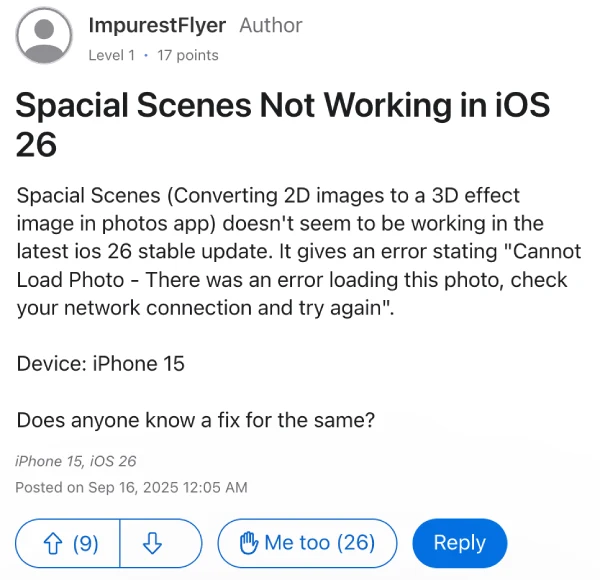
While they didn’t share a screenshot of the error, someone else did on a separate thread. Check it out below:

Meanwhile, over on Reddit, user OWADIENANAYAW is stuck watching that progress bar sit at 0% indefinitely. They’ve tried everything from restarting their phone to switching between WiFi and cellular data, but nothing budges that stubborn loading indicator. Several other Redditors jumped in, confirming they’re seeing the exact same problem.
One user, venusizme, even shared a screenshot:

The good news is that some folks have found ways around these issues. Harshrai16plus discovered something interesting on their iPhone 16 Plus – the Spatial Scene feature only works when connected to WiFi, not mobile data. They shared this tip in the Apple forums after initially facing the same “Cannot Load Photo” error. User toshxq on Reddit confirmed this WiFi requirement works on their iPhone 13 Pro too.
Another Reddit user, aryobarko, found that downloading Apple Intelligence through Settings actually fixed their problem. You can find this option in “Apple Intelligence and Siri” settings, right below the main toggle switch. Though this fix seems to only work for iPhone 15 Pro and later models that support the AI features.
The accessibility settings route has helped some people too. Multiple users including stupolvo and anbu-black-ops report success after turning off “Reduce Motion” in Settings > Accessibility > Motion. Some also mention disabling “Motion Blur” in the same section.
What’s clear from all these reports is that the issue spans different iPhone models, from the iPhone 13 to the latest iPhone 16 series.
If you’re stuck in the same situation, you can try all three potential workarounds together. First, connect to WiFi instead of using mobile data, then download Apple Intelligence if your device supports it, and turn off Reduce Motion in accessibility settings.
It’s worth noting that Spatial Scenes only work on iPhone 12 and newer models, so iPhone 11 users wondering why they can’t find the feature shouldn’t worry – it’s simply not supported on their devices.

Dwayne Cubbins
1815 Posts
My fascination with Android phones began the moment I got my hands on one. Since then, I've been on a journey to decode the ever-evolving tech landscape, fueled by a passion for both the "how" and the "why." Since 2018, I've been crafting content that empowers users and demystifies the tech world. From in-depth how-to guides that unlock your phone's potential to breaking news based on original research, I strive to make tech accessible and engaging.
Next article View Article