Google Drive users have long awaited the arrival of dark mode, a feature that has become ubiquitous across various digital platforms. Now, with Google’s latest update, this much-anticipated feature is finally available for Pixel and other users. Dark mode not only enhances the visual experience but also offers practical benefits such as reducing eye strain and conserving battery life.
How to enable dark mode for Google Drive on Pixel phones
To activate dark mode on your Pixel phone, follow these simple steps:
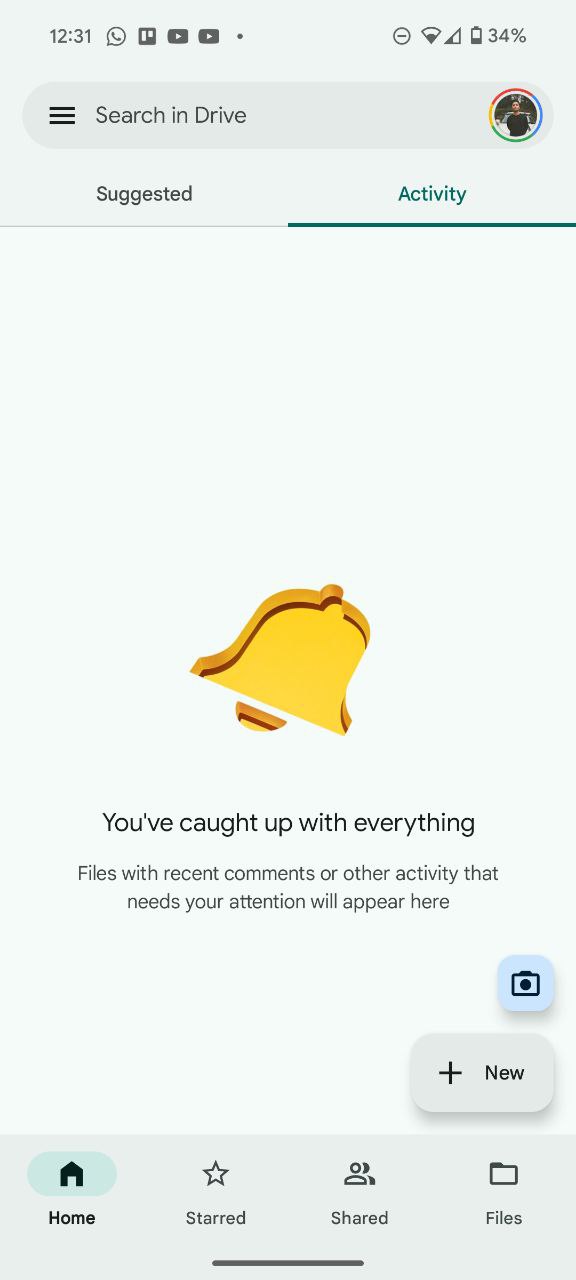
- Begin by opening the Google Drive app on your Pixel phone.
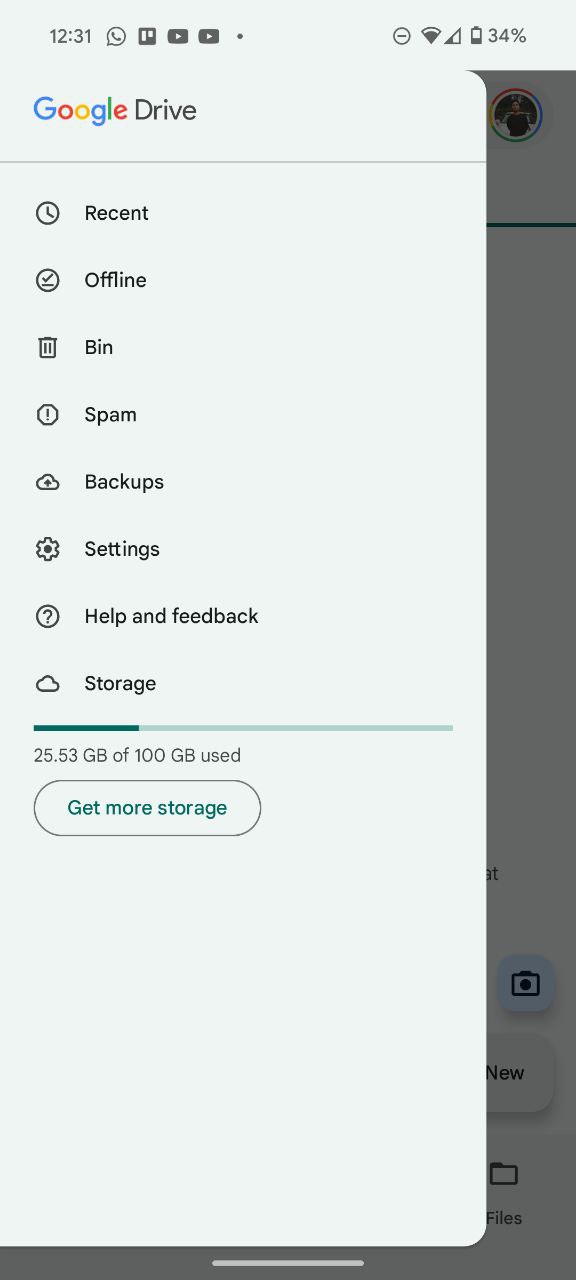
- Once inside the app, tap on the menu icon located in the top left corner of the screen. This will reveal a dropdown menu with various options.
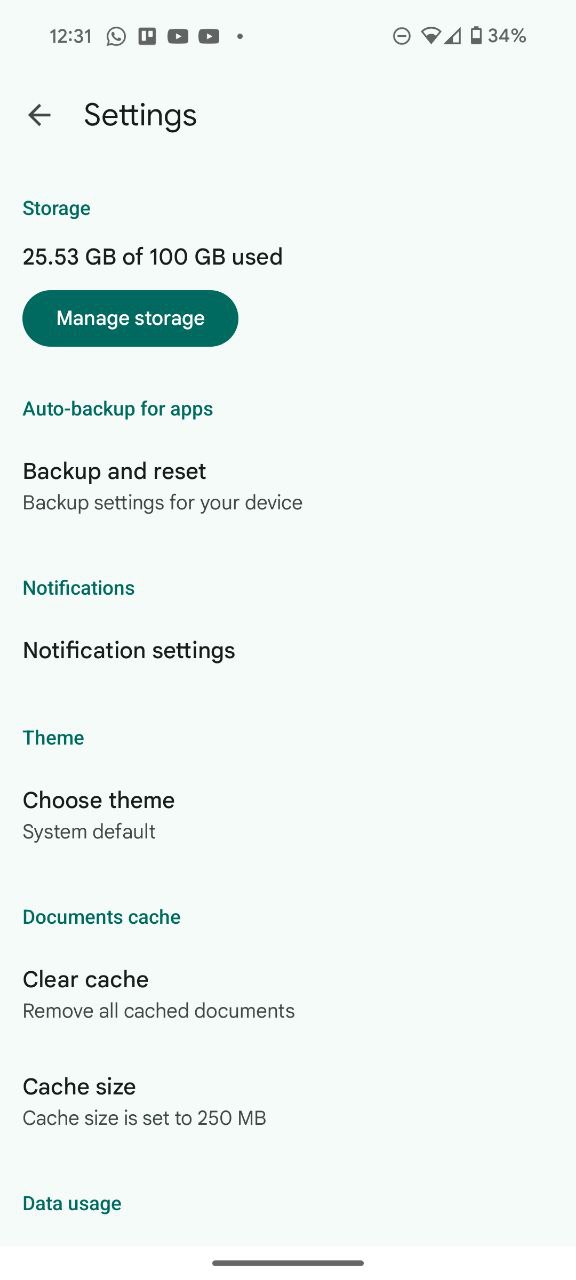
- Within the dropdown menu, locate and tap on the “Settings” option. This will direct you to a new screen where you can customize various aspects of the app.
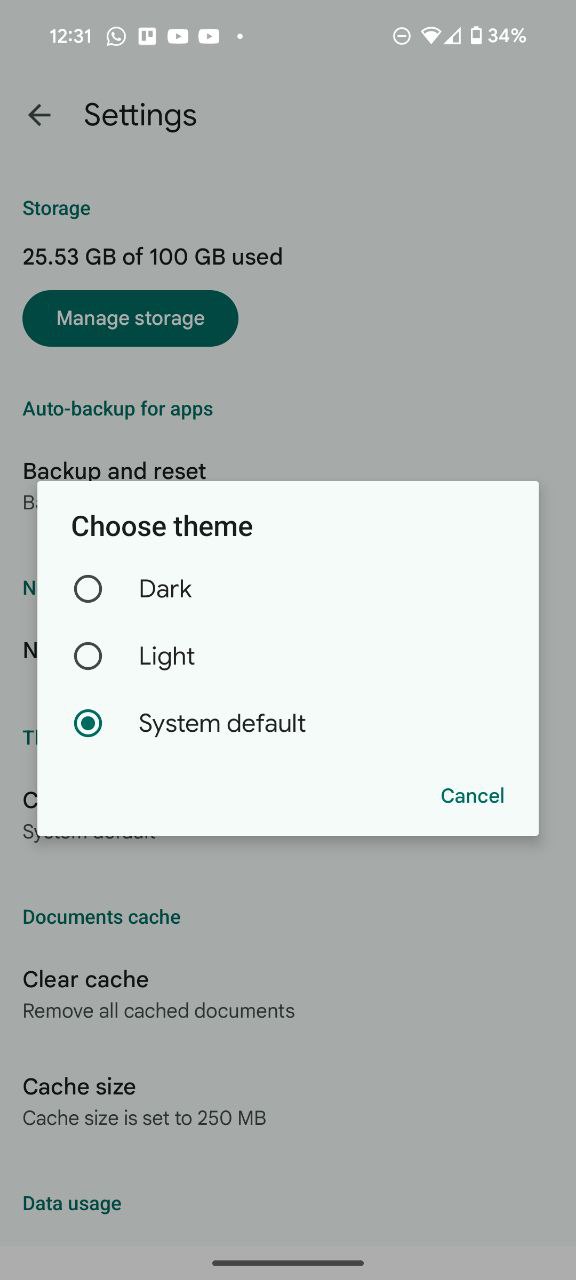
- In the settings menu, locate the “Choose theme” option and tap on it. This will prompt a selection between light ,dark and system themes.
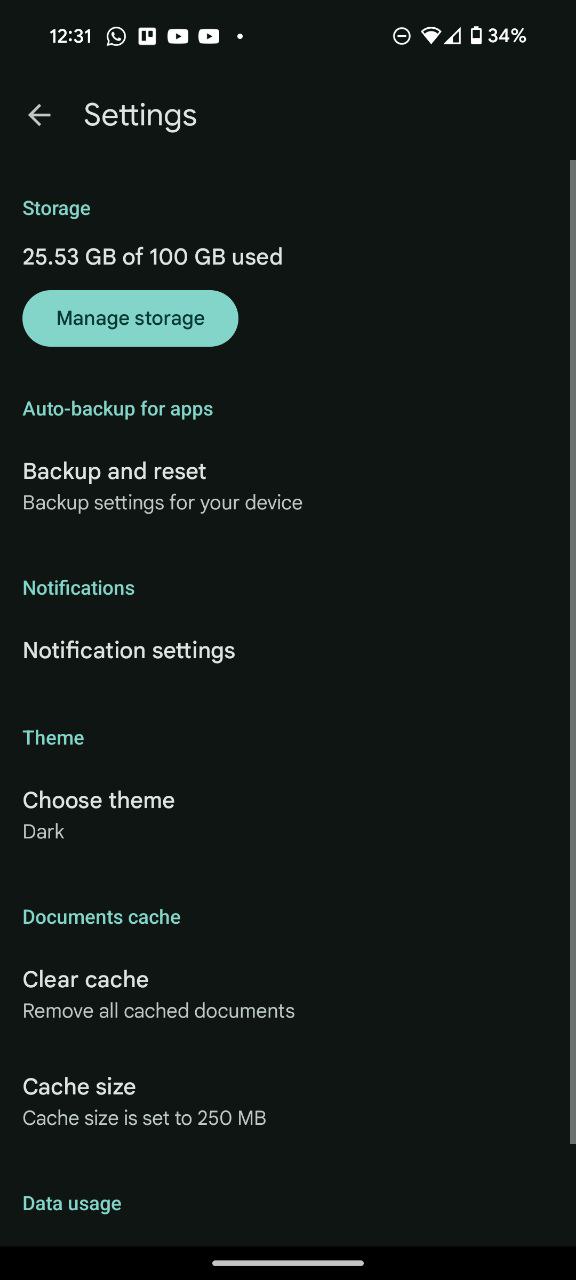
- Finally, select the “Dark” option to activate dark mode.
- Once selected, the app interface will adopt a darker color scheme.
How to enable dark mode for Google Drive on a PC
For PC users, enabling dark mode is equally straightforward:
- Open a web browser on your computer and navigate to Google Drive.
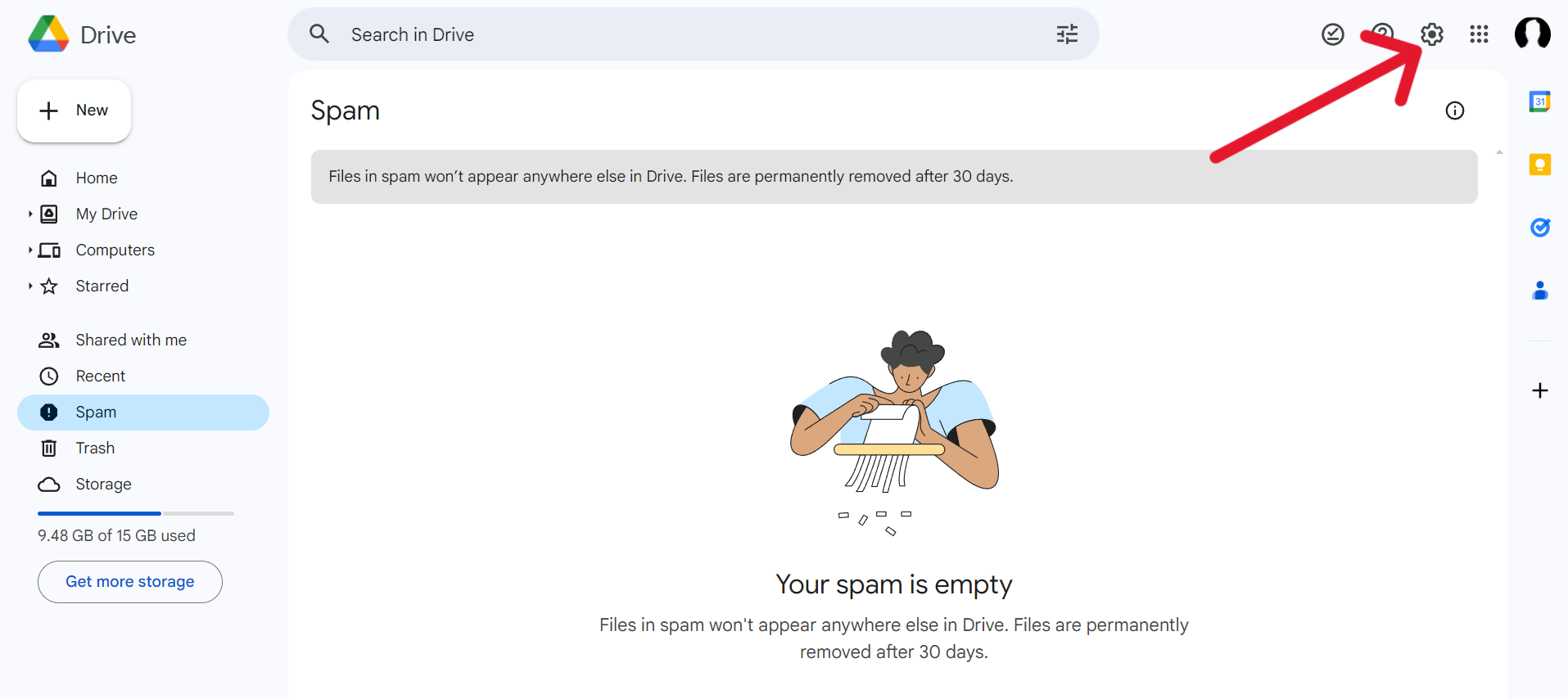
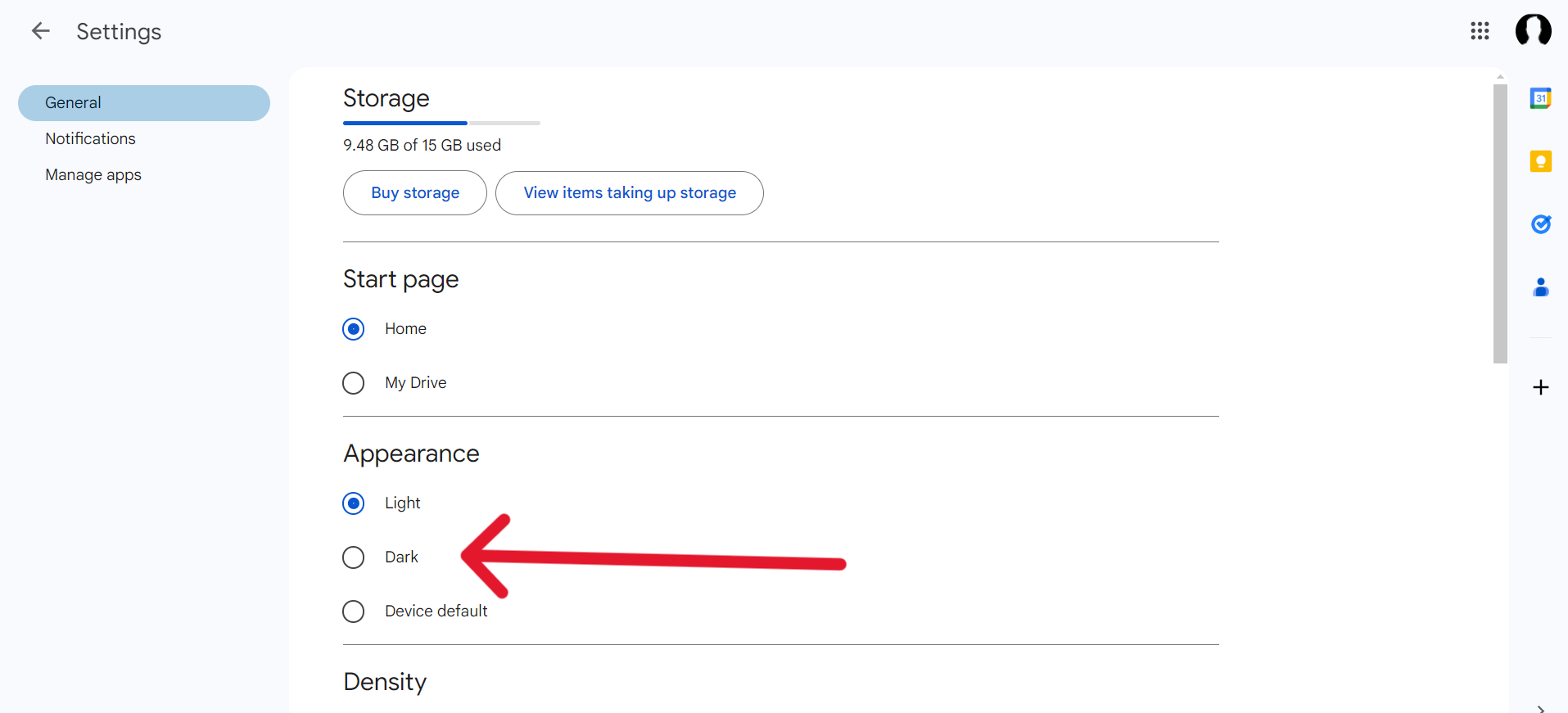
- In the upper-right corner of the Google Drive interface, click on the “Settings” gear icon.
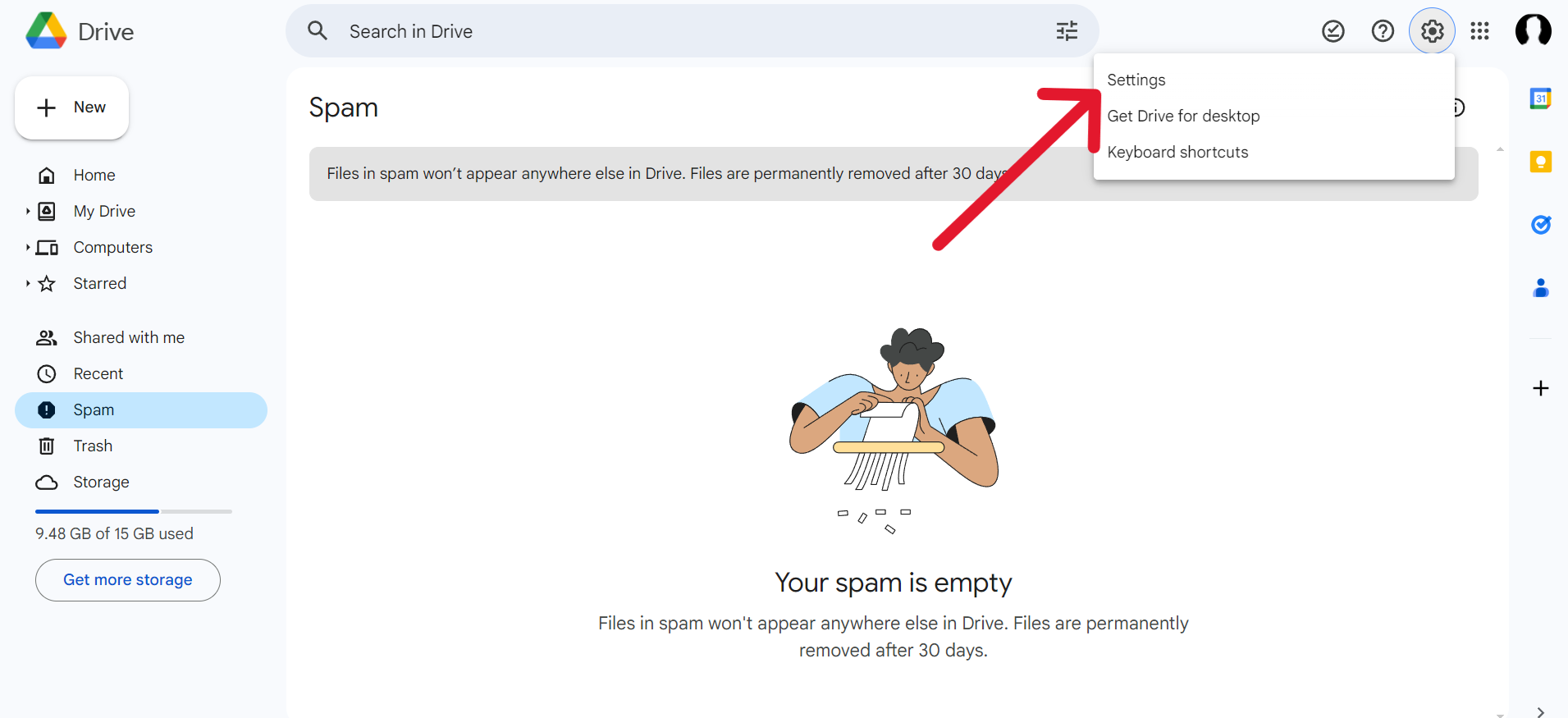
- From the drop down menu choose the “Settings” option.
- Under the “Appearance” section, choose the dark mode option.
While in this guide I focused on enabling dark mode for Pixel phones, it’s important to note that the process is similar for other Android devices.


Karanjot Sidhu
1024 Posts
A computer science engineer who loves tech and won't stop talking about it. Here at Piunikaweb, I mostly cover Google Pixel deals and how-tos, though you may find me covering Pixel news as well sometimes. Apart from being a nerd, i love gaming and watching movies in my free time.
Next article View Article