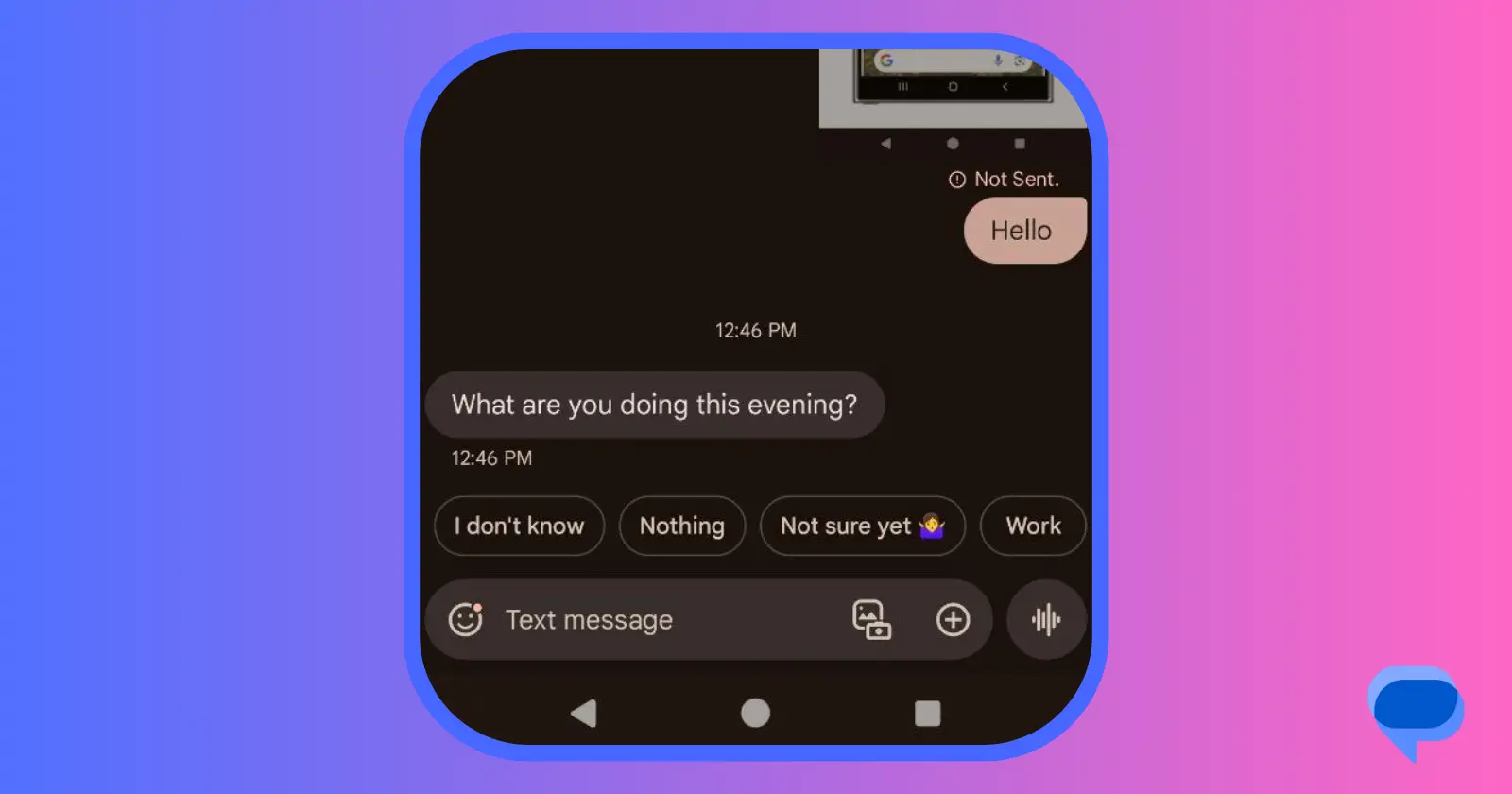
Google’s Smart Reply, powered by artificial intelligence, is embedded in the Google Messages app. It anticipates your responses to incoming text messages, offering quick and efficient replies. While many find this feature handy, others prefer a more hands-on approach to their conversations. If you fall into the latter category and own a Pixel device, fear not as turning off auto-generated smart replies in Google Messages is a straightforward process.
Steps to turn off auto-generated smart replies in Google Messages
With these simple steps, you will successfully disable smart replies in your Google Messages app, reclaiming control over your messaging experience.
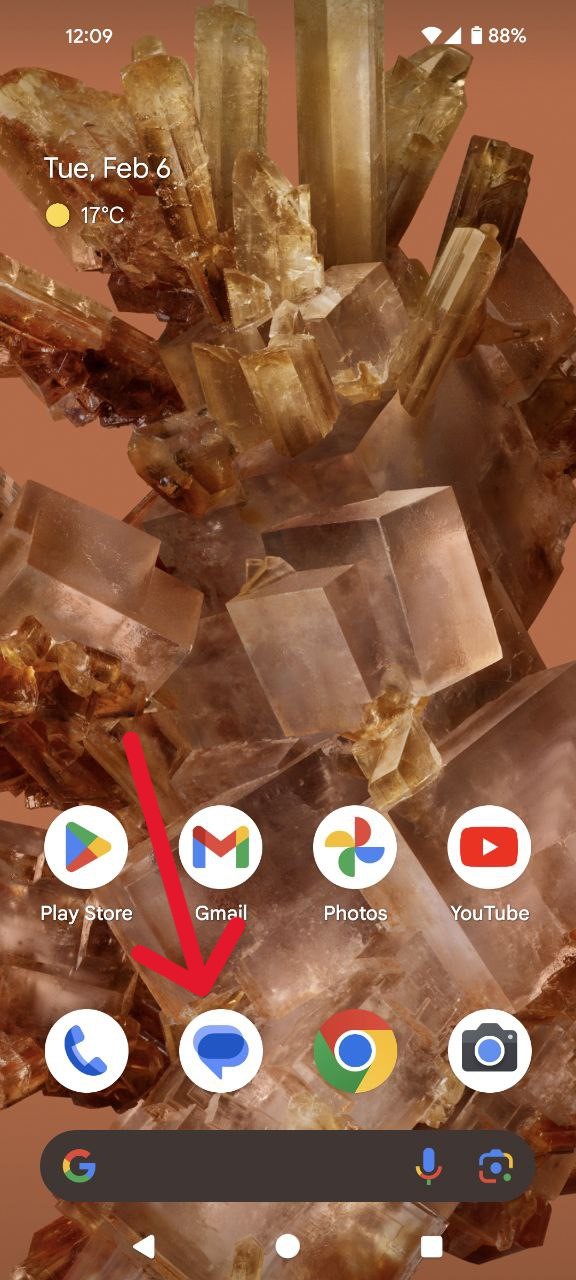
- Begin by locating the Google Messages app on your Pixel device. This app is represented by a distinctive blue icon featuring a white text box, a familiar sight on your home screen or within the apps menu. Tap on the icon to open the application.
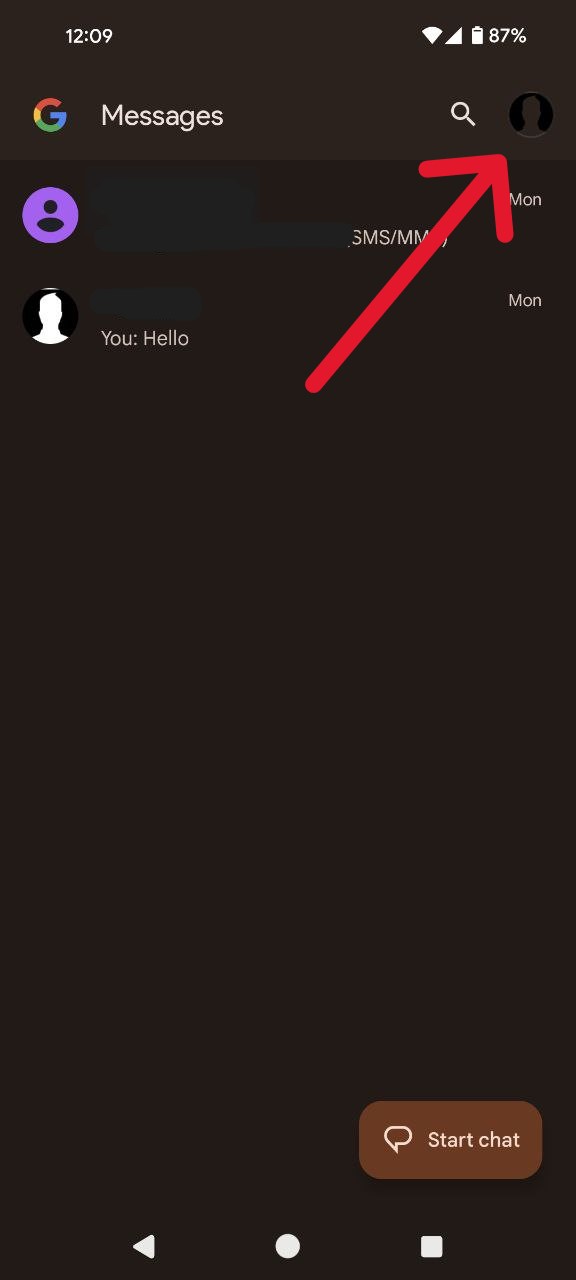
- Once inside the Google Messages app, direct your attention to the upper-right corner of the screen. There, you will find your profile icon. Tap on it to reveal a dropdown menu.
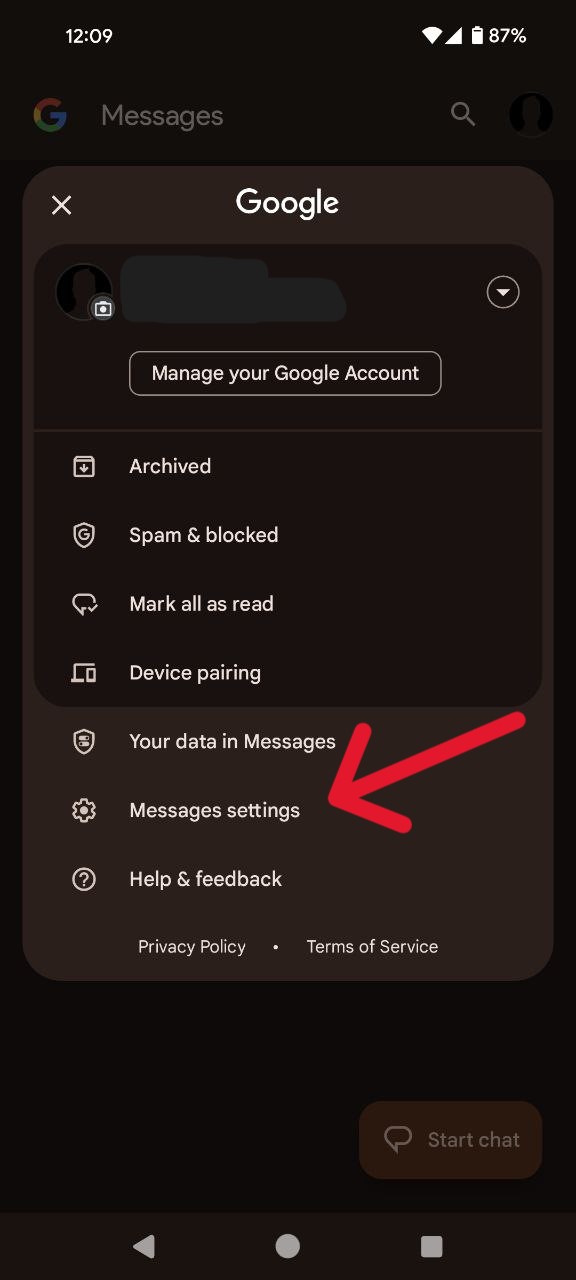
- Among the options presented in the dropdown menu, look for ‘Messages Settings.’ This can usually be found towards the bottom of the list and is accompanied by an icon resembling a gear. Tap on it to enter the settings menu.
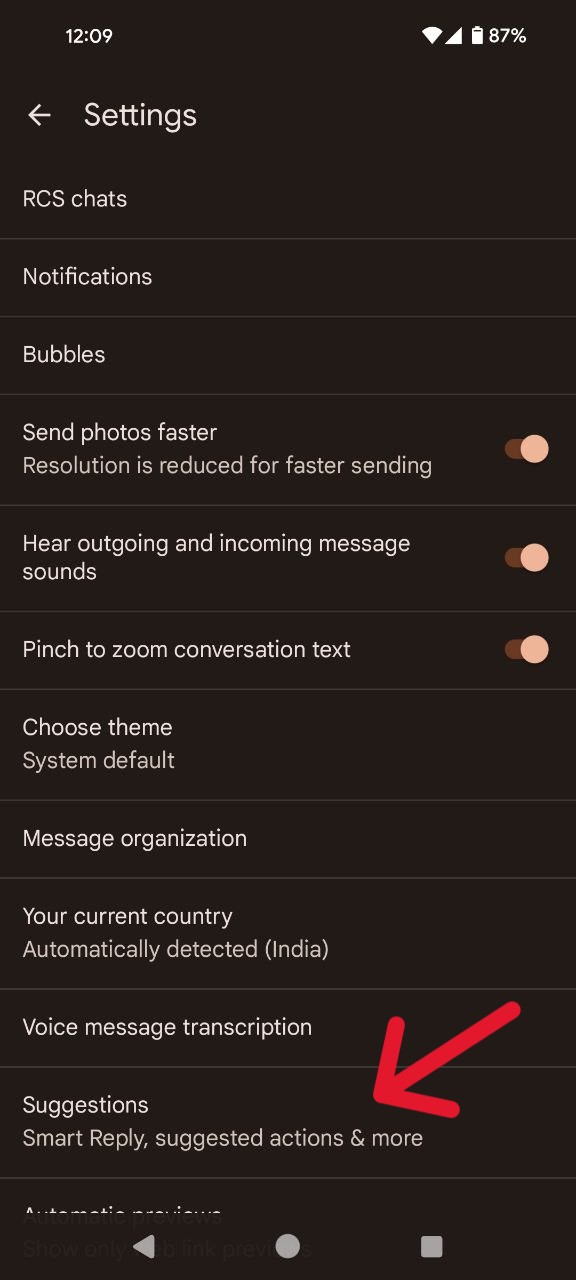
- Within the Settings menu, a variety of options await your exploration. Seek out the one labeled ‘Suggestions.’ It is typically positioned towards the bottom of the list and is crucial for configuring features like Smart Reply according to your preferences.
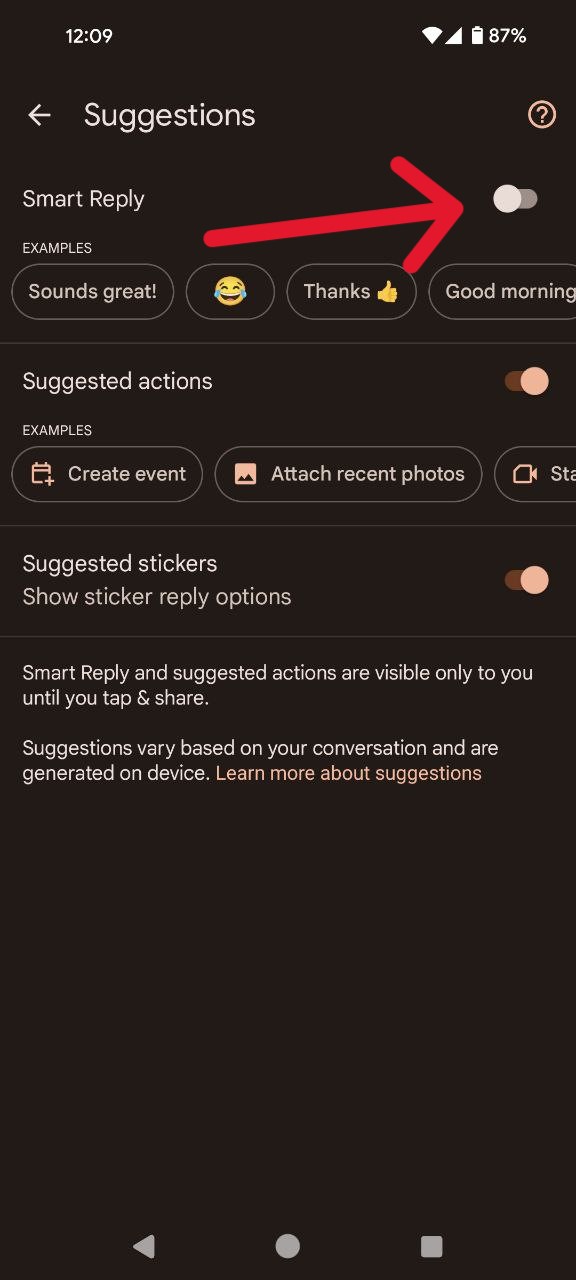
- Once in the Suggestions menu, identify the toggle switch next to ‘Smart Reply.’ By default, this switch is in the ‘on’ position. Simply tap the switch to turn it off.
Congratulations! You’ve successfully reclaimed control over your responses in Google Messages. No more auto-generated suggestions as every reply is now entirely yours to craft.

Karanjot Sidhu
1024 Posts
A computer science engineer who loves tech and won't stop talking about it. Here at Piunikaweb, I mostly cover Google Pixel deals and how-tos, though you may find me covering Pixel news as well sometimes. Apart from being a nerd, i love gaming and watching movies in my free time.
Next article View Article