Say goodbye to the frustration of blurry family photos, blinked birthday moments. The Google Pixel’s secret weapon, Top Shot, is here to ensure you capture every fleeting smile, every exhilarating action shot, and every heartwarming milestone in perfect clarity. But how do you harness this superpower of your Pixel camera? Buckle up, photo enthusiasts, because we’re diving deep into the steps to enable Top Shot on your Pixel phone.
Steps to enable Top Shot on your Pixel phone
Top Shot is not just a gimmick, it’s a smart, intuitive feature that optimizes your photo-taking process. So, getting started with Top Shot is a breeze. Just follow these steps:
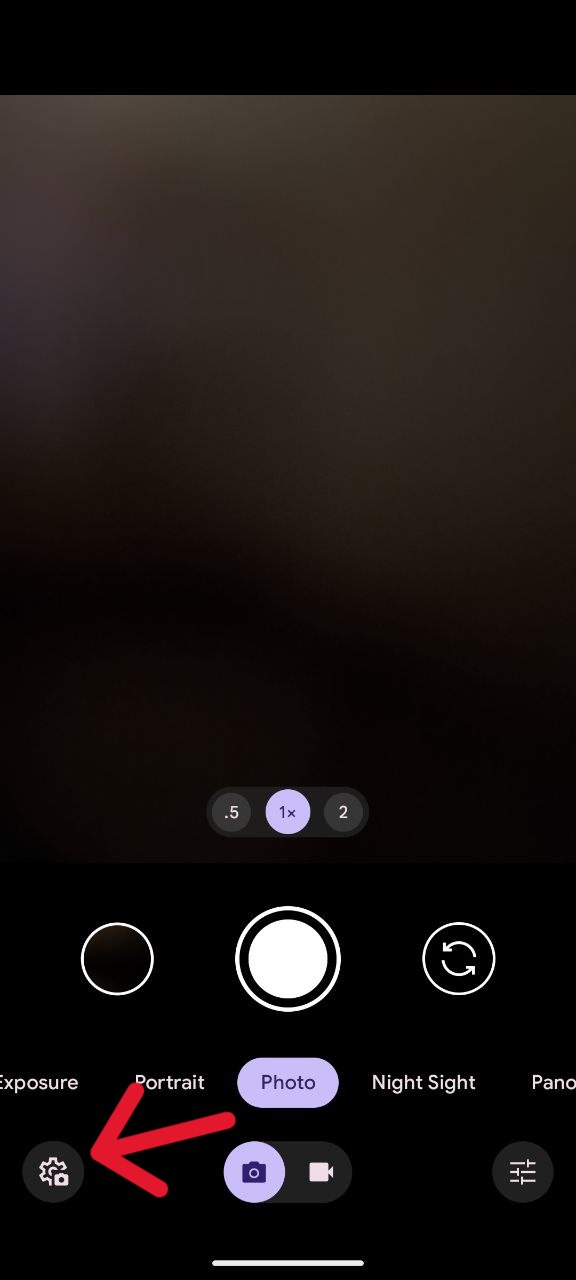
- Open your camera.
- In the bottom left corner, click on the settings option.
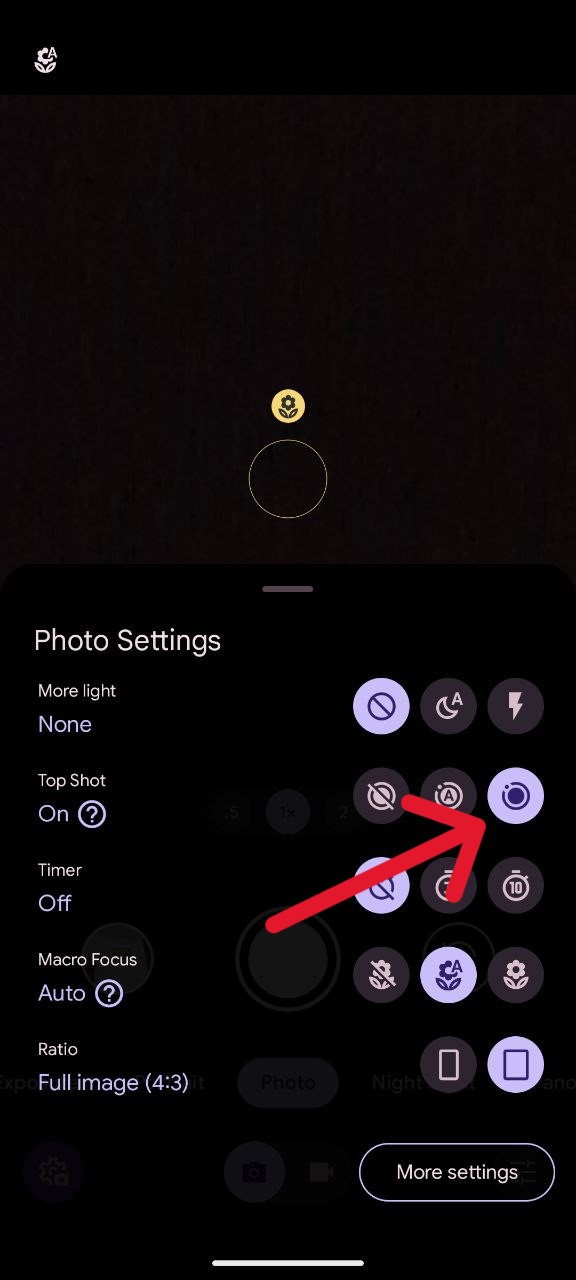
- Set ‘Top Shot’ to Auto or On.
Once Top Shot is enabled, just fire up your Camera app and snap away as usual. By capturing a series of photos before and after your initial click, Top Shot ensures that you have a range of options to choose from. The magic happens when the phone’s AI steps in to suggest the best possible alternative images from the captured sequence. Here’s how:
- Open any photo that you took when Top Shot was enabled.
- Swipe up from the middle of the screen or tap the three-dot menu on the top right.
- There you will see a ‘Shots in this photo’ section where photo displayed is the photo that the camera app thinks is the best from the entire sequence.
- Tap ‘Save copy’ in the top right to save the photo that you like.
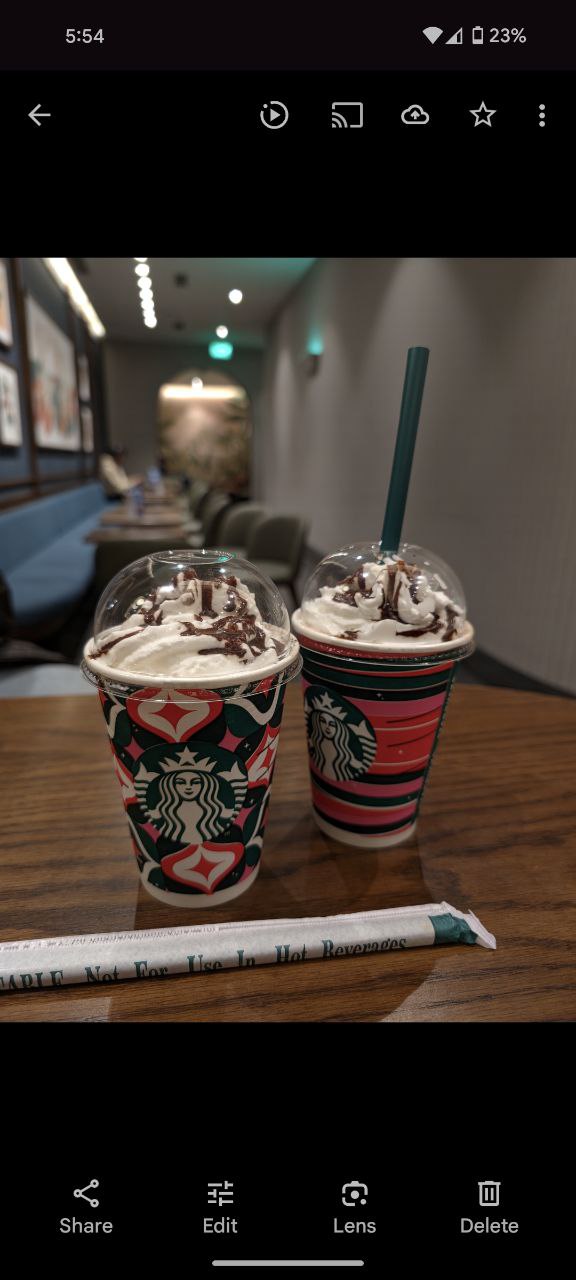
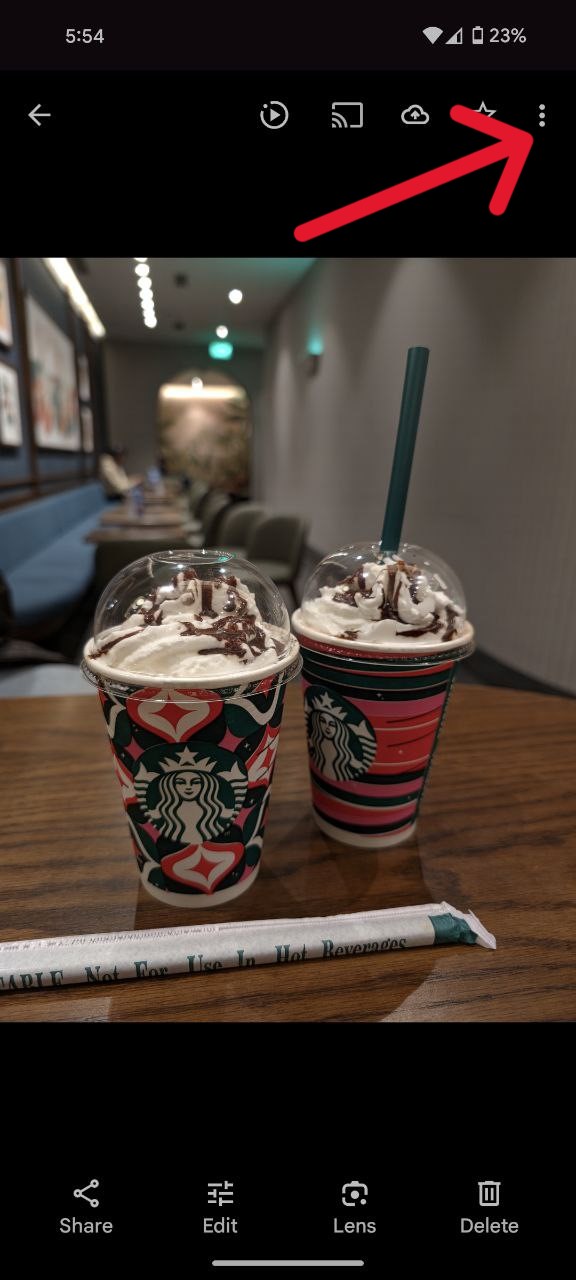
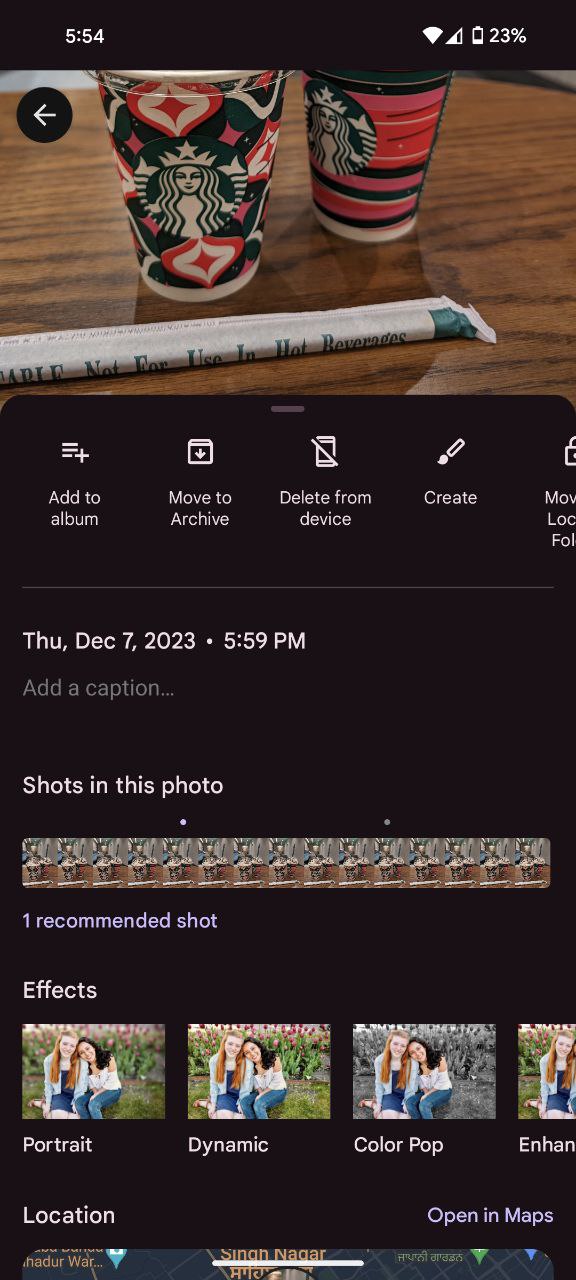
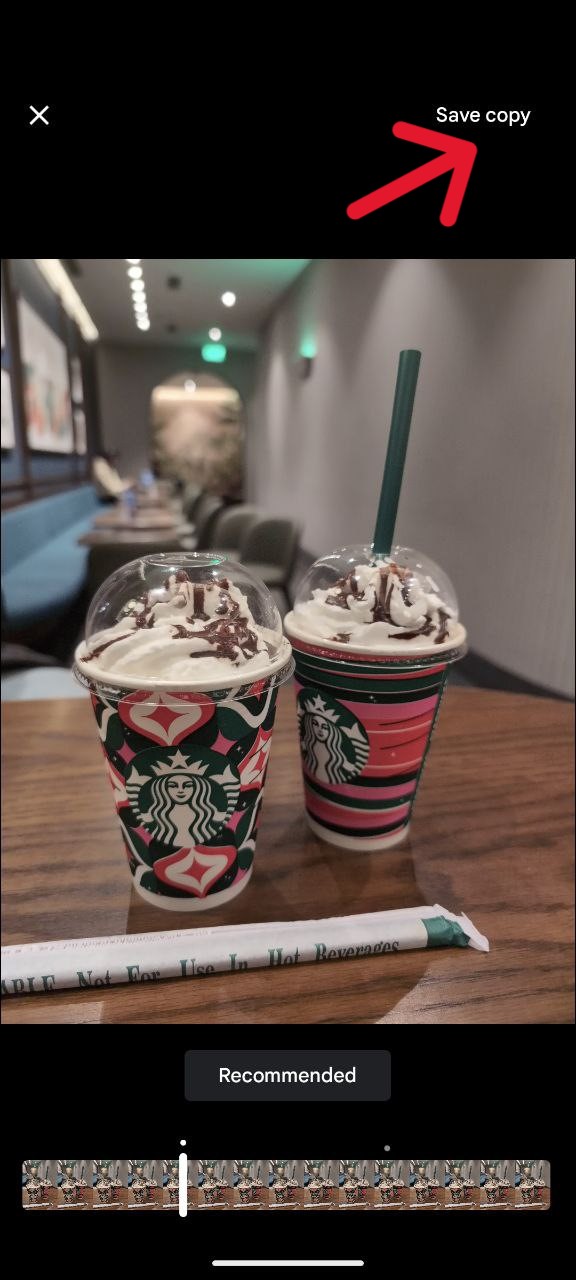
And just like that, Top Shot is now at your fingertips, ready to elevate your photography game. However, keep in mind that certain situations might render Top Shot unavailable. If you spot the ‘Unavailable’ tag below Top Shot in the Camera options menu, check if features like Flash, Night Sight, Selfie Illumination, or Social Media Depth are enabled. If so, disable them, and voila you’re ready to roll.

Karanjot Sidhu
1024 Posts
A computer science engineer who loves tech and won't stop talking about it. Here at Piunikaweb, I mostly cover Google Pixel deals and how-tos, though you may find me covering Pixel news as well sometimes. Apart from being a nerd, i love gaming and watching movies in my free time.
Next article View Article