Tired of sharing your Wi-Fi password with sticky notes and whispered secrets? There’s a better way! Your Google Pixel has a hidden weapon — the Wi-Fi password QR code. This handy feature lets you share your password securely and easily with anyone, no matter what type of phone they have.
In this article, I’ll show you step-by-step how to share Wi-Fi password using a QR code on your Pixel.
Steps to share the Wi-Fi password using a QR code
But before we unlock this magical solution, let’s make sure the stage is set. Ensure that the Wi-Fi is turned on. After that follow these steps:
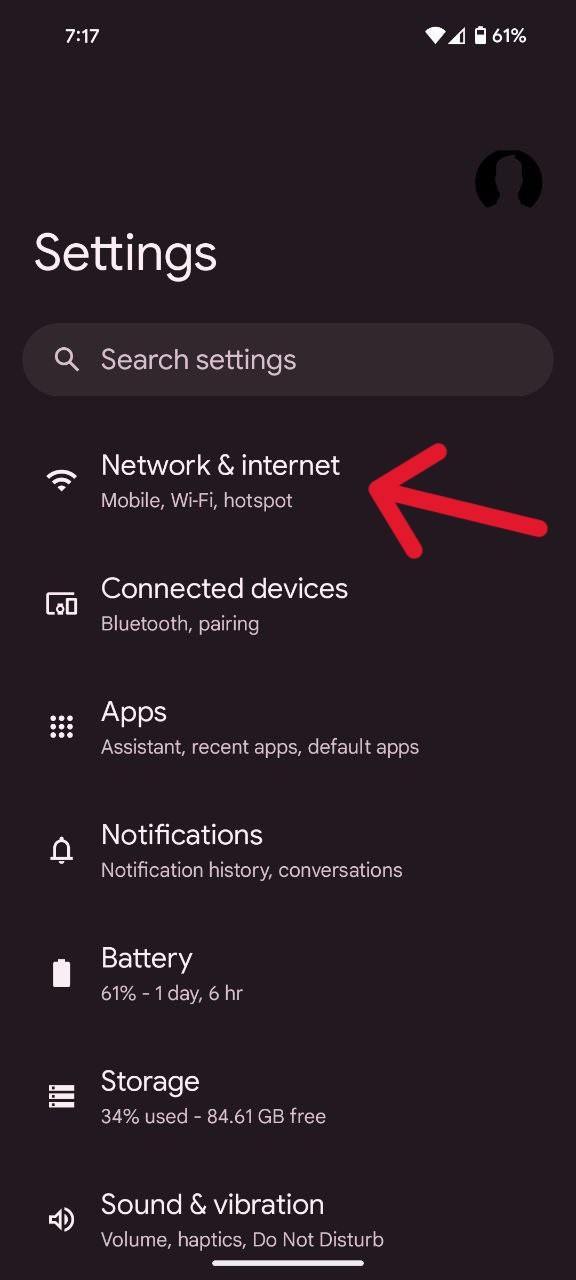
- Begin by opening the Settings app on your Pixel phone.
- Within the Settings, tap on ‘Network and internet’ to explore connectivity options.
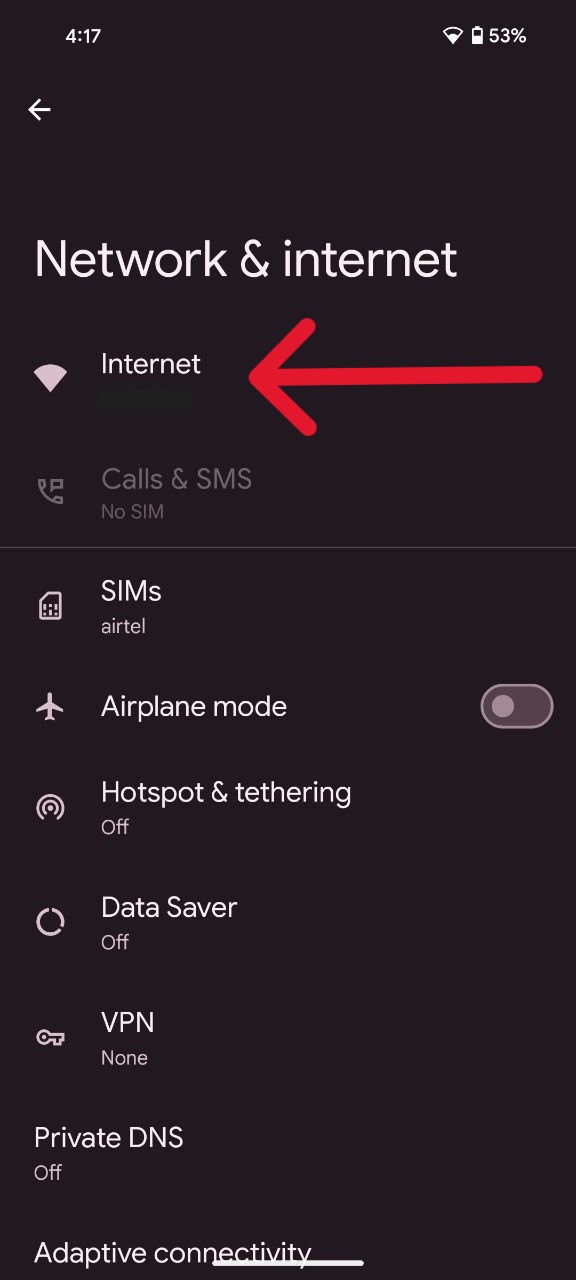
- Navigate to the ‘Internet’ section from the available menu.
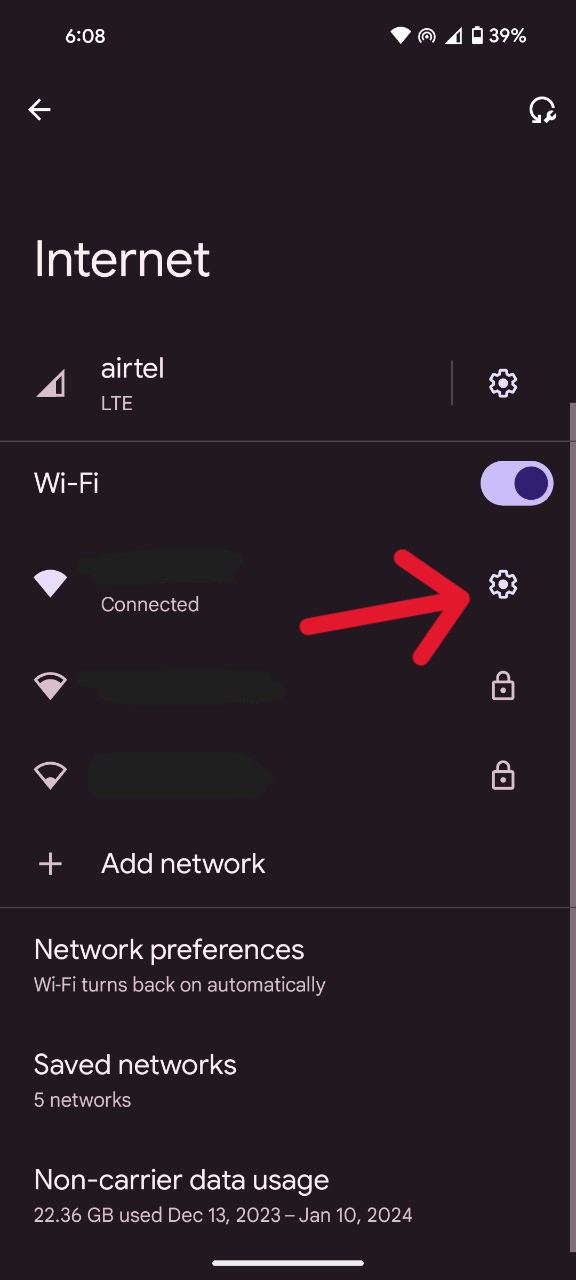
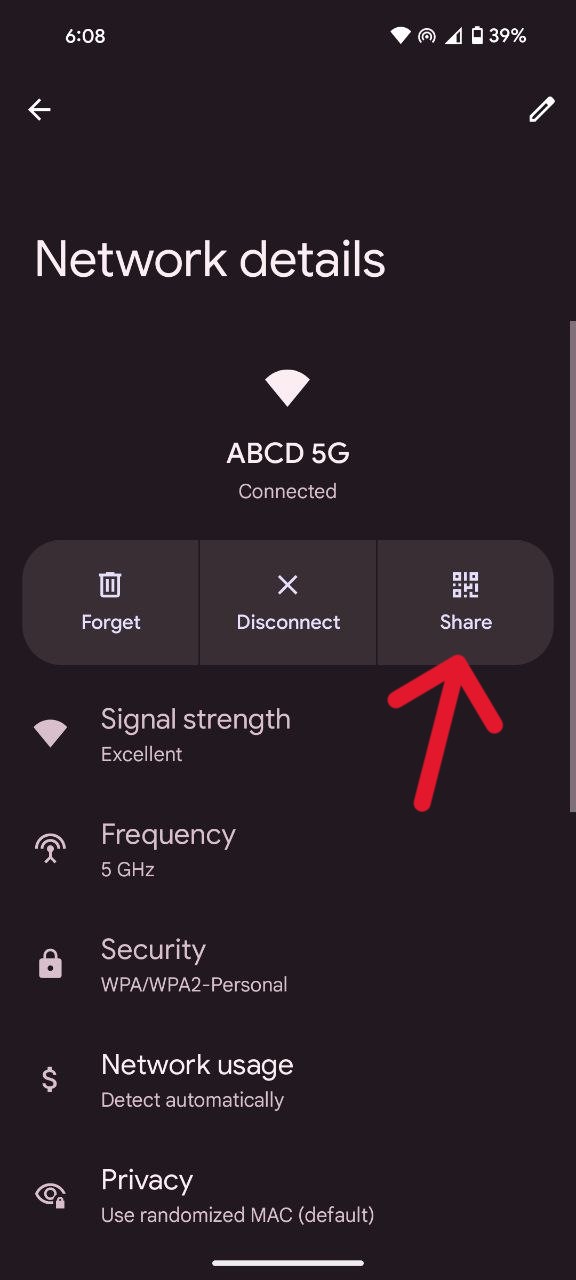
- Identify and select the specific Wi-Fi network you are currently connected to and wish to share password for.
- Once the network is chosen, locate and tap the ‘Share’ icon within the interface.
- Witness the emergence of a QR code on your screen, featuring the Wi-Fi password written in plain text below, ensuring a swift and secure sharing process.
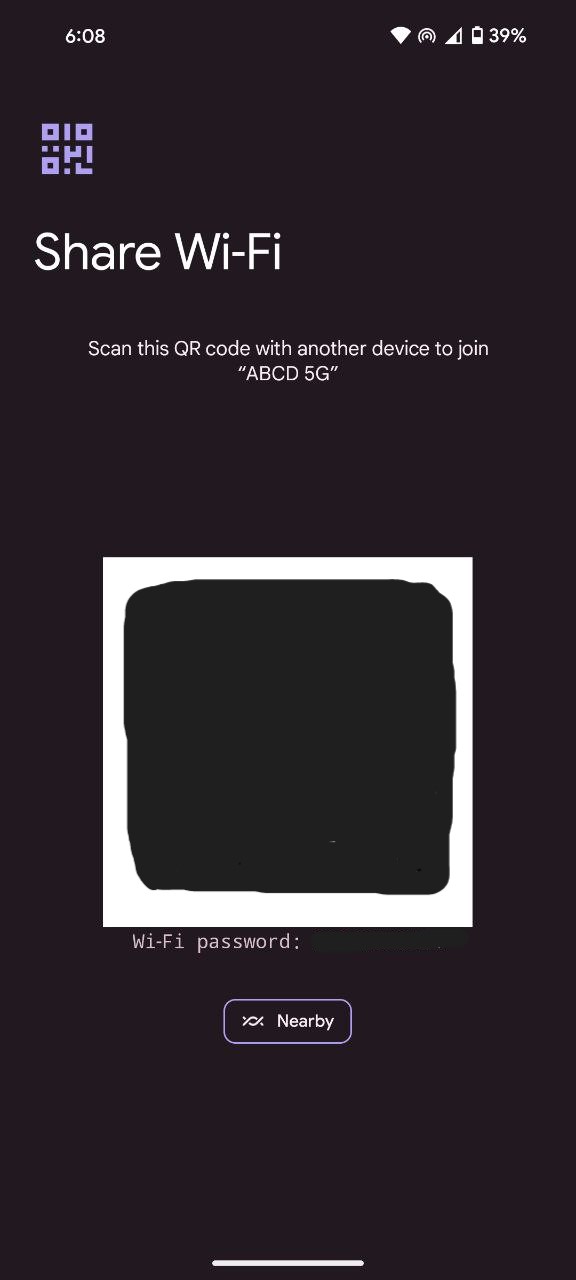
But wait, there’s more! This QR code isn’t just a one-trick pony. You can save it to your Pixel’s gallery for future use, like when a new friend arrives. You can even share it directly through messaging apps or email.
So, next time you face the Wi-Fi password conundrum, embrace the power of the Pixel’s QR code. It’s faster, more secure, and infinitely more satisfying than fumbling with text boxes. So go forth, spread the wireless joy, and revel in the effortless connection that QR code sharing brings.

Karanjot Sidhu
1024 Posts
A computer science engineer who loves tech and won't stop talking about it. Here at Piunikaweb, I mostly cover Google Pixel deals and how-tos, though you may find me covering Pixel news as well sometimes. Apart from being a nerd, i love gaming and watching movies in my free time.
Next article View Article