Here’s the crux of the article in video form:
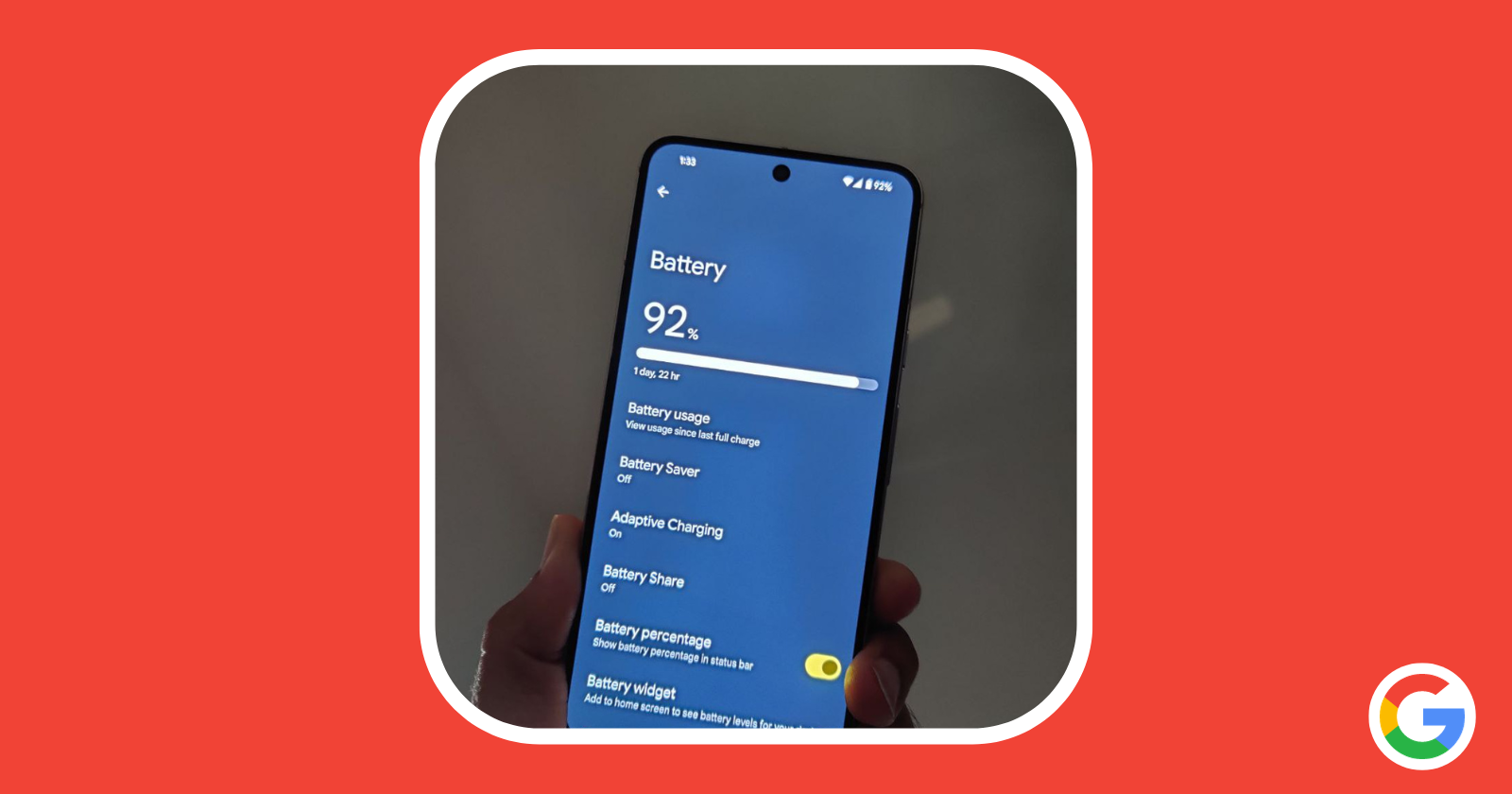
Google’s Pixel phones, renowned for their stellar features and performance, come equipped with a range of tools to help users maximize their battery life. In this guide, we’ll explore step-by-step instructions and valuable tips to optimize your Pixel’s battery and keep it running all day long.
Enable adaptive battery and battery optimization on Pixel phones
At the core of Pixel’s battery management system is the adaptive battery feature. This intelligent functionality continuously learns your usage patterns and optimizes itself accordingly. However, after setting up a new device or following a factory reset, it may take a few weeks for optimization to reach its full potential. For optimal results, it’s crucial to keep both adaptive battery and battery optimization enabled.
- Open your Pixel’s Settings app.
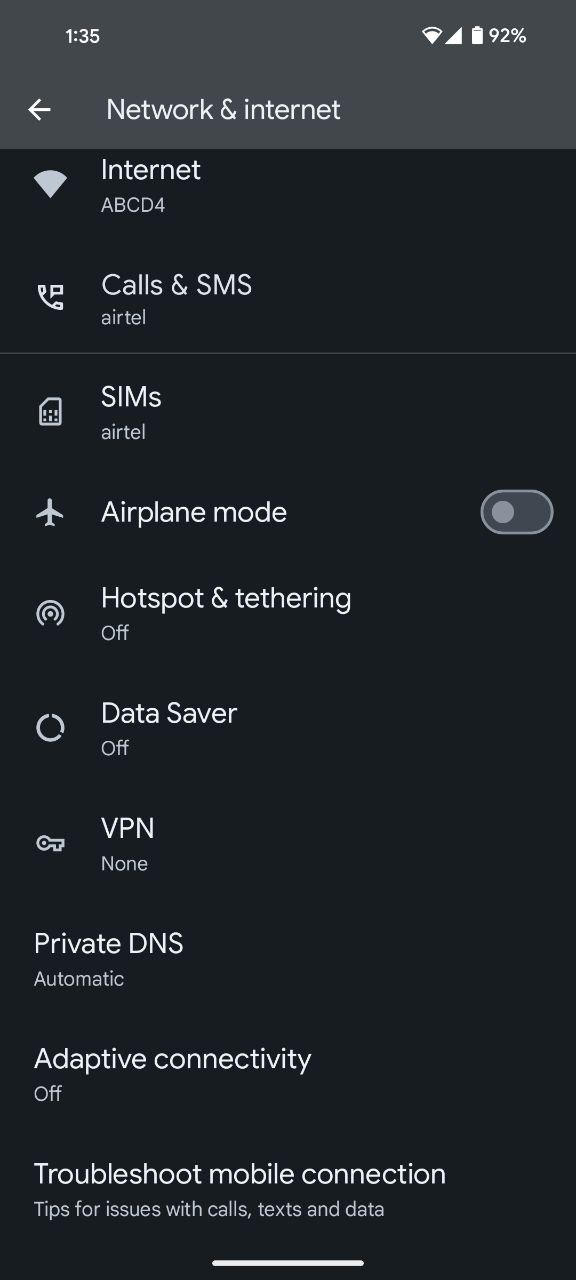
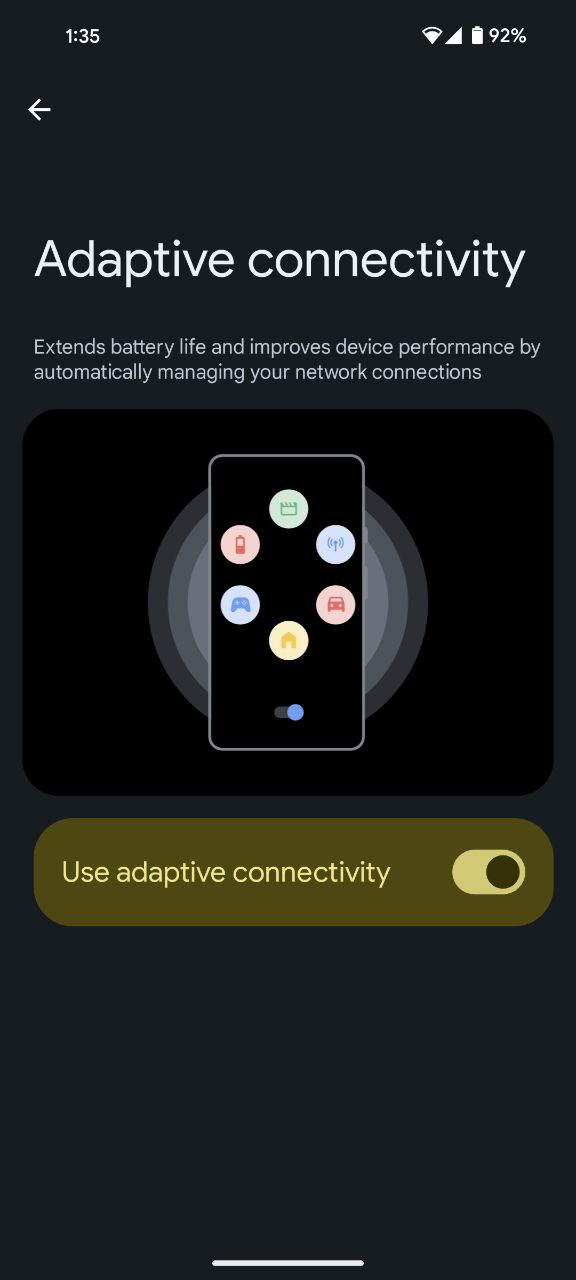
- Navigate to ‘Network & internet’ and select ‘Adaptive connectivity.’
- Toggle Adaptive connectivity on to allow your phone to adapt intelligently to your usage patterns.
Restricting apps with high battery usage
Some apps are more power-hungry than others, and identifying and limiting their impact can significantly enhance your Pixel’s battery life. Follow these steps to manage battery usage effectively:
- Access your phone’s Settings app.
- Tap on ‘Battery’ and select ‘Battery usage.’
- Choose ‘View by apps’ to see a breakdown of battery consumption by each app.
- Click on any app or system to review and modify its battery usage settings.
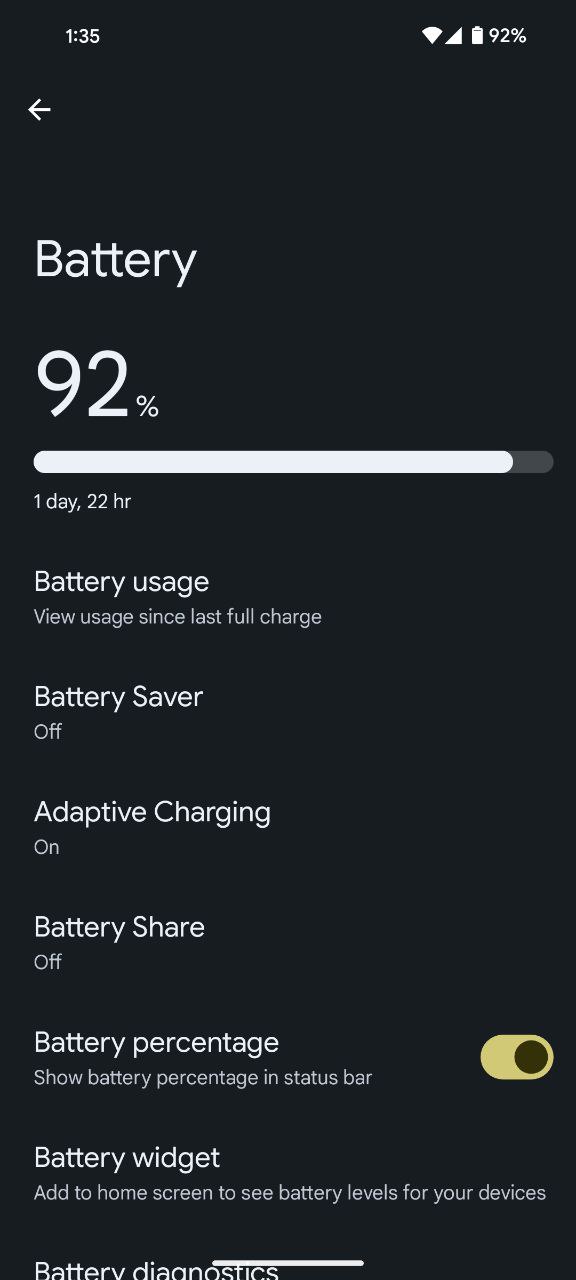
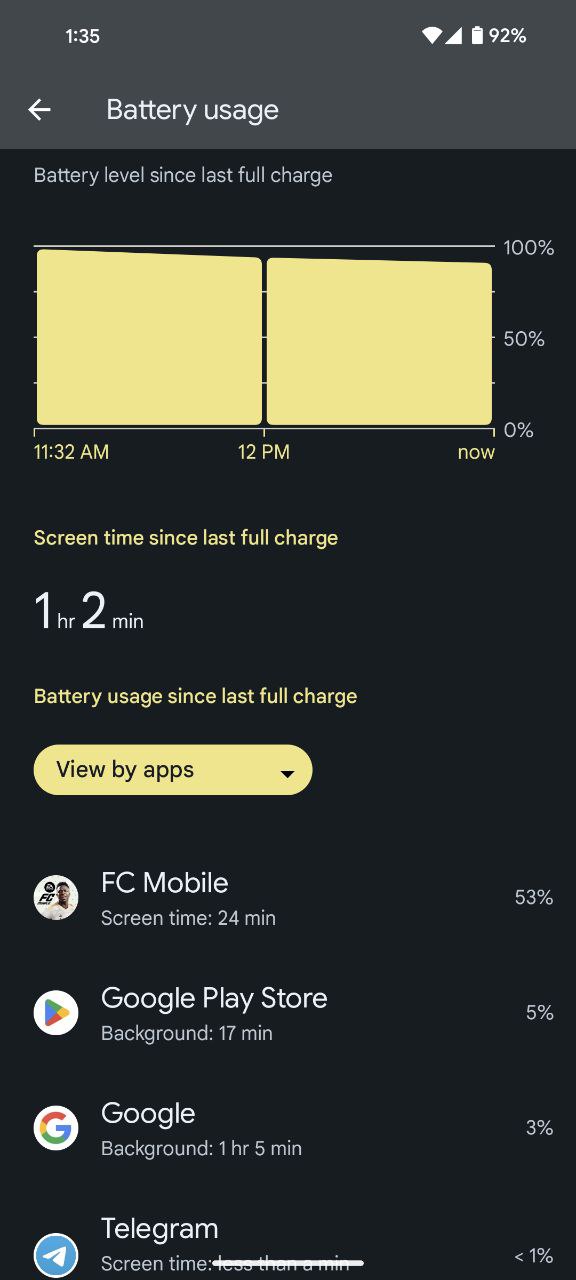
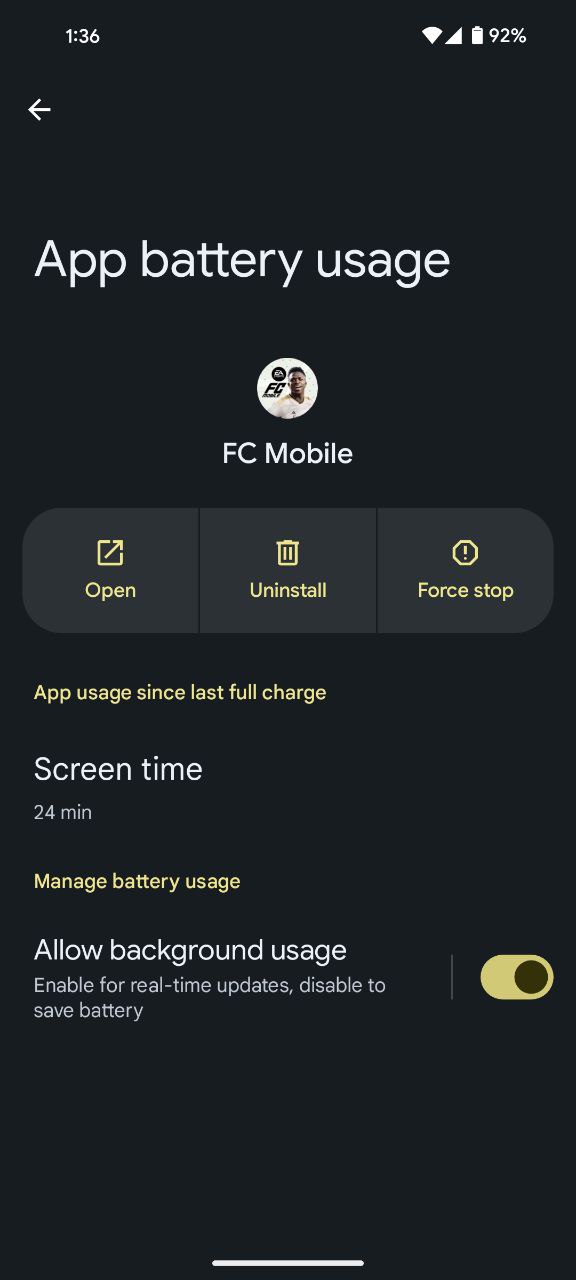
While it’s advisable to keep battery optimization enabled for all apps, certain power-draining apps can be restricted from running in the background.
Note: Be cautious when restricting apps, as some functionalities may be affected, leading to delayed notifications or altered app behavior.
Harness the power of Dark theme
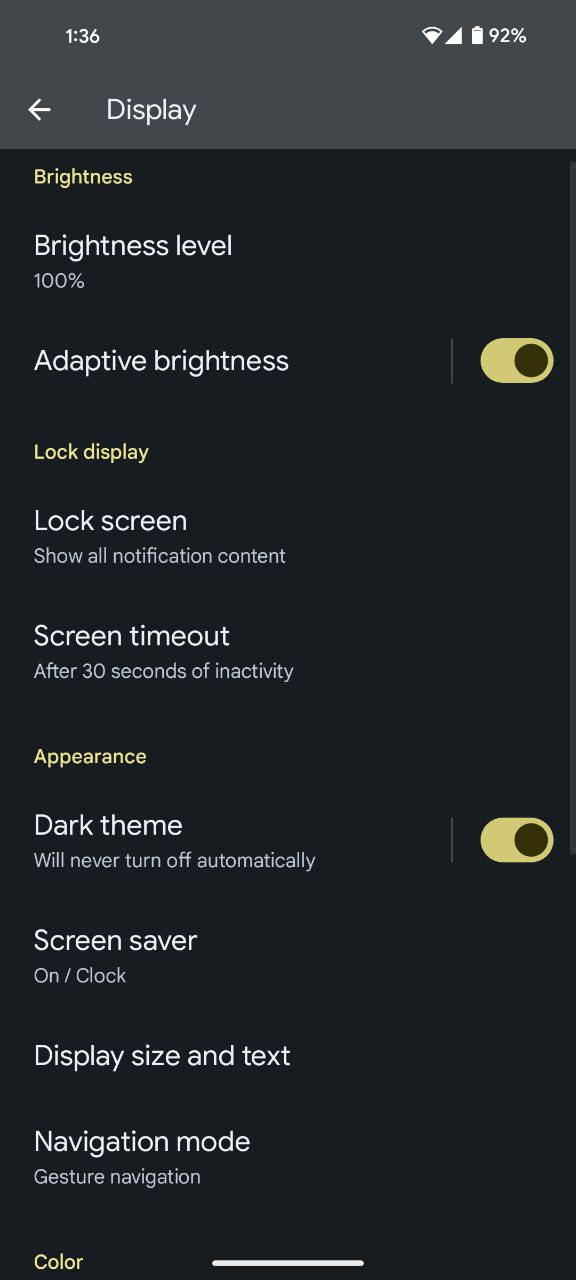
Pixel phones come with a Dark theme that not only enhances visual appeal but also contributes to battery preservation. Dark themes emit fewer pixels, reducing the power consumption of the screen. Here’s how to activate Dark theme:
- Open the Settings app on your Pixel.
- Tap ‘Display’ and select ‘Dark theme.’
- Toggle Dark theme on to experience the aesthetic benefits and energy savings.
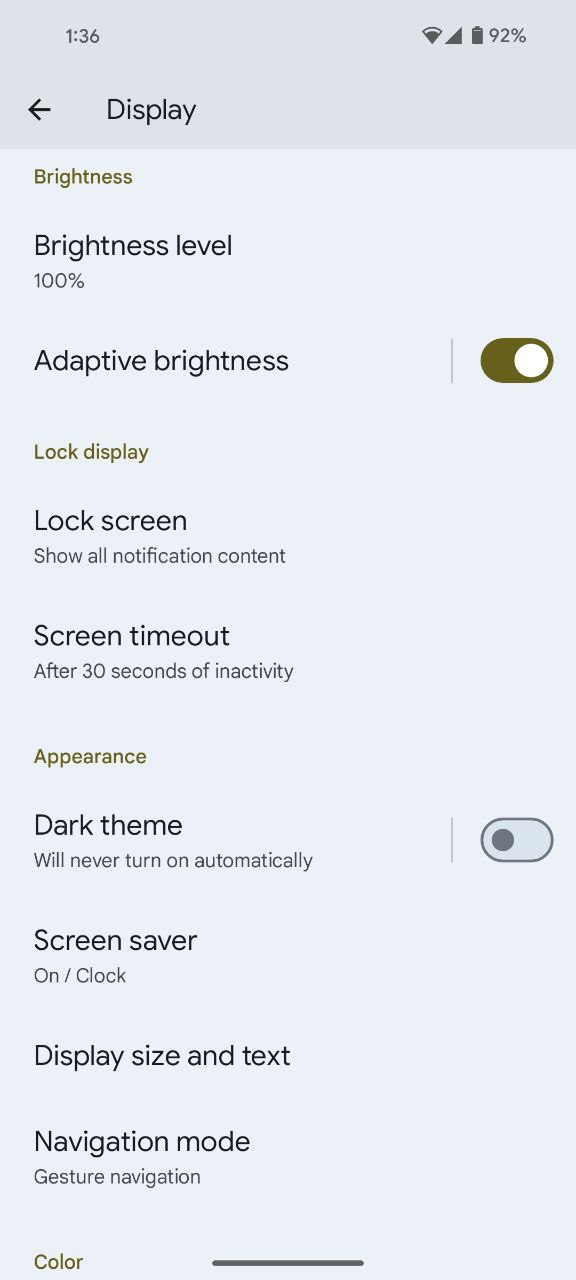
Preventing overheating for prolonged battery life on Pixel phones
Temperature plays a crucial role in battery health. Excessive heat can expedite battery drain, even when the phone is not in active use, potentially causing long-term damage. To ensure your Pixel stays cool and efficient:
- Avoid exposing your phone to environments with high temperatures.
- Refrain from leaving your Pixel in direct sunlight or hot vehicles.
- Consider using a phone case with good heat dissipation properties.
In conclusion, getting the most out of your Pixel’s battery involves a combination of smart settings adjustments and mindful usage habits. Take charge of your Pixel’s power management today and enjoy the convenience of an all-day powered device.

Karanjot Sidhu
1024 Posts
A computer science engineer who loves tech and won't stop talking about it. Here at Piunikaweb, I mostly cover Google Pixel deals and how-tos, though you may find me covering Pixel news as well sometimes. Apart from being a nerd, i love gaming and watching movies in my free time.
Next article View Article