Here’s the crux of the article in video form:
Downloading a new app on your Google Pixel is supposed to be exciting, but the buzzkill notification demanding camera and mic permissions can quickly dampen the mood. While certain apps simply can’t function without these ‘required’ permissions, that doesn’t mean you have to surrender full control. Thankfully, Android’s continuous security updates empower you to manage how and when these sensitive permissions are used.
Feeling hesitant to grant perpetual access to a data-hungry app? No worries! You can choose to rescind permissions later through the handy permissions manager. But before we delve into that, let’s first master accessing the permissions manager from the privacy dashboard. Consider it your gateway to privacy mastery on your trusty Pixel phone.
Steps to manage camera and mic permissions on Google Pixel
To embark on this journey of control, start by locating your device’s settings. Within this digital realm, you’ll find the gateway to your app list, where each application’s permissions lie waiting to be modified. Whether you prefer a meticulous, app-by-app approach or a sweeping adjustment affecting all permissions simultaneously, the process begins with the following steps:
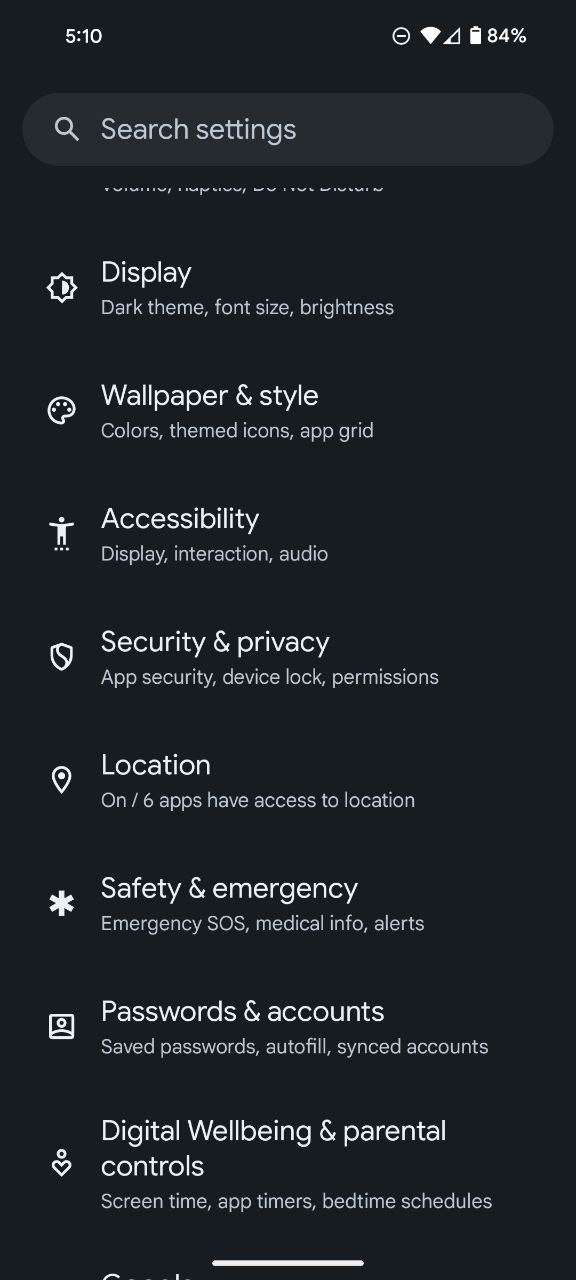
- Navigate through the settings on your Google Pixel phone, the hub of customization and control.
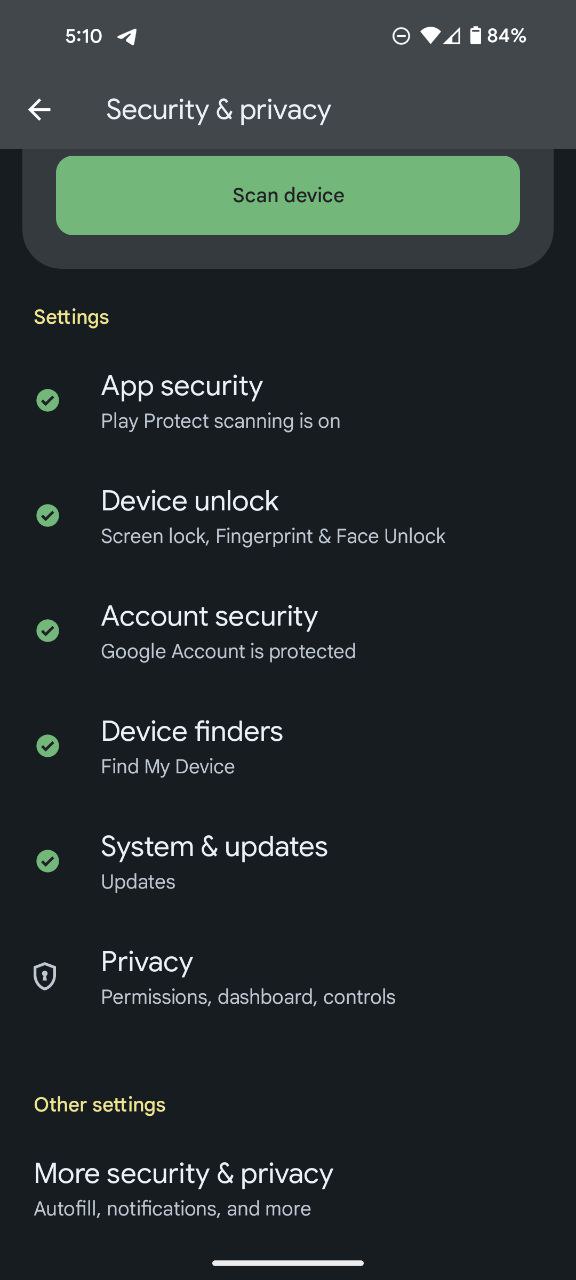
- In the Settings menu, tap on Security & privacy.
- To inspect and modify app permissions, tap on Privacy.
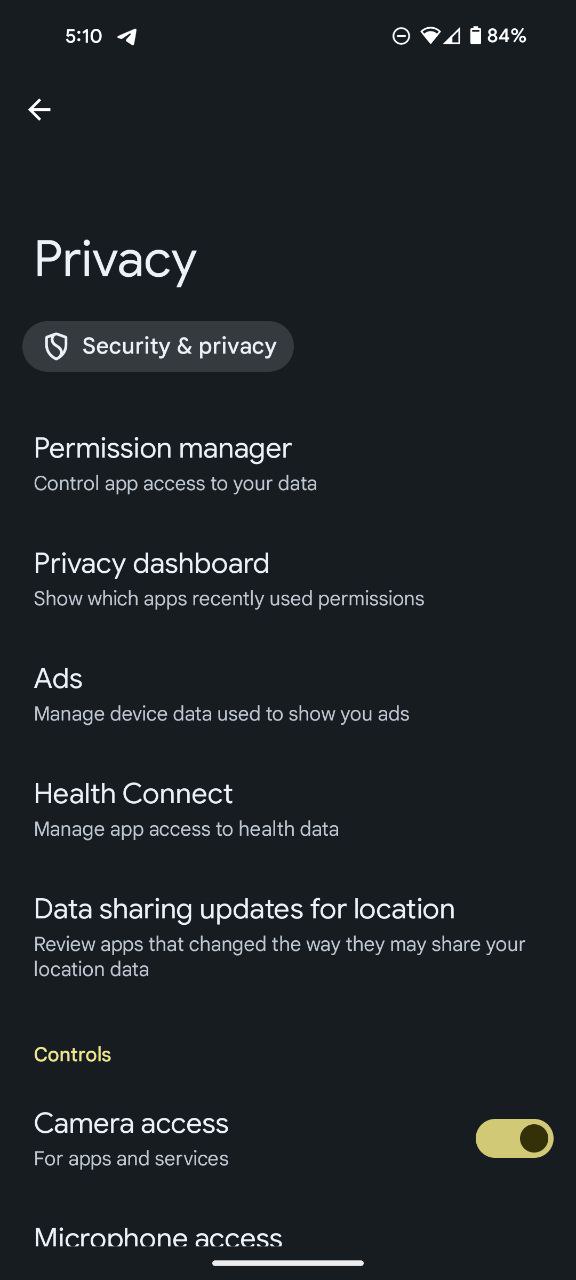
- Within the Privacy section, tap on Permission manager, the central command center for managing app permissions.
- Identify whether you wish to regulate camera or microphone permissions and tap accordingly, narrowing down your focus.
- Observe the list of apps and their respective permissions. To modify an app’s access, tap on the desired application.
- Tailor the permission settings to your preference. For a swift retreat, tap the back arrow thrice to return to the Security & privacy page.
- If a camera-centric app has overstayed its welcome, tap on Privacy controls from the Security & privacy page and disable Camera access.
- Similarly, to silence a microphone-hungry app, simply toggle off Microphone access.
- Stay vigilant for visual cues as a green camera or microphone icon denotes an app in action. The green dot persists while your camera or microphone is operational.
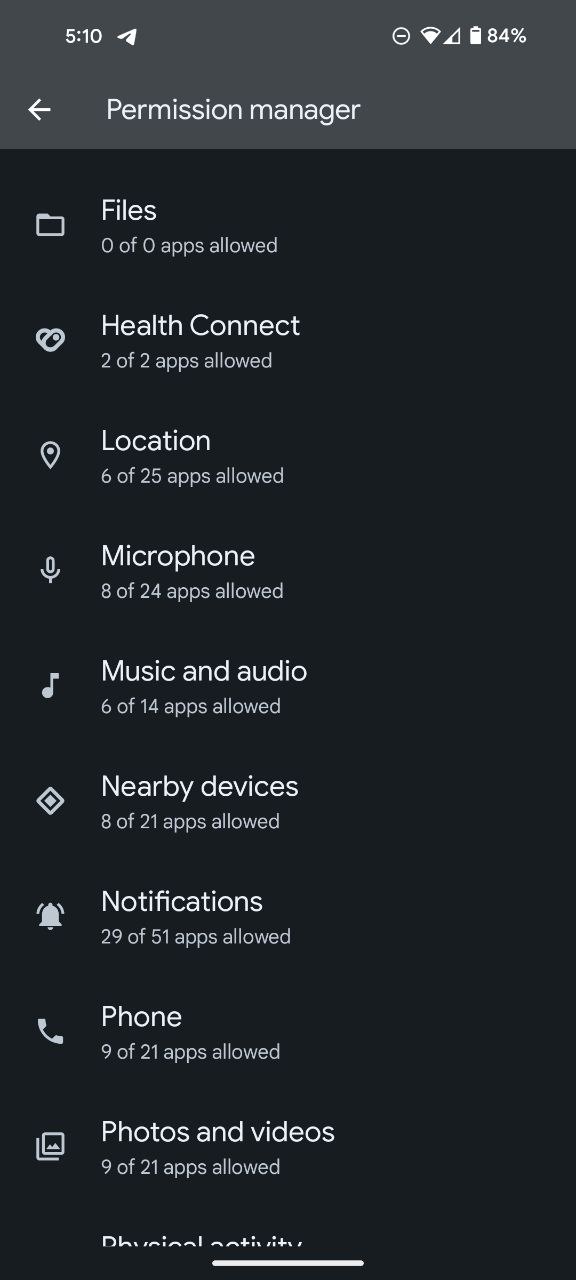
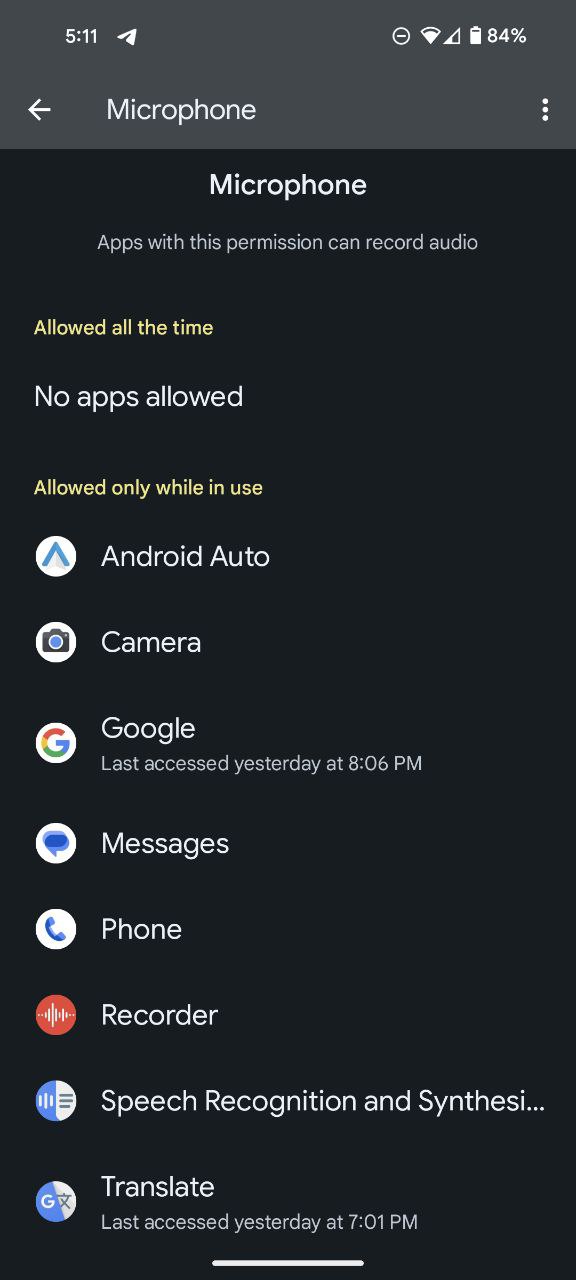
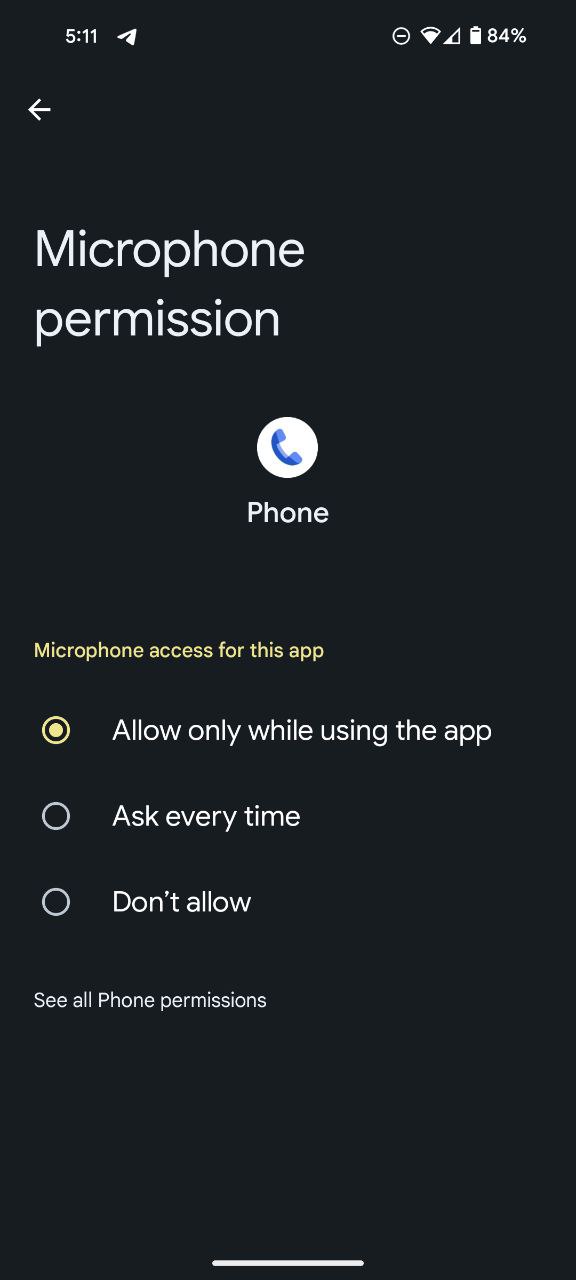
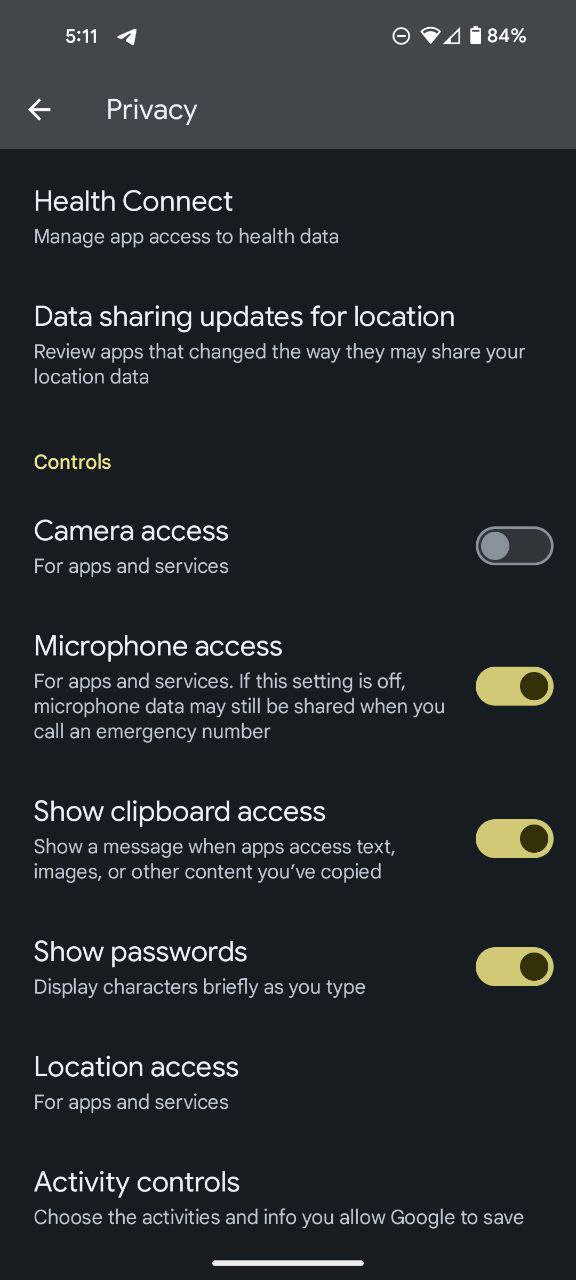
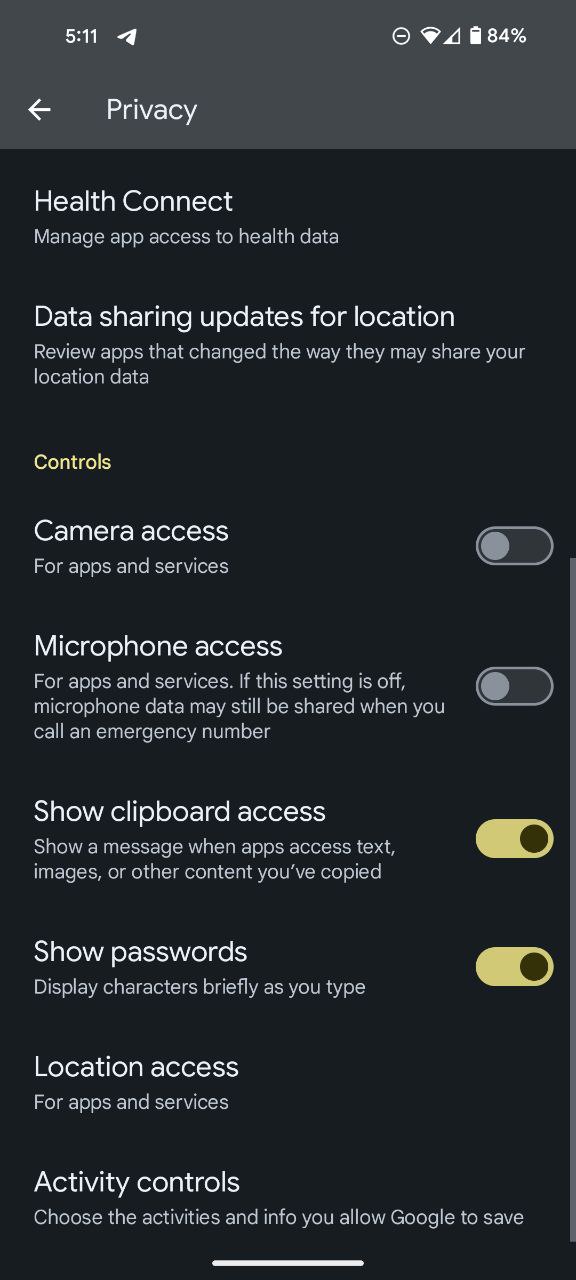
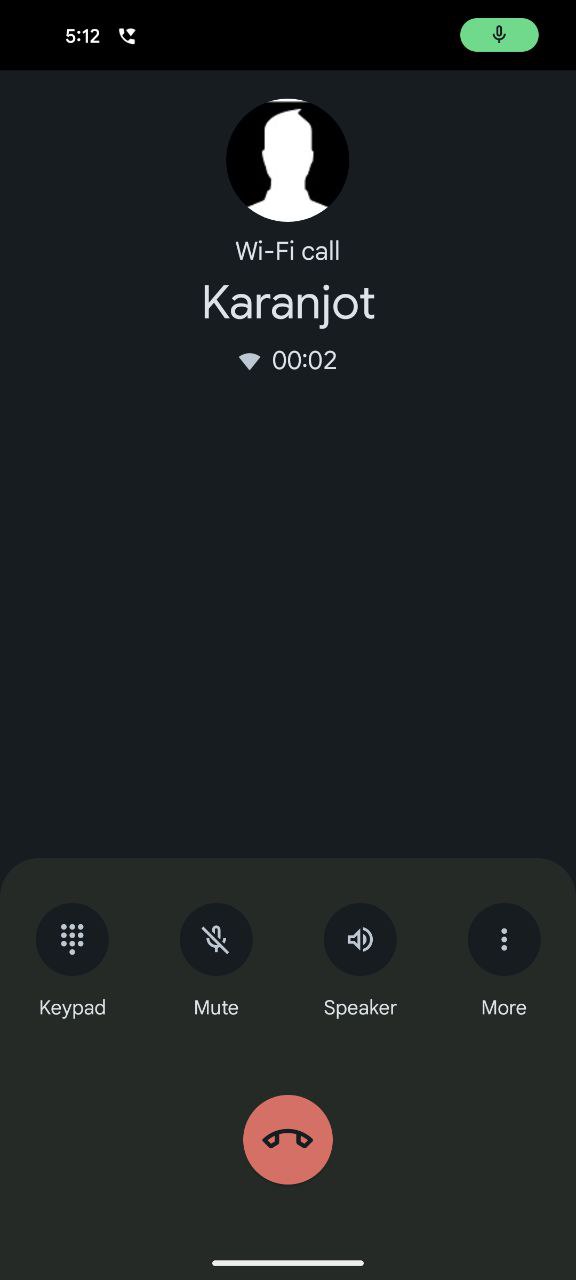
These steps empower you to sculpt your Pixel’s permissions landscape, granting you the autonomy to decide when your camera and microphone are at the disposal of apps. Android OS, with its commitment to user privacy, ensures that your smartphone remains a fortress under your vigilant control.

Karanjot Sidhu
1024 Posts
A computer science engineer who loves tech and won't stop talking about it. Here at Piunikaweb, I mostly cover Google Pixel deals and how-tos, though you may find me covering Pixel news as well sometimes. Apart from being a nerd, i love gaming and watching movies in my free time.
Next article View Article