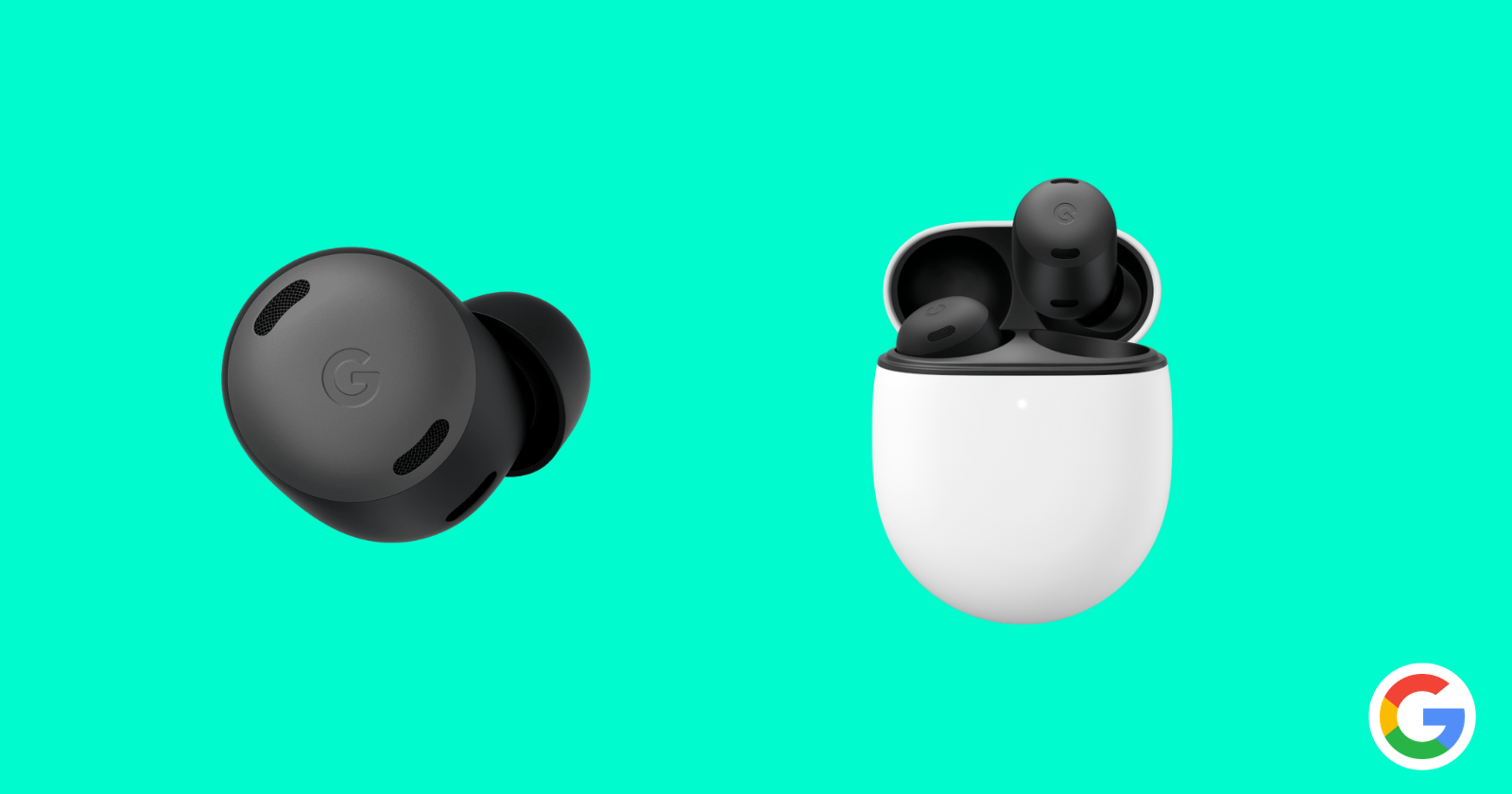
Ever dreamed of effortlessly conversing with anyone, regardless of their native tongue? Well, with your Google Pixel Buds Pro, that dream is closer than ever thanks to the magic of real-time translation. Whether you’re conquering foreign streets or bridging the gap with colleagues who speak a different language, this feature allows you to ditch the awkward interpreters and dive straight into meaningful communication.
Steps to use real-time translation on Pixel Buds Pro
Before delving into the practical steps, it is imperative to ensure that both the Google app and the Google Translate app are up-to-date. Frequent visits to the Google Play Store for any pending updates is a good practice to guarantee optimal functionality. Furthermore, having Google Assistant configured on your device is essential for those opting to use this voice assistant method.
The Google Assistant method:
- Begin by securing the Pixel Buds Pro in your ears, ensuring a solid connection with your phone.
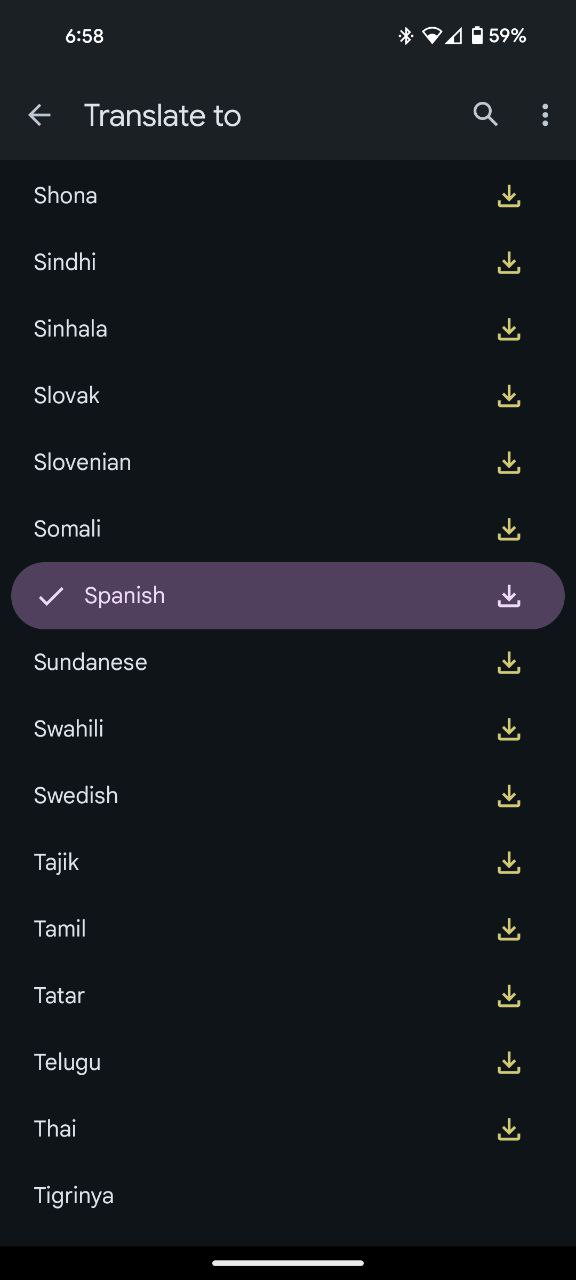
- Trigger Google Assistant by touching and holding either earbud, then initiate the process by saying ‘Hey Google.’ Subsequently, specify the desired language for translation, such as ‘Help me speak Spanish.’
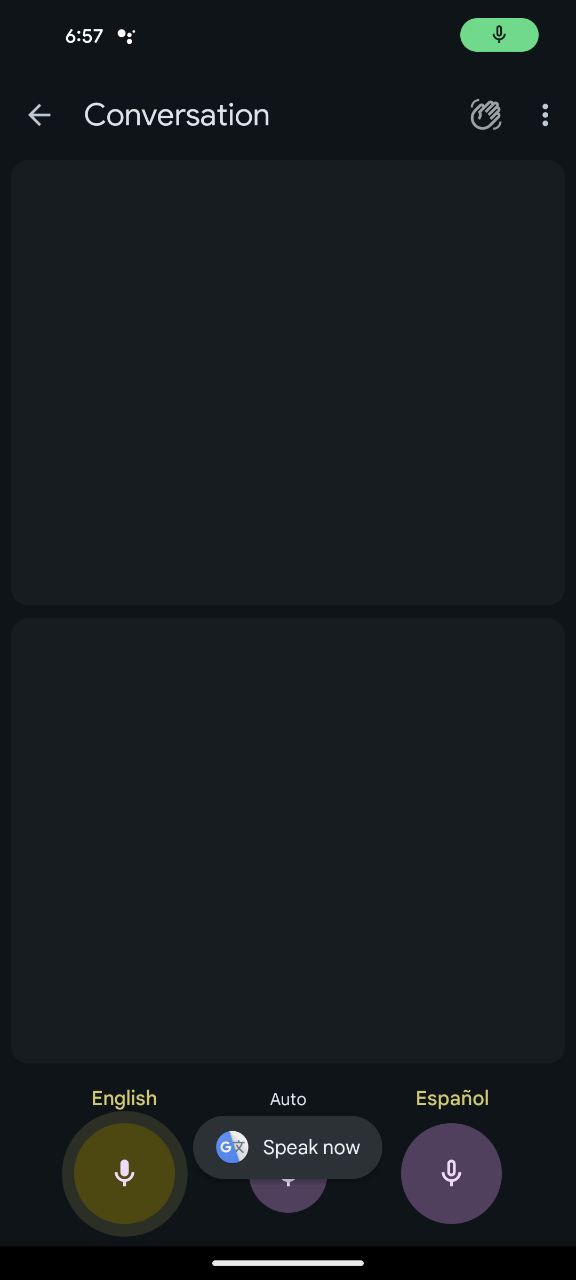
- Google Translate springs into action in conversation mode, displaying your default language followed by the selected translation language. Grant necessary permissions if prompted.
- Press and hold the designated earbud button (usually on the left earbud) and commence speaking. Release the button when done, and witness the translation manifesting on your device.
- Revel in the seamless translation experience as the converted text appears on your phone screen while the audible translation graces your ears.
The non-assistant approach:
- As before, ensure the Pixel Buds Pro are snugly in your ears and paired with your phone.
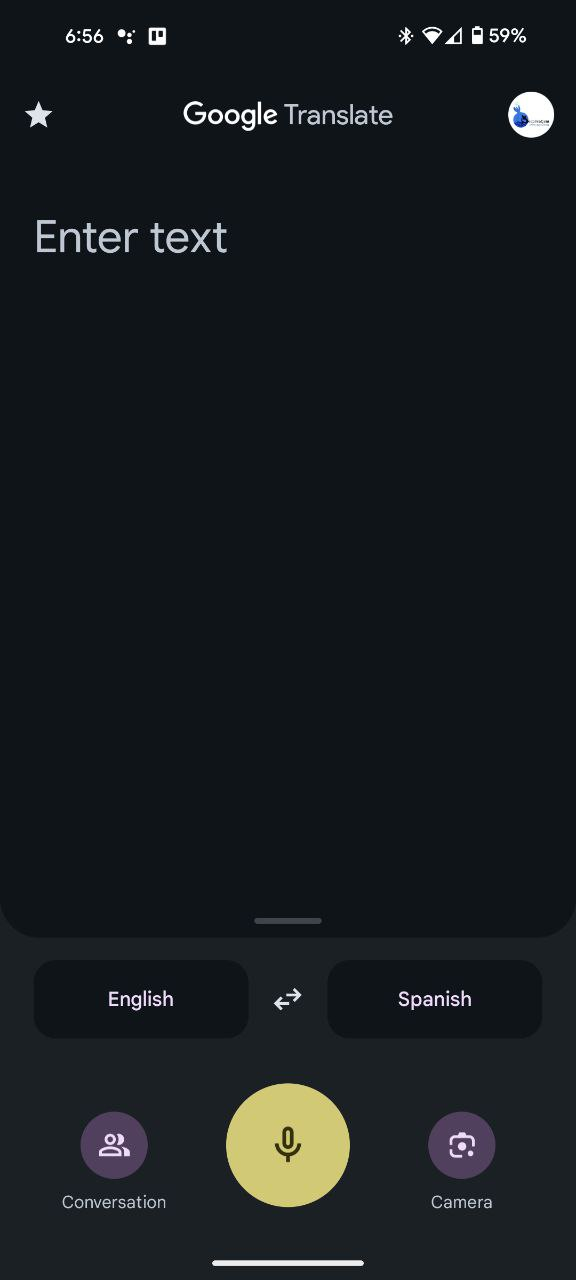
- Open the Translate app on your Android device, positioning yourself for a manual translation journey.
- At the app’s bottom left corner, choose your primary language. Simultaneously, in the bottom right corner, select the language of the person you’re communicating with.
- Tap on ‘Conversation’ at the bottom left, marking the beginning of your translation venture.
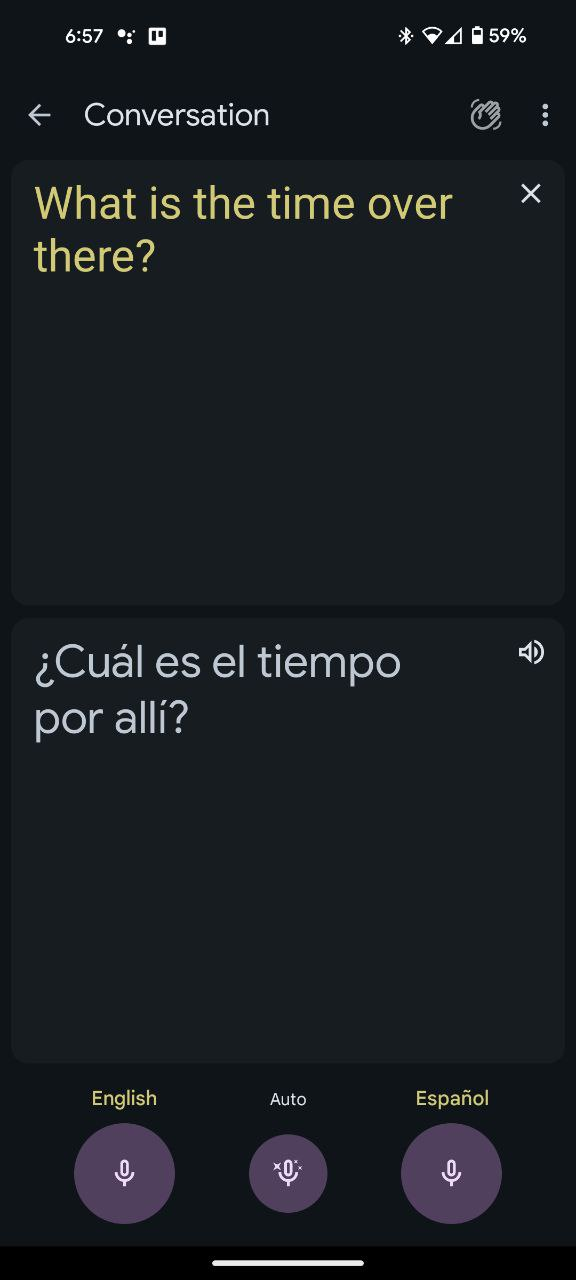
- Touch and hold the earbud, unleashing your spoken words. Release your finger when finished, and bask in the audible and text translations that follow.
- Facilitate an effortless conversation by pressing the microphone button under the language designation when the other person speaks. Their words will be promptly translated, both audibly and as text on your device.
Wearing the Google Pixel Buds Pro transforms language barriers into mere nuances, facilitating conversations with unparalleled ease. Whether you’re a globetrotter or engaged in cross-cultural conversations, Pixel Buds Pro redefine communication, rendering language no longer a hurdle but a gateway to enhanced connections. Embrace the future of real-time translation with Pixel Buds Pro, where linguistic diversity becomes an asset, not an obstacle.

Karanjot Sidhu
1024 Posts
A computer science engineer who loves tech and won't stop talking about it. Here at Piunikaweb, I mostly cover Google Pixel deals and how-tos, though you may find me covering Pixel news as well sometimes. Apart from being a nerd, i love gaming and watching movies in my free time.
Next article View Article