Tired of robocalls interrupting your day? Yearning for a way to filter out pesky telemarketers before they waste your precious time? Look no further than your Pixel phone as it has a Call Screen feature. This ingenious tool acts as your personal virtual gatekeeper, letting you peek behind the phone curtain and identify callers before hitting ‘answer.’
Understanding Call Screen availability
Firstly, it’s essential to know where Call Screen is available. Here’s the list of all the countries:
- Australia
- Canada
- France
- Germany
- Ireland
- Italy
- Japan
- Spain
- UK
- US
Enable Call Screen feature on your Pixel phones
Before diving into the steps, it’s crucial to note that Call Screen may not work with third-party call recording and screen recording apps. Turning off these apps before using Call Screen is recommended to ensure smooth functionality. Now, let’s enable the automatic Call Screen feature on your Pixel phones:
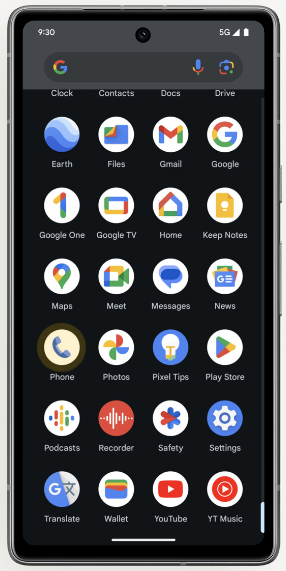
- Swipe up from the bottom of the screen.
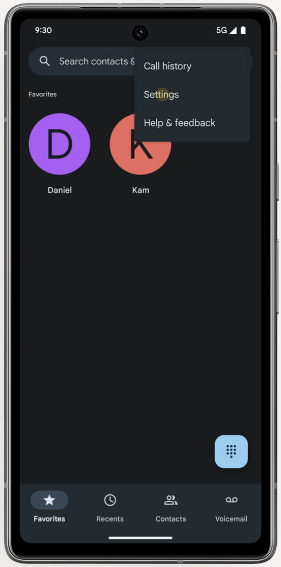
- Tap the Phone app
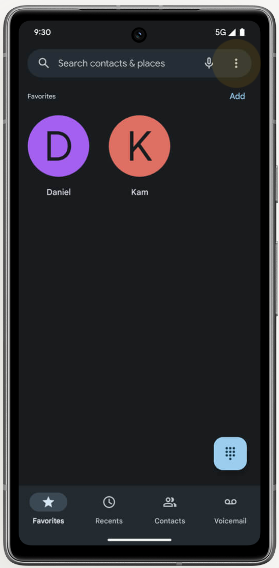
- On the top right corner of the screen, tap Menu
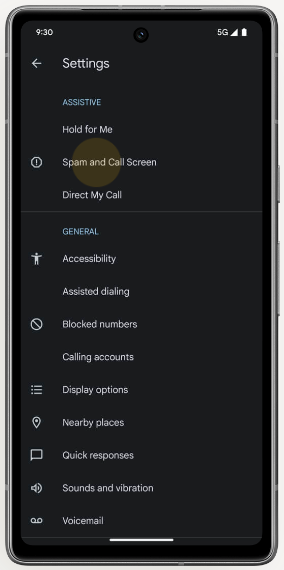
- Tap Settings.
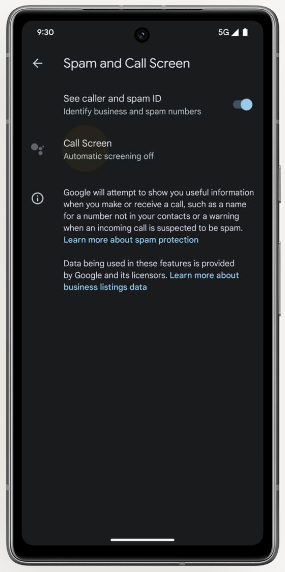
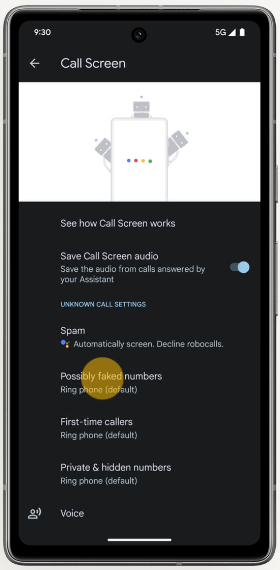
- Tap Spam and Call Screen.
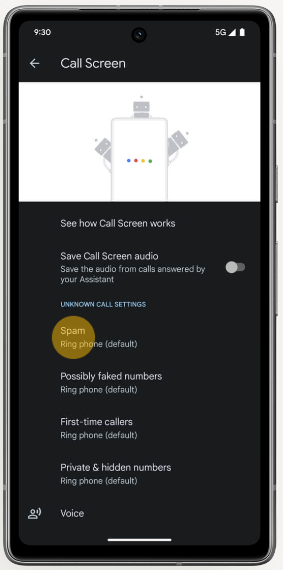
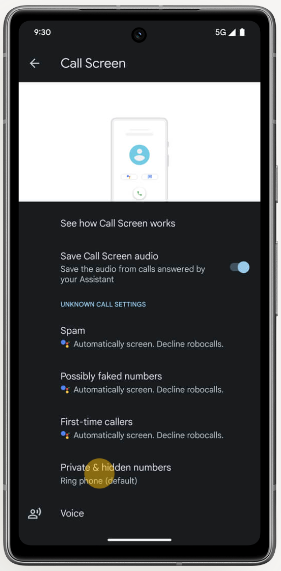
- Tap Call Screen.
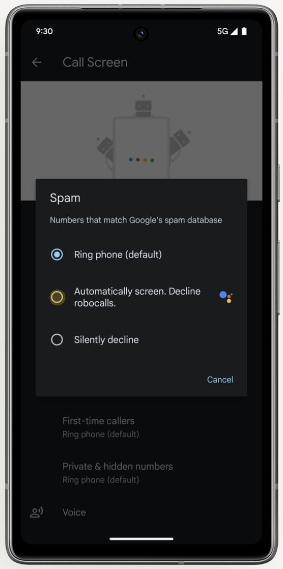
- To screen numbers that match Google’s spam database, tap Spam.
- Select an option for your spam settings.
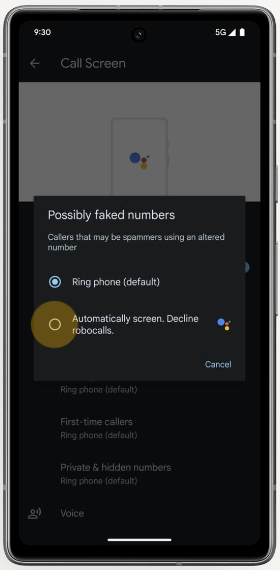
- To screen callers that may be spammers using an altered number, tap Possibly faked numbers.
- Tap Automatically screen. Decline robocalls.
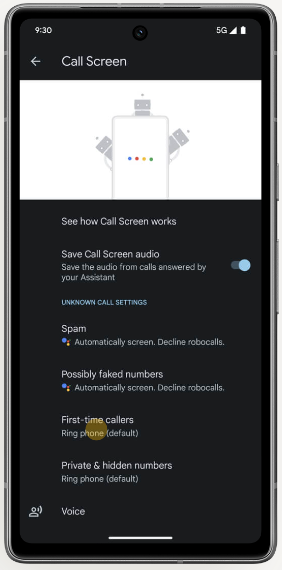
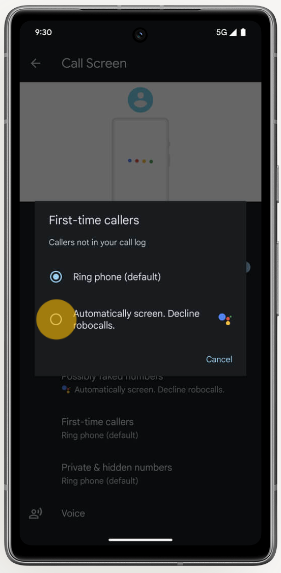
- To screen callers not in your call log, tap First-time callers.
- Tap Automatically screen. Decline robocalls.
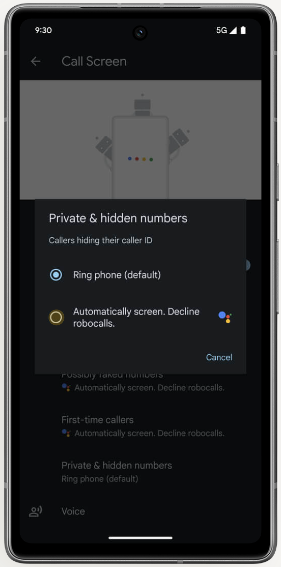
- To screen callers hiding their caller ID, tap Private & hidden numbers.
- Tap Automatically screen. Decline robocalls.
Manually use Call Screen
If you prefer to take control of call screening, follow these steps for manual use:
- Open the Phone app on your Pixel device.
- Tap the three-dot menu button and access Settings.
- Select Call Screen and proceed with the setup steps.
- When you receive a call from an unknown number, an option will appear that says ‘Screen call.’
- Google Assistant will answer and start asking questions, providing you with a live transcript of the answers.
- You can choose to pick up the call, hang up, or ask additional suggested questions, such as ‘Is it urgent?,’ ‘Report as spam,’ ‘I’ll call you back,’ and ‘I can’t understand.’
By following these steps, you empower your Pixel phone with the advanced Call Screen feature, allowing you to make informed decisions about incoming calls. Whether you opt for the convenience of automatic screening or prefer the hands-on approach of manual screening, Google’s Pixel phones continue to prove their commitment to user-centric innovation in the world of smartphones.
Stay connected, stay informed, and let your Pixel phone be your ally in managing your calls efficiently.

Karanjot Sidhu
1024 Posts
A computer science engineer who loves tech and won't stop talking about it. Here at Piunikaweb, I mostly cover Google Pixel deals and how-tos, though you may find me covering Pixel news as well sometimes. Apart from being a nerd, i love gaming and watching movies in my free time.
Next article View Article