Here’s the crux of the article in video form:
Android, the slick and trusty operating system powering your phone, isn’t immune to occasional stumbles. Apps might freeze, the system might hitch, and you’re left wondering what went wrong. Thankfully, Android has a built-in guardian angel: Safe Mode. This special environment temporarily suspends most third-party apps, making it a safe space to diagnose and fix issues without causing further harm.
Steps to enable Safe Mode on Pixel
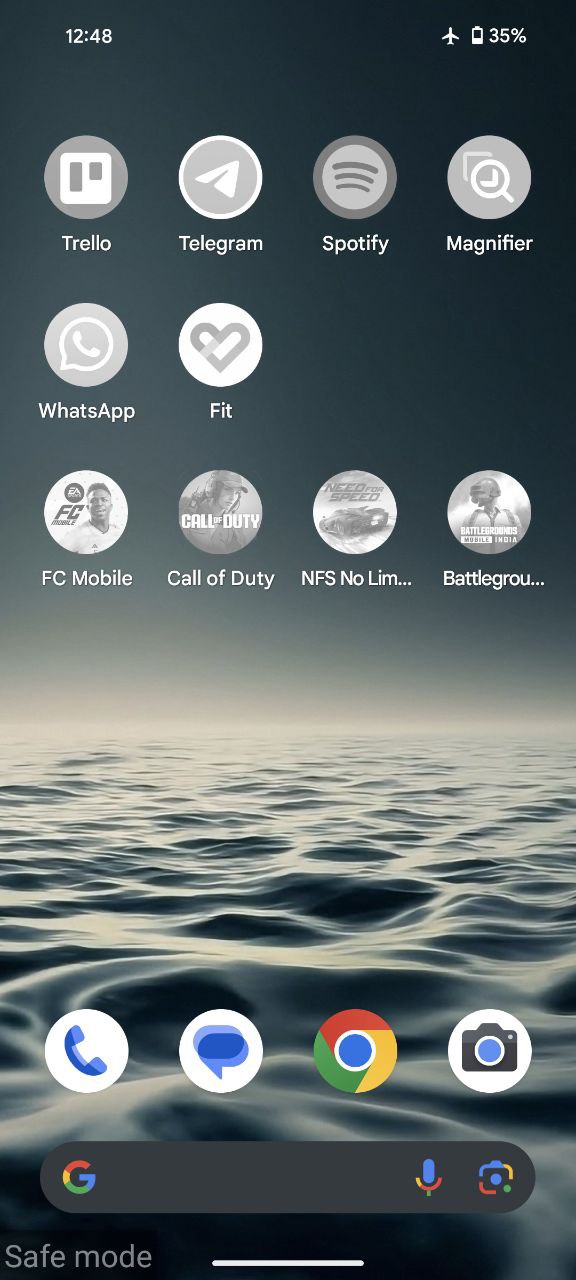
First things first, how do you know you’re even in Safe Mode? Take a glance at your home screen. Are your usual apps looking a bit dull, draped in shades of gray? Does your app drawer appear eerily empty? Don’t panic, your data is safe and sound. These signs simply indicate you’ve entered the Safe Mode.
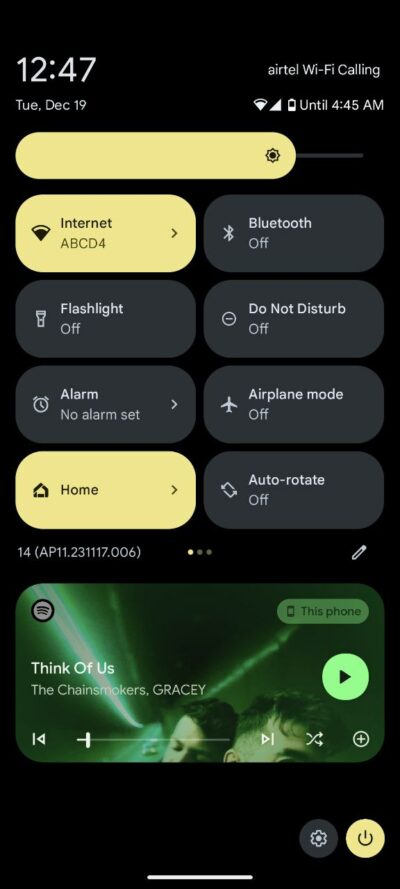
Now if you want to enter Safe Mode, here are the steps:
- Swipe down twice on your notification shade to unveil the Power options button.
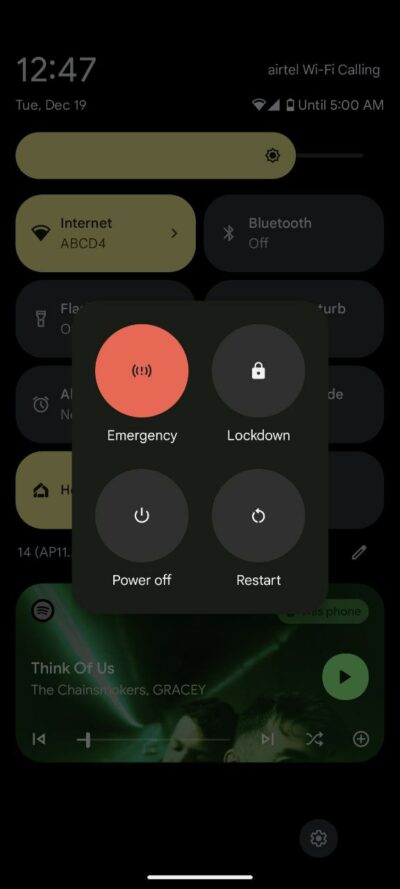
- Select and hold the Power off option.
- When prompted with the ‘Reboot to safe mode,’ tap OK.
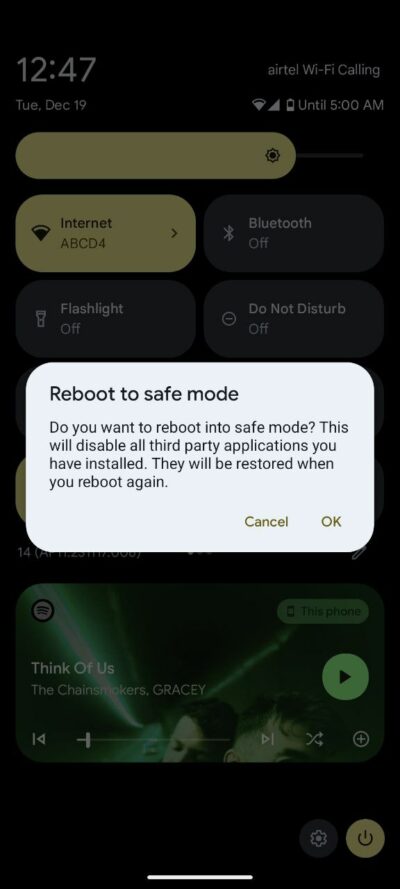
As your device restarts, you’ll notice a Safe Mode prompt in the bottom-left corner, confirming your successful entry into the diagnostic haven. This method works universally for most Android phones, though those with older versions may need to access the shutdown menu by holding the Power button.
Troubleshooting in Safe Mode
Now that you’ve entered Safe Mode, it’s time to diagnose and troubleshoot. Follow these steps:
- Observe your device’s behavior: Note if the issues persist in Safe Mode. If not, the problem likely stems from a third-party app.
- Identify the problematic app: Gradually reinstall third-party apps, monitoring your device’s performance. When the issue recurs, you’ve pinpointed the culprit.
- Uninstall or update the culprit: Head to your device’s settings, locate the misbehaving app, and either uninstall it or update it to the latest version.
Steps to disable Safe Mode on Pixel
Remember, Safe Mode is your temporary haven, not a permanent residence. Once you’ve diagnosed and fixed the underlying issue, don’t hesitate to use this methods to return to your regular Android experience.
- Press and hold down the power button for a few seconds. A familiar menu offering options like ‘Power off’ and ‘Restart’ should appear.
- Tap the ‘Restart’ button, and watch your phone gracefully glide back to its normal state.
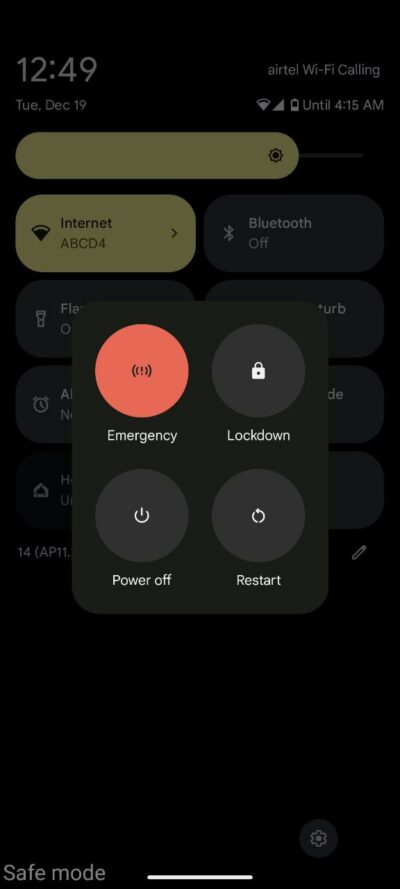
Within seconds, your device will reboot, exiting Safe Mode and returning to its usual state.

Karanjot Sidhu
1024 Posts
A computer science engineer who loves tech and won't stop talking about it. Here at Piunikaweb, I mostly cover Google Pixel deals and how-tos, though you may find me covering Pixel news as well sometimes. Apart from being a nerd, i love gaming and watching movies in my free time.
Next article View Article