Here’s the crux of the article in video form:
Ever notice captions popping up unexpectedly on your Pixel phone? That’s Live Caption, a hidden gem for some, but a potential nuisance for others. Whether you want subtitles during your morning podcasts or crave silent serenity, understanding how to control Live Caption is key. So, dive in with us as we explore the ins and outs of enabling and disabling this handy feature on your Google Pixel!
Enabling and disabling Live Caption on your Google Pixel phone
Before we begin, a quick note: Google Pixel 8 running Android 14 serves as my trusty guide. Your menus might differ slightly based on your phone model and software version. And hey, if your phone doesn’t even have Live Caption, don’t fret! This article isn’t for you (at least not yet).
Disable Live Caption via Settings:
- Launch the Settings app on your Google Pixel.
- Navigate to the ‘Sound & vibration’ section.
- Locate and tap on ‘Live Caption.’
- Toggle off the switch next to ‘Use Live Caption.’


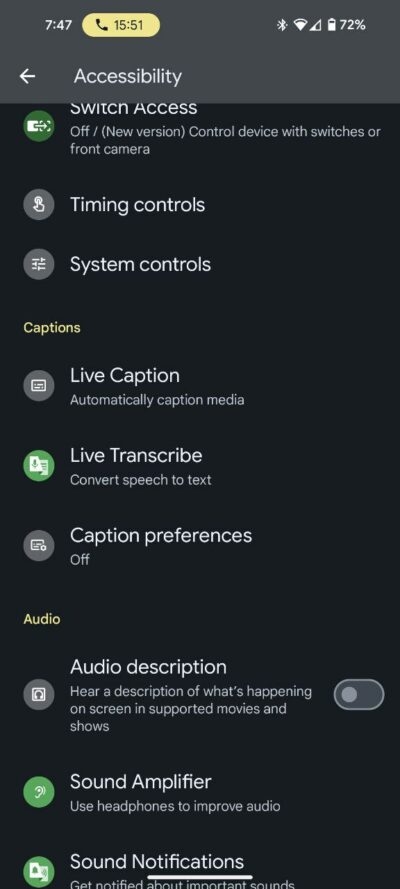
Alternatively, you can find this option under ‘Accessibility’:
- Open Settings.
- Go to ‘Accessibility.’
- Select ‘Live Caption’ and toggle off ‘Use Live Caption.’

You can also disable Live Caption via volume controls:
- While using your phone, press either the volume up or volume down button.
- Observe a Live Caption icon positioned just below the volume slider.
- Tap on this Live Caption icon to toggle the function on or off based on your preference.
Disabling Live Caption is a straightforward process on your Google Pixel phone, ensuring you have control over your device’s features. Whether you opt for the Settings route or the quick-access method via volume controls, the goal remains to provide users with flexibility and ease. If you want to enable this feature, then all you need to do is follow the same steps and toggle the settings to on.

Karanjot Sidhu
1024 Posts
A computer science engineer who loves tech and won't stop talking about it. Here at Piunikaweb, I mostly cover Google Pixel deals and how-tos, though you may find me covering Pixel news as well sometimes. Apart from being a nerd, i love gaming and watching movies in my free time.
Next article View Article