In the fast-paced world we live in, notifications on our smartphones play a pivotal role in keeping us connected, informed, and updated. However, the transient nature of these notifications often leads to accidental dismissals or oversight, causing us to miss out on crucial information. Fortunately, Google provides an easy-to-access Notification History feature on Pixel phones, ensuring that no important notification goes unnoticed.
Steps to enable Notification History on Pixel phones
In this comprehensive guide, I will walk you through the steps to enable Notification History on your Pixel device and explore the various methods to access and leverage this invaluable feature.
Step 1: Open Settings
The journey begins with a simple tap on the Settings icon. To do this, pull down the notification shade twice from the top of your screen, unveiling the gear icon that grants you access to the phone’s settings.
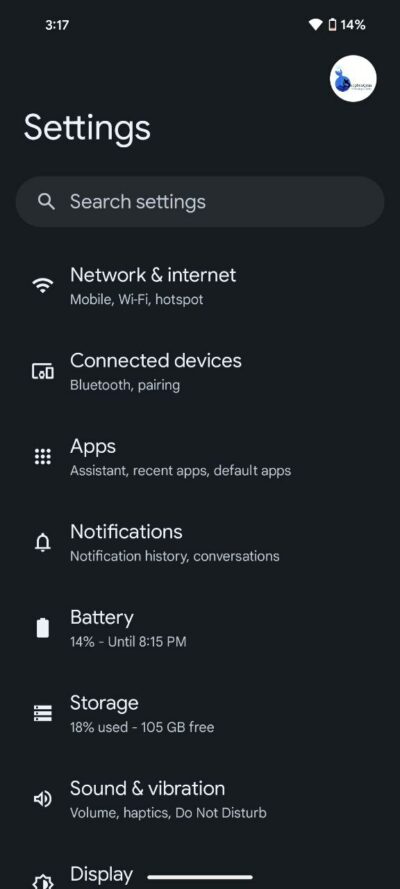
Step 2: Navigate to notifications
Once you’ve entered your phone Settings, proceed to tap on the Notifications option. This will open up the Notifications settings.
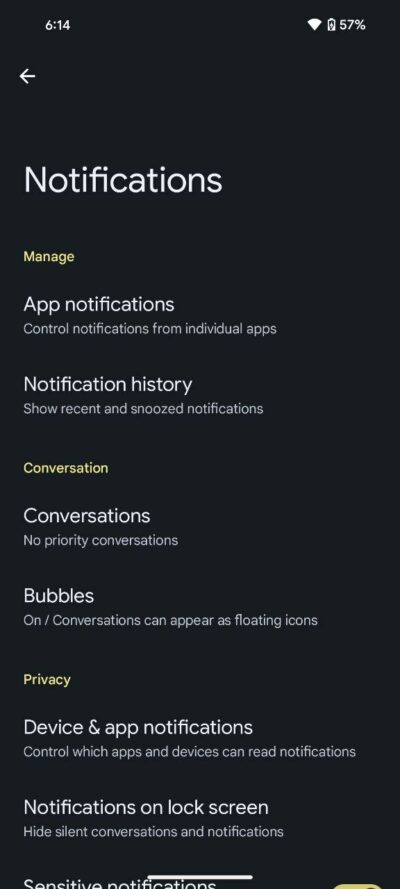
Step 3: Enable Notification History
In the Notifications settings, discover the Notification History option. Activate the on/off slider, signaling your Pixel phone to start logging notifications, a process that kicks off almost instantly.
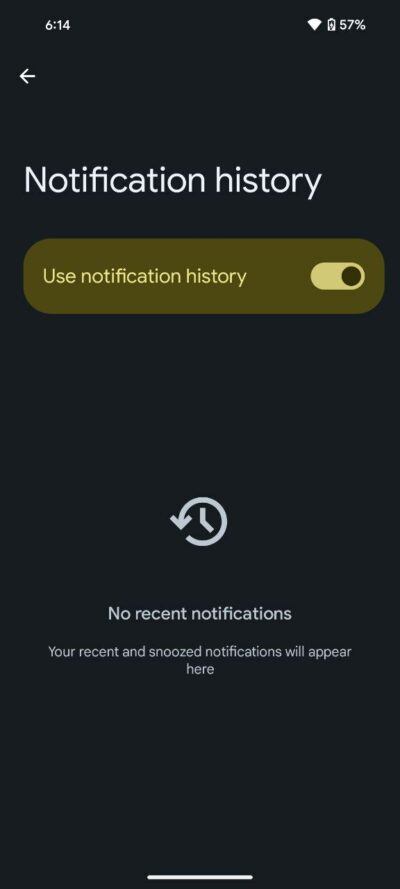
Understanding the Notification History interface and how to access it
Now that Notification History is enabled, let’s explore the three seamless methods to access this invaluable feature.
Method 1: Utilize the notification shade
The quickest way to review your notification History is by pulling down the notification shade once and scrolling down to the bottom of your notifications. Here, a conspicuous History button awaits. A simple tap on this button grants you access to a chronological log of your past 24 hours of notifications.
Within this interface, tapping on any specific notification entry will either launch the corresponding app or direct you to the app’s settings. For instance, clicking on a Facebook notification in the history log seamlessly opens the Facebook app, providing instant access to the source of the notification.
Method 2: Navigate through Settings
Alternatively, you can access your notification History by leveraging the Settings app. Pull down the notification shade twice to unveil a set of options, including the Settings gear icon. Tap on the gear icon, proceed to Notifications, and then select Notification History.
Method 3: Explore the App Drawer
For those who prefer a more hands-on approach, swipe up from the bottom of the screen to open the app drawer. Locate the Settings gear icon, tap on it, and delve into Notifications. Here, you’ll find the coveted Notification History, providing yet another avenue to revisit recent notifications.
Frequently asked questions
Q: Is there a way to see all of your past Android notifications?
A: Regrettably, Android only retains the past 24 hours of notifications to prevent unnecessary clutter in your phone’s local storage. While this limitation ensures optimal device performance, it’s essential to stay vigilant and check your Notification History promptly to avoid missing out on time-sensitive information.

Karanjot Sidhu
1024 Posts
A computer science engineer who loves tech and won't stop talking about it. Here at Piunikaweb, I mostly cover Google Pixel deals and how-tos, though you may find me covering Pixel news as well sometimes. Apart from being a nerd, i love gaming and watching movies in my free time.
Next article View Article