Whether you’re rocking an older Pixel phone or flaunting the latest from the Google Pixel 8 series, one nifty feature you might not have fully embraced is ‘app suggestions’. Rolled out with Android 11, this feature is designed to make your app-finding process a breeze by recommending them right on your home screen or in the bottom app drawer based on your phone activity.
Now, like any tech innovation, opinions on this feature vary. For some, it’s the equivalent of a reliable digital sidekick, an intuitive assistant that anticipates your needs before you even realize them. On the flip side, there are those who perceive it as an unwelcome intruder. The beauty of it all? You’re in control.
Let’s embark on a journey into the nuanced world of managing the ‘app suggestions’ feature. It’s not just a binary choice of enabling or disabling, it’s about crafting an experience that aligns seamlessly with your whims and fancies.
Disable app suggestions on Google Pixel phones
Here are the steps to disable app suggestions on Google Pixel phones:
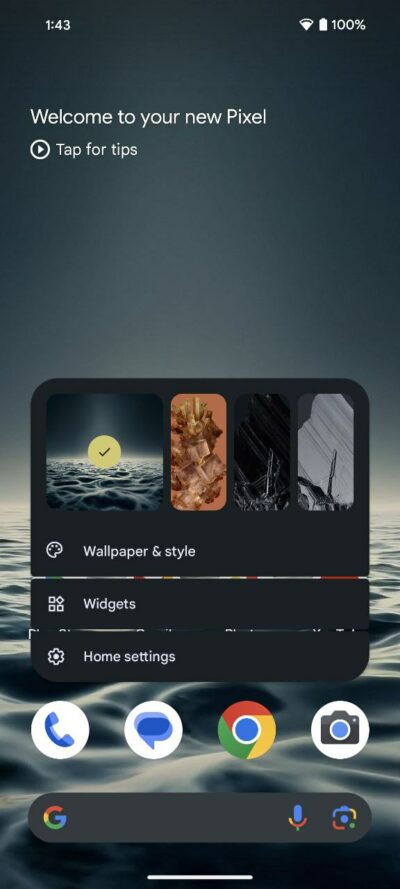
- Long press on an empty space:
Start your journey by giving your screen a good long press on any vacant spot on your Pixel home screen. - Access Home settings:
A pop-up menu will graciously appear. Locate and tap on the ‘Home settings’ option to unveil your phone’s customization secrets. - Navigate to Suggestions:
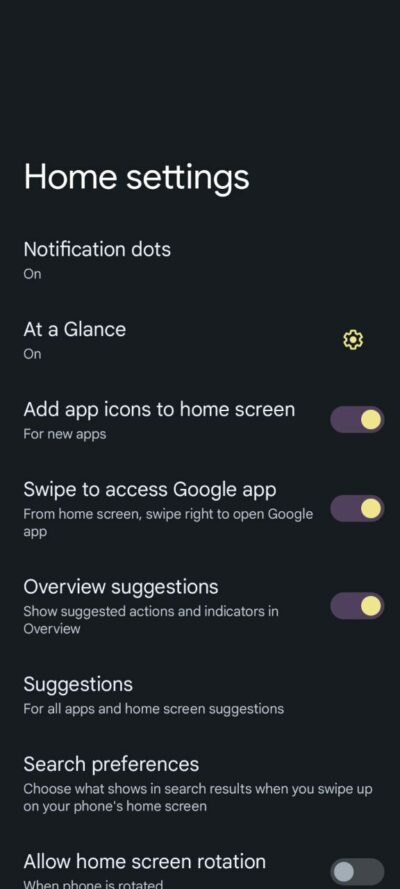
Scroll down like you’re on a quest for hidden treasure until you spot the golden ‘Suggestions’ option. - Disable Suggestions:
Within the Suggestions menu, you’ll find options like ‘Suggestions in all apps list’ and ‘Suggestions on Home screen.’ Banish the bother by toggling off both options.
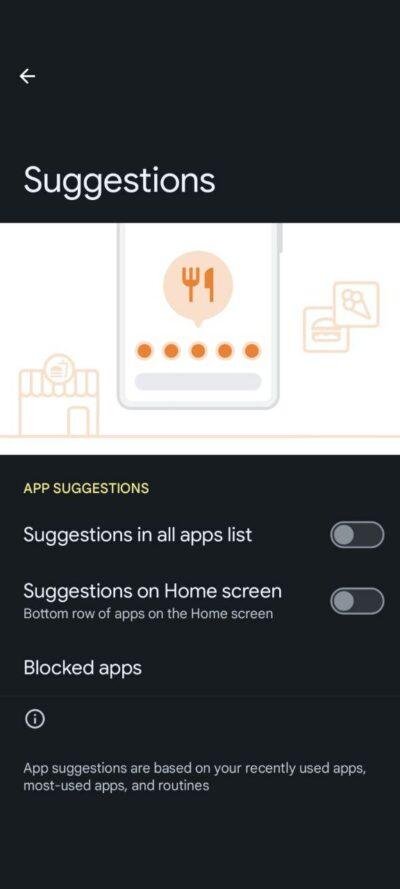
Congratulations! You’ve successfully silenced the app suggestion feature, making your Pixel dance to your tune.
Steps to enable app suggestions
Here are the steps to enable app suggestions on Google Pixel phones:
- Long press on an empty space:
Begin this adventure by tapping into your screen’s potential by long press on any vacant space on your home screen. - Access Home settings:
A menu will pop up and then choose ‘Home settings.’ - Navigate to Suggestions:
Seek out the ‘Suggestions’ option like a detective on the trail of a mystery. - Enable Suggestions:
Within the Suggestions menu, you’ll find switches for ‘Suggestions in all apps list’ and ‘Suggestions on Home screen.’ Bring the magic back by toggling them on.
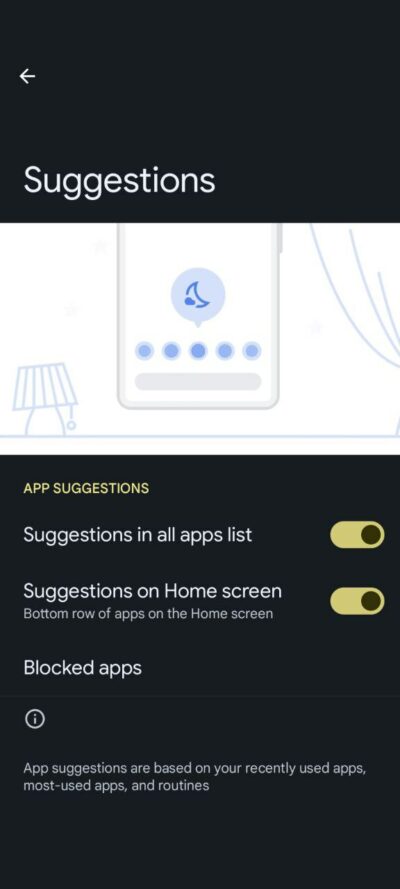
So, whether you want app suggestions or prefer a minimalist approach, your Pixel bends to your will. Your smartphone, your rules. Embrace the simplicity, and let your Pixel be the true extension of your digital self.

Karanjot Sidhu
1024 Posts
A computer science engineer who loves tech and won't stop talking about it. Here at Piunikaweb, I mostly cover Google Pixel deals and how-tos, though you may find me covering Pixel news as well sometimes. Apart from being a nerd, i love gaming and watching movies in my free time.
Next article View Article